
Restore a Photo for a Memorial or Funeral
When you need a photo for a funeral or memorial at short notice, Retrocap can restore it on your iPhone or Android phone in seconds. Repair scratches, creases and fading, sharpen the face and enlarge the image so it prints clearly for a frame, an order of service or a slideshow.


Free to download · iPhone & Android · Private
How to prepare a memorial photo quickly
- 01
Choose and capture the photo
Pick a photo where the face is clear and the expression feels right. Photograph the print flat, in soft daylight, filling the frame.
- 02
Restore and sharpen
Open Restore and turn on Fix Scratches & Tears and Enhance Faces. Use Deep restoration if the print is badly creased or stained.
- 03
Enlarge for printing
Use Enhance with Upscale x2 so the photo holds up when printed for a frame or display, then save it and send it to the printer.
Before and after
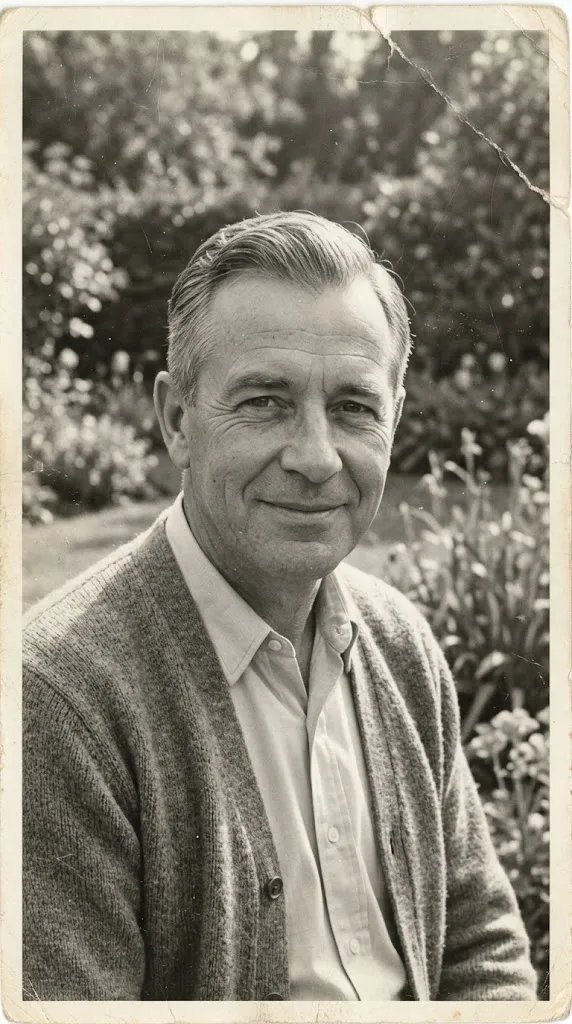
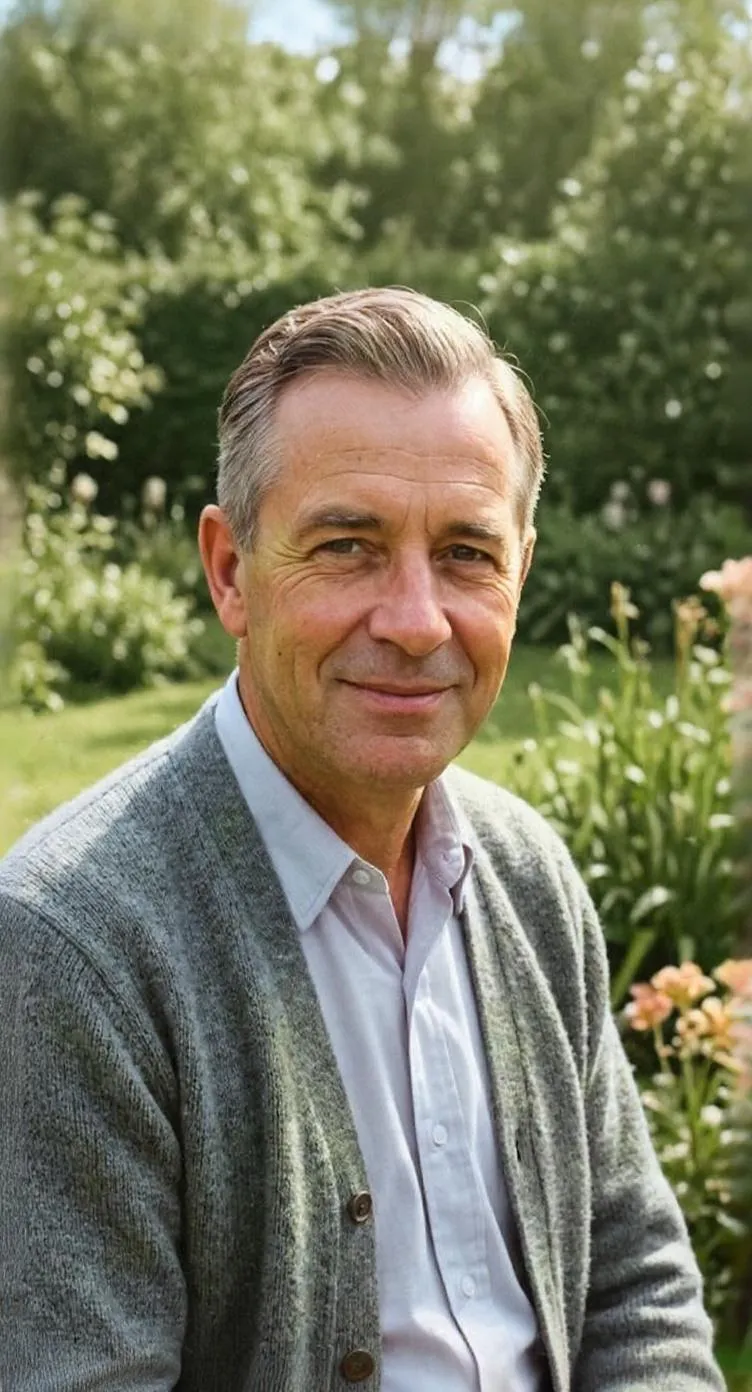
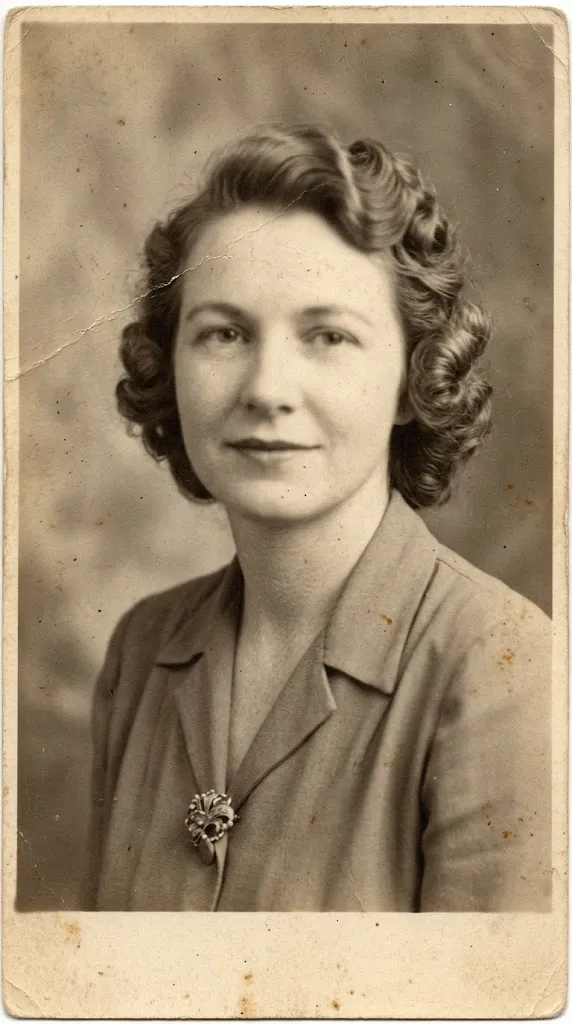
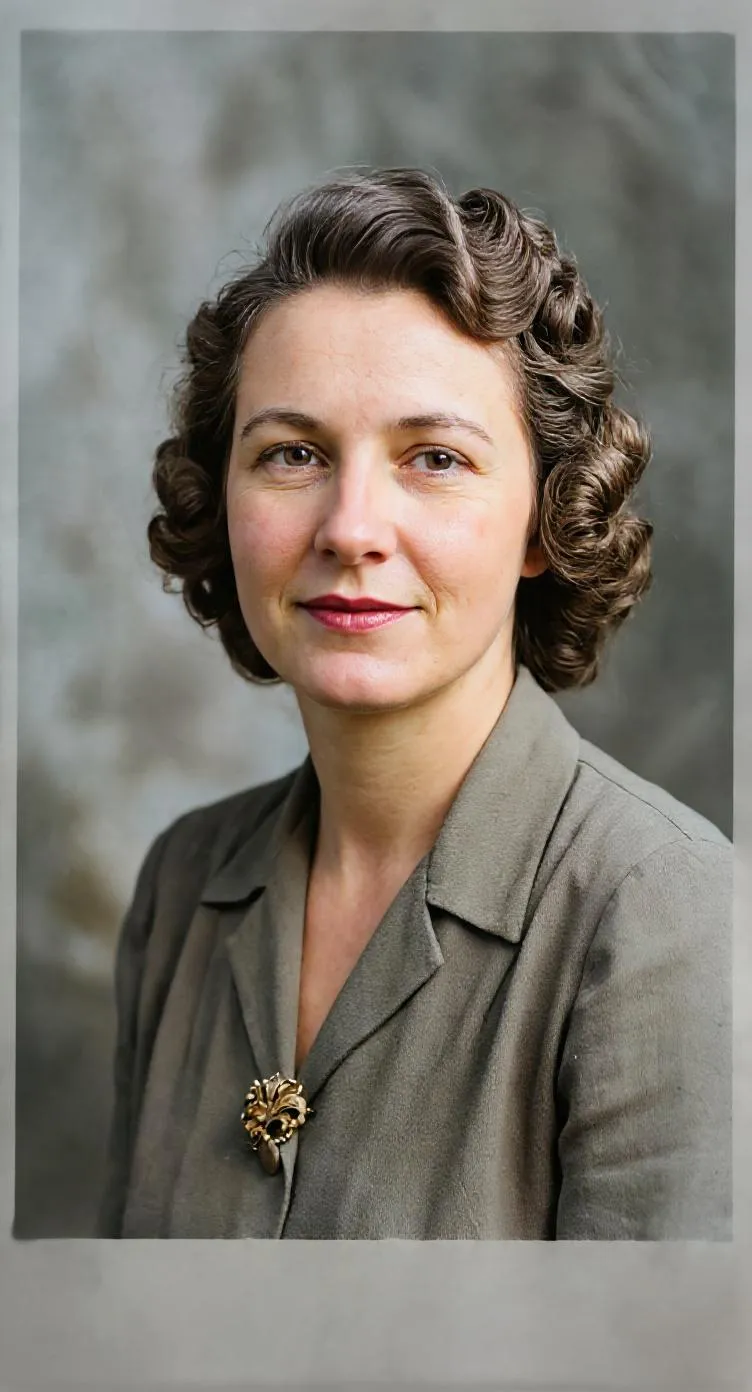
Preparing a photo when time is short
When someone dies, families are often asked for a photo within a day or two: for the order of service, a framed display, a newspaper notice or a slideshow. The best photo is not always the clearest one. It might be a favourite snapshot that has been carried in a wallet for years, creased and faded.
Restoration on your phone means you can work with the photo you actually want to use, rather than the one that happens to be in the best condition. In most cases you can go from the original print to a file ready for the printer in under an hour, most of which is spent choosing the photo and taking a good copy.
Choosing the right photo
A few things make a photo work well at a memorial:
- A clear, reasonably large face. Close-up portraits enlarge better than group photos.
- An expression that feels like them. Families often prefer a natural smile to a formal portrait.
- Simple backgrounds, which keep the attention on the person.
If the best photo is a group shot, crop to the person first and photograph the print as close up as you can, so the face has as much detail as possible.
A gentle approach to restoration
At a memorial, a photo should feel familiar. Use the restoration to remove the creases, stains and fading that distract from the person, and to bring the face back into focus. Then step back and ask whether it still looks like them. A natural result is almost always the right one.
For more on printing restored photos, see our print old photos page, and for detail on sharpening faces, our guide to unblurring a face in an old photo.
Tools you'll use
Restore Old Photos
Repair fading, scratches, tears and stains in one tap.
Enhance Faces
Recover detail in blurry faces, even in group photos.
Enhance Photo Quality
Sharpen blurry, low-resolution photos and upscale them.
Animate Old Photos
Turn old portraits into short videos with natural motion.
Things to keep in mind
- Start early if you can. A same-day print is usually possible, but check your local print shop's turnaround and the size they need.
- Choose a photo where the face is reasonably clear and large. A small face in a group photo will be harder to enlarge.
- Show the restored photo to a close family member before printing. They will notice if anything about the face doesn't look right.
- Keep the restoration natural. A gently restored photo usually feels more fitting than one that looks brand new.
- If you consider an animated portrait for a tribute, ask the closest family first. Some people find it comforting, others don't.
Frequently asked questions
How quickly can I restore a photo for a funeral?
The restoration itself usually takes seconds in Retrocap. Most of the time goes into choosing the photo, capturing a good copy and arranging the print, so a same-day print is often possible.
What size can I print a restored photo?
That depends on the size of the original. Upscale x2 doubles the width and height, which helps the photo hold up in larger prints. Your print shop can confirm whether the file is large enough for the size you need.
Will the restored photo still look like my loved one?
Retrocap is designed to repair damage while keeping the person's features. When a face is heavily damaged, the AI has to fill in detail, so ask a close family member to check the result before printing.
Is it appropriate to use an animated photo at a memorial?
Some families find a gently animated portrait moving, while others prefer a still photo. Ask the closest relatives first, and if you use one, present it as an AI-created tribute.
Your family’s story deserves to be seen again.
Don’t let precious memories fade inside shoe boxes and dusty albums. Restore, colorize and cherish them today.