
Upscale and Restore Old Photos for Printing
Old photos are often too small or too damaged to print at a larger size. Retrocap restores them on iPhone and Android, then Upscale x2 doubles the width and height of the image, so restored family photos print more sharply for frames, albums and canvases. Check the pixel size against the print size before you order.


Free to download · iPhone & Android · Private
How to prepare an old photo for printing
- 01
Capture the largest copy
Photograph the print close up in soft daylight, filling the frame, or use the highest-resolution scan you have.
- 02
Restore, then upscale
Repair damage with Restore, then use Enhance with Upscale x2 to double the width and height of the photo.
- 03
Check the size and print
Compare the pixel size of the saved photo with the table below, then order your print or send the file to a print shop.
Before and after
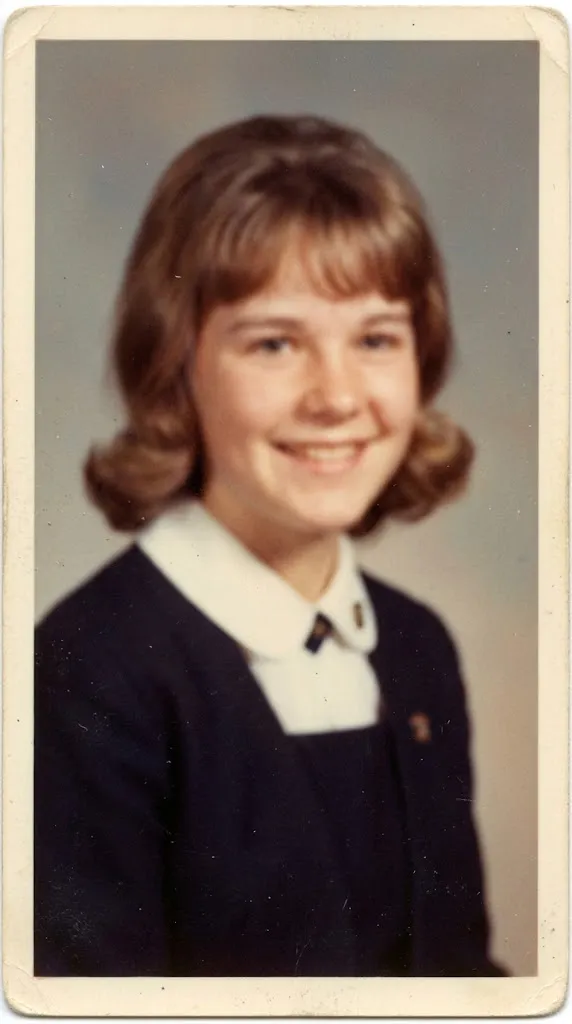
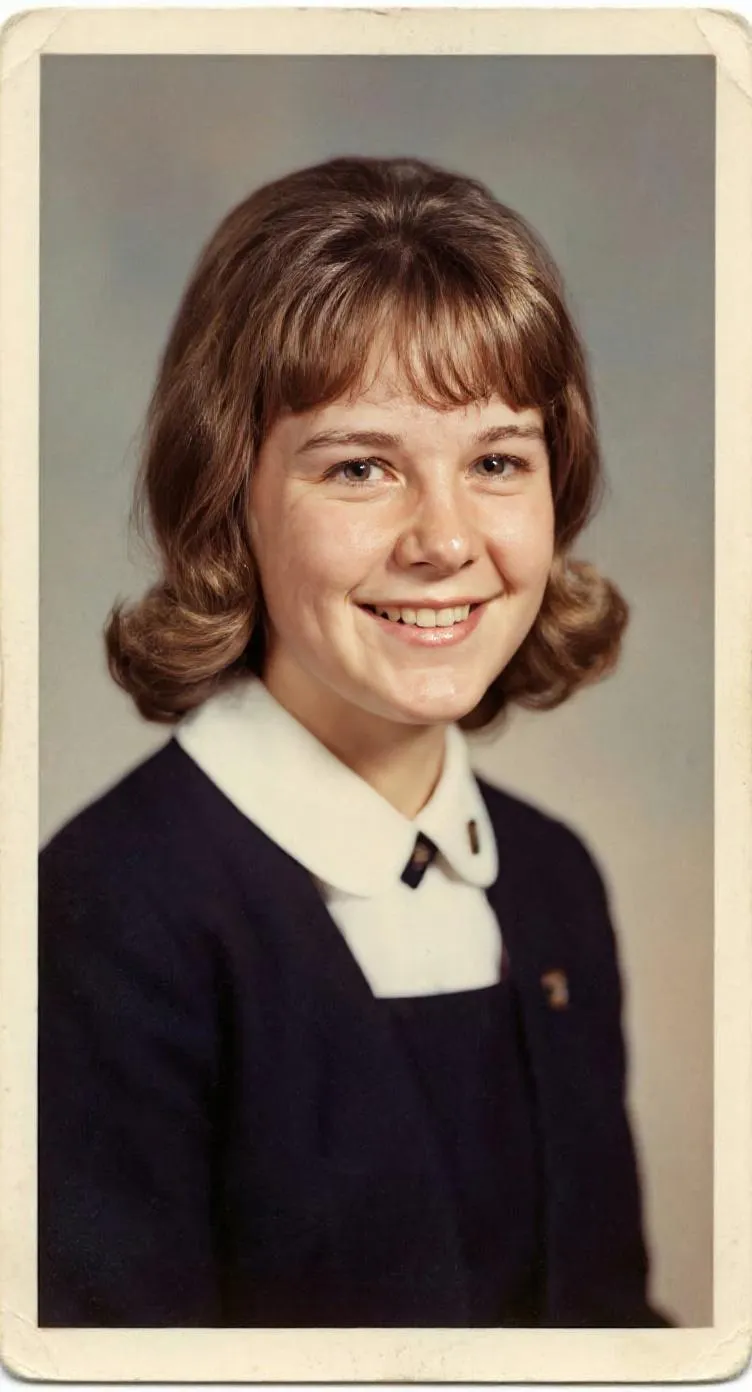
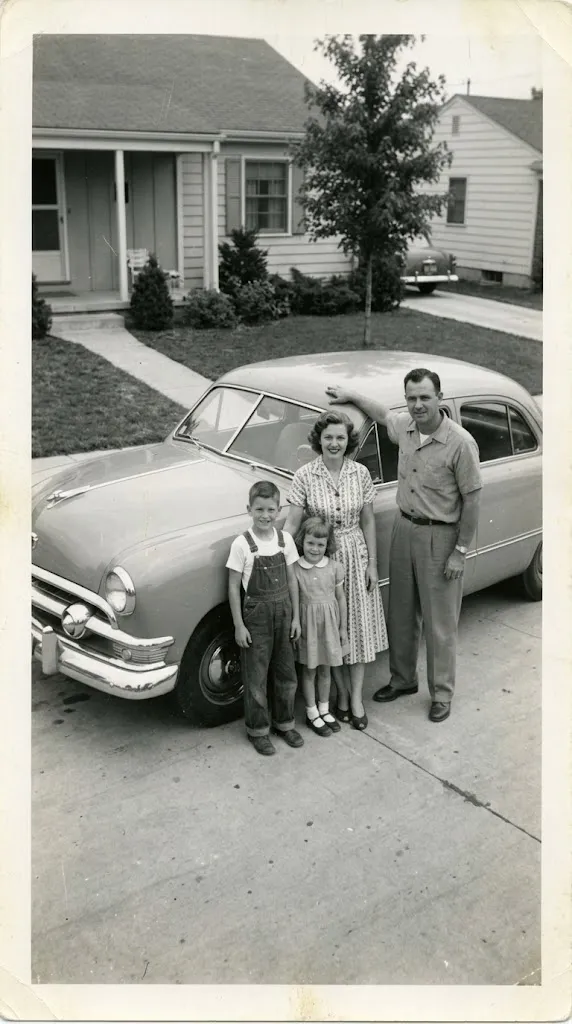
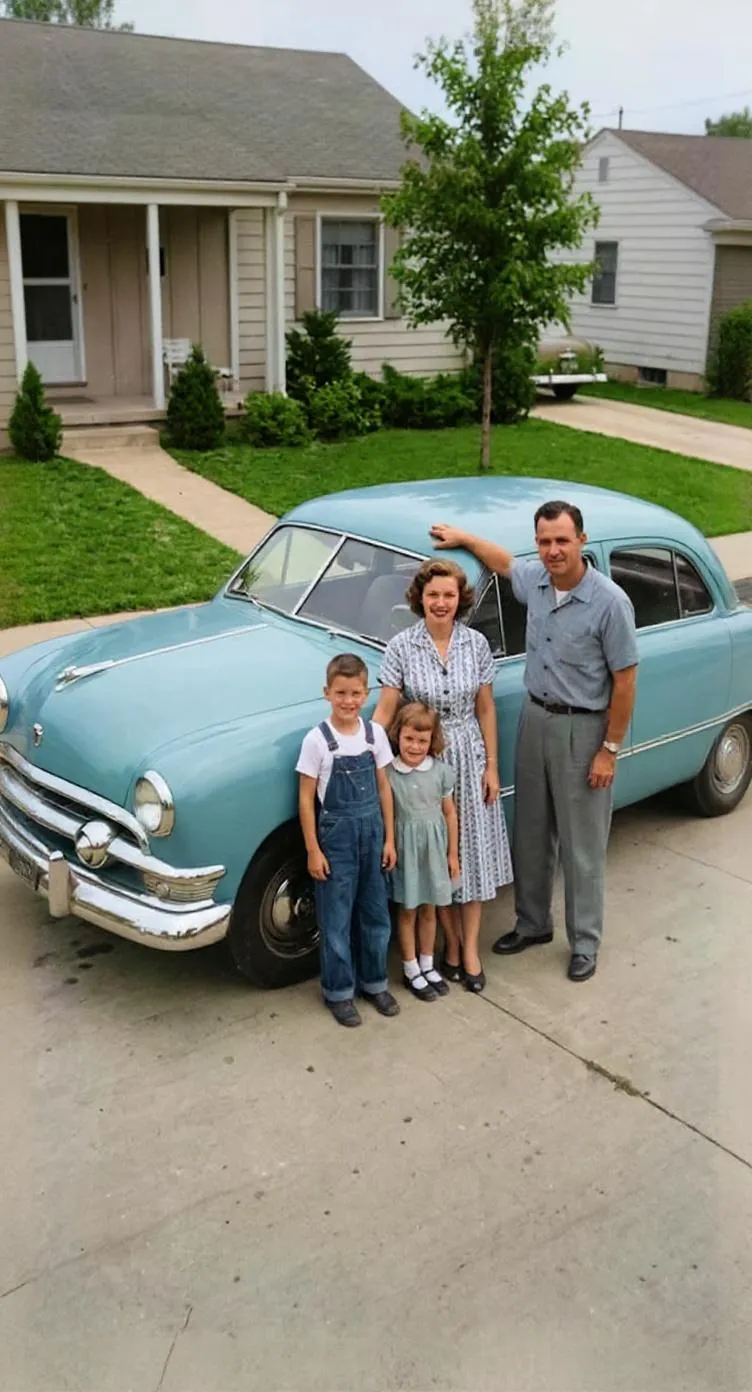
How many pixels do you need for a print?
Print shops usually recommend around 300 pixels per inch for sharp photo prints. Many prints still look good at lower values, especially larger prints viewed from a distance. Use this table as a guide:
| Print size | Sharp (about 300 ppi) | Acceptable (about 200 ppi) |
|---|---|---|
| 6 × 4 in (15 × 10 cm) | 1800 × 1200 px | 1200 × 800 px |
| 7 × 5 in (18 × 13 cm) | 2100 × 1500 px | 1400 × 1000 px |
| 10 × 8 in (25 × 20 cm) | 3000 × 2400 px | 2000 × 1600 px |
| 12 × 8 in (30 × 20 cm) | 3600 × 2400 px | 2400 × 1600 px |
| 16 × 12 in (40 × 30 cm) | 4800 × 3600 px | 3200 × 2400 px |
Canvas and wall prints are viewed from further away, so they can work well with fewer pixels per inch than small framed prints.
How Upscale x2 helps
Upscale x2 in Retrocap’s Enhance tool doubles both the width and the height of your photo, so the image has four times as many pixels. A restored photo of 1500 × 1000 pixels becomes 3000 × 2000 pixels, which moves it from a small print to a comfortable 10 × 8 inch print. The final size always depends on the size of the photo you start with, so begin with the largest copy you can find.
Restore first, then upscale
Upscaling enlarges everything in the photo, including scratches, dust and creases. Run Restore first, with Fix Scratches & Tears and Remove Stains as needed, then upscale the clean version. If the photo is soft, use Sharpen & Deblur before upscaling. Our guide to fixing blurry photos explains how.
Tools you'll use
Restore Old Photos
Repair fading, scratches, tears and stains in one tap.
Enhance Photo Quality
Sharpen blurry, low-resolution photos and upscale them.
Colorize Black and White Photos
Add realistic color to black-and-white and sepia photos.
Enhance Faces
Recover detail in blurry faces, even in group photos.
Printing tips
- Always print from the largest file you have. Photos sent through messaging apps are usually compressed and smaller than the original.
- Restore before upscaling, so scratches and dust aren't enlarged along with the photo.
- For framed prints, glossy or lustre paper usually shows restored detail best; matte paper suits older, softer photos.
- Order a small test print first if you plan a large canvas or wall print.
- Keep a little space around the subject when cropping, so the framer has room to work.
Frequently asked questions
How big can I print a restored photo?
It depends on the pixel size of the file. As a guide, a 6 × 4 inch print looks sharp at about 1800 × 1200 pixels, and a 10 × 8 inch print at about 3000 × 2400 pixels. Upscale x2 doubles the width and height of your photo.
Does upscaling make a photo sharper?
Upscaling enlarges the photo and fills in new detail, which helps it hold up in larger prints. For blurry photos, use Sharpen & Deblur in Enhance as well.
How do I check the pixel size of my photo?
On iPhone, open the photo in Photos and swipe up or tap the info button. On Android, open the photo in Google Photos or your Gallery app and look at the details. The size is shown in pixels, such as 3000 × 2400.
Should I restore or upscale first?
Restore first, then upscale. Upscaling an unrestored photo enlarges the scratches and dust along with the image.
Your family’s story deserves to be seen again.
Don’t let precious memories fade inside shoe boxes and dusty albums. Restore, colorize and cherish them today.