
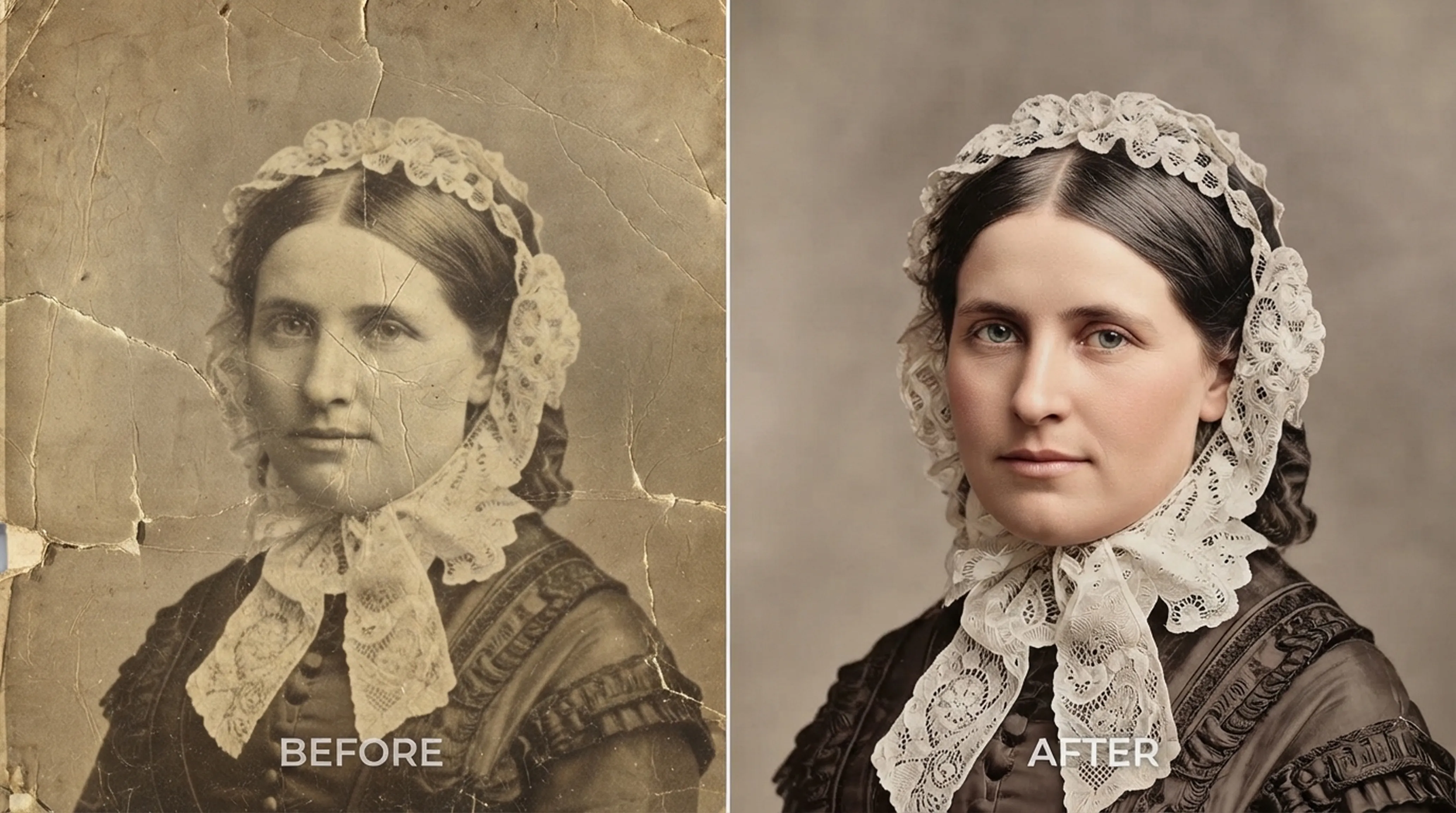
Colorization
How to Colorize Black and White Photos Realistically
What AI colorization can and can’t know about the past, and how to choose the right style for each era.
Retrocap colorizes black-and-white and sepia photos with AI on iPhone and Android. Photograph or import the picture, tap Colorize, pick a Natural, Vivid, Vintage or Cool style, and get a realistic color version in seconds. Your original stays untouched, so you can compare both versions side by side.


Free to download · iPhone & Android · Private
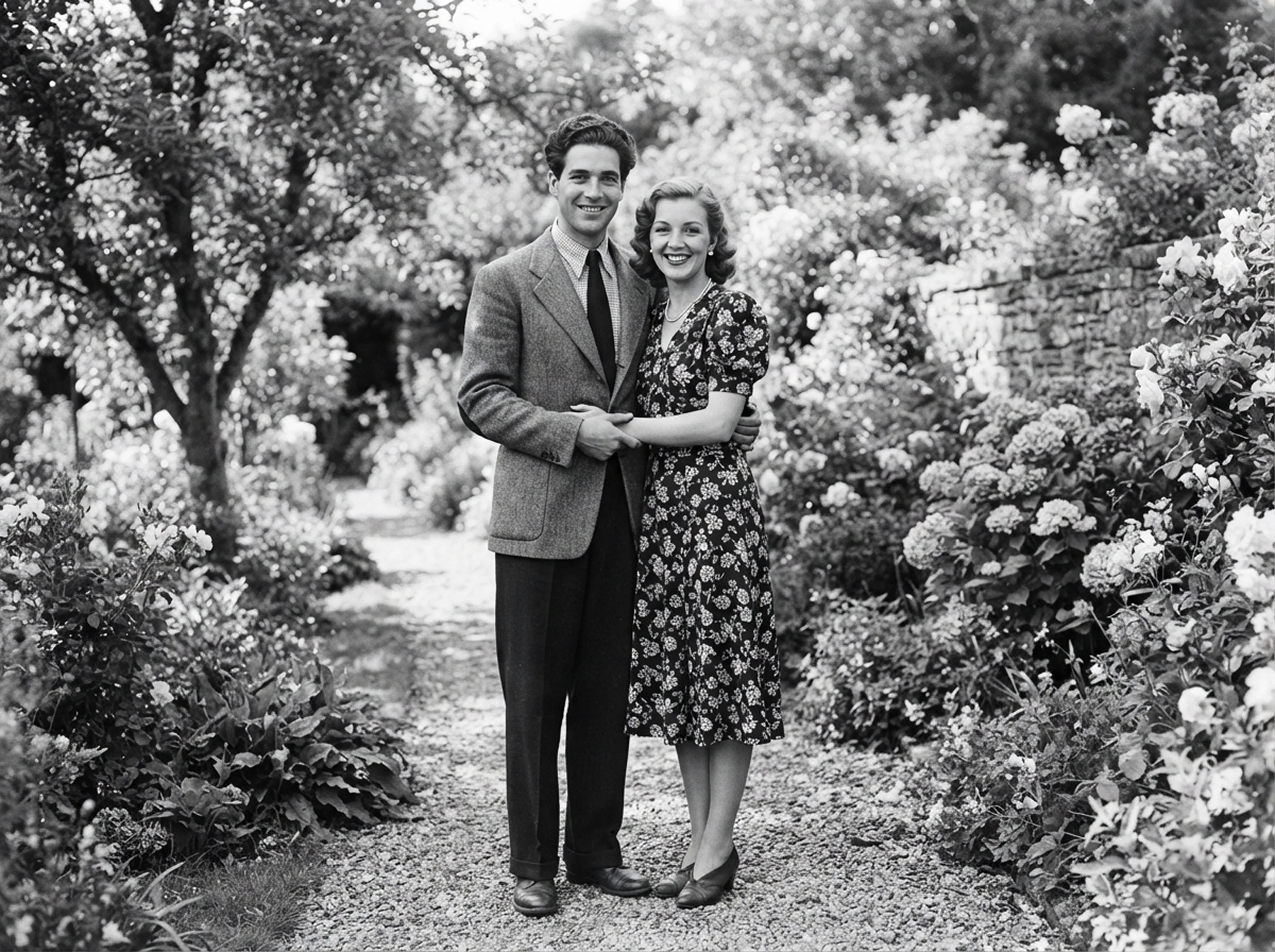
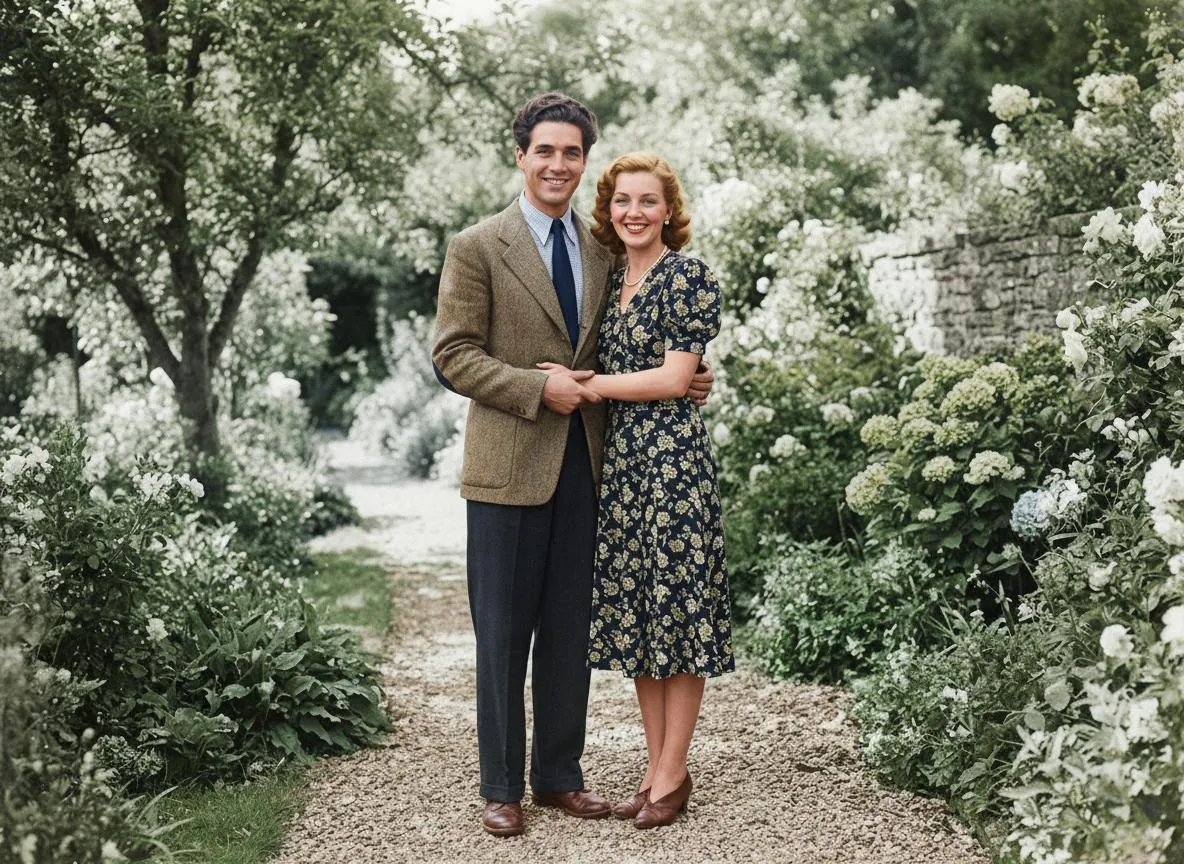
Photograph the print with your phone's camera or import a scan of a black-and-white or sepia photo from your photo library.
Tap Colorize and pick Natural, Vivid, Vintage or Cool. Retrocap's AI adds color to skin, hair, clothing and surroundings in seconds.
Use the slider to compare the color version with the original, then save it or try another style.
Soft, true-to-life tones for skin, fabric and landscapes. A good first choice for most family portraits.
Richer, more saturated color. Works well for outdoor scenes, gardens and photos with lots of clothing detail.
A warm, slightly faded palette that recalls early color film. Keeps the period feel of the original.
A cooler, bluer balance with calm shadows. Suits winter scenes, seaside photos and evening light.
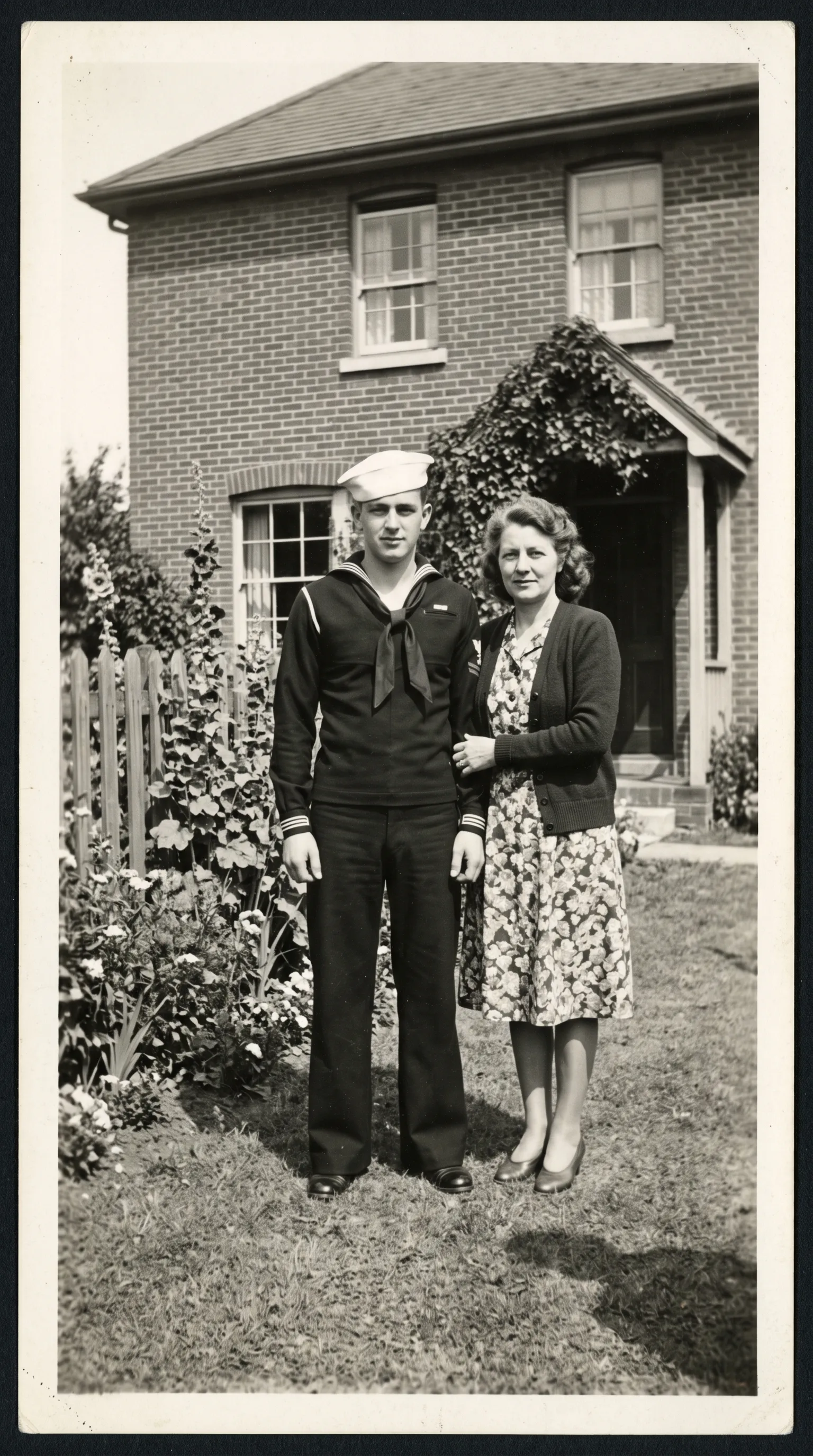
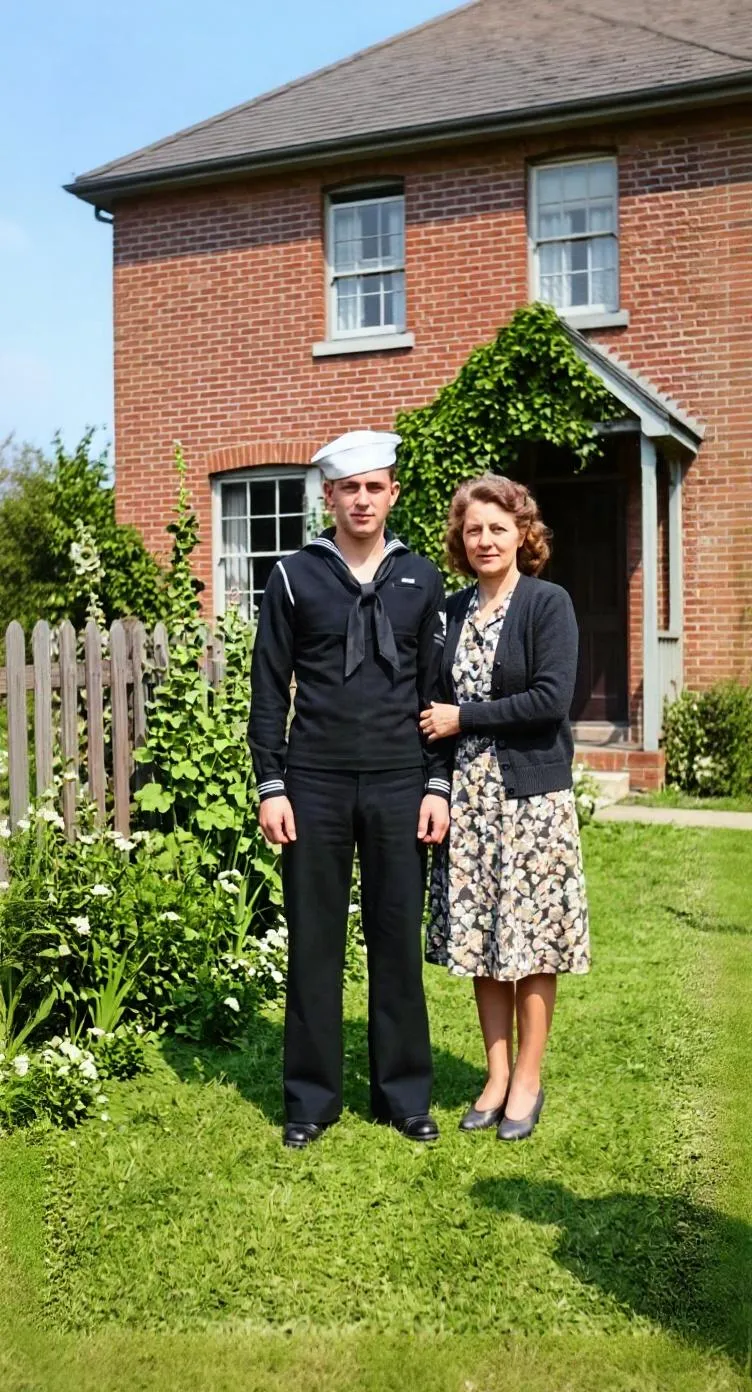
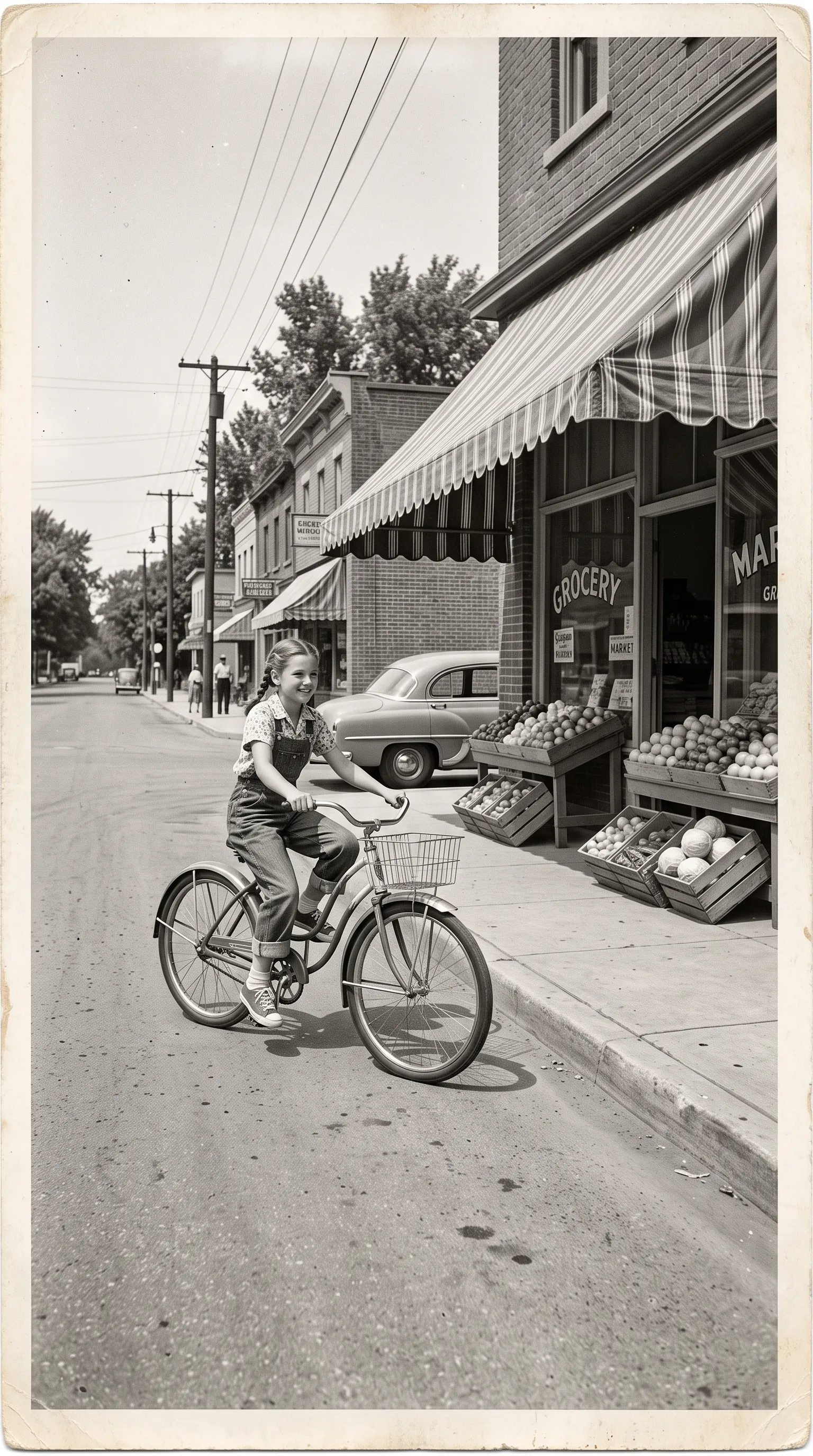
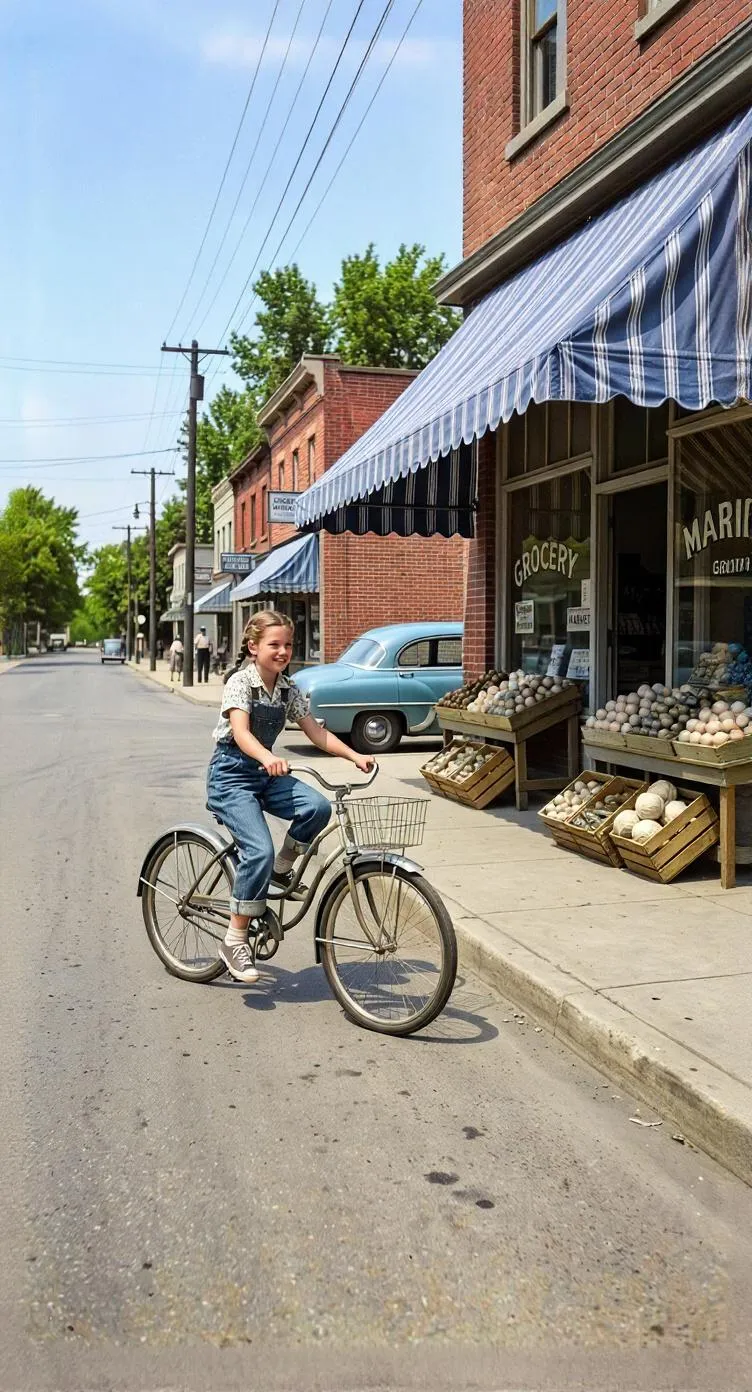
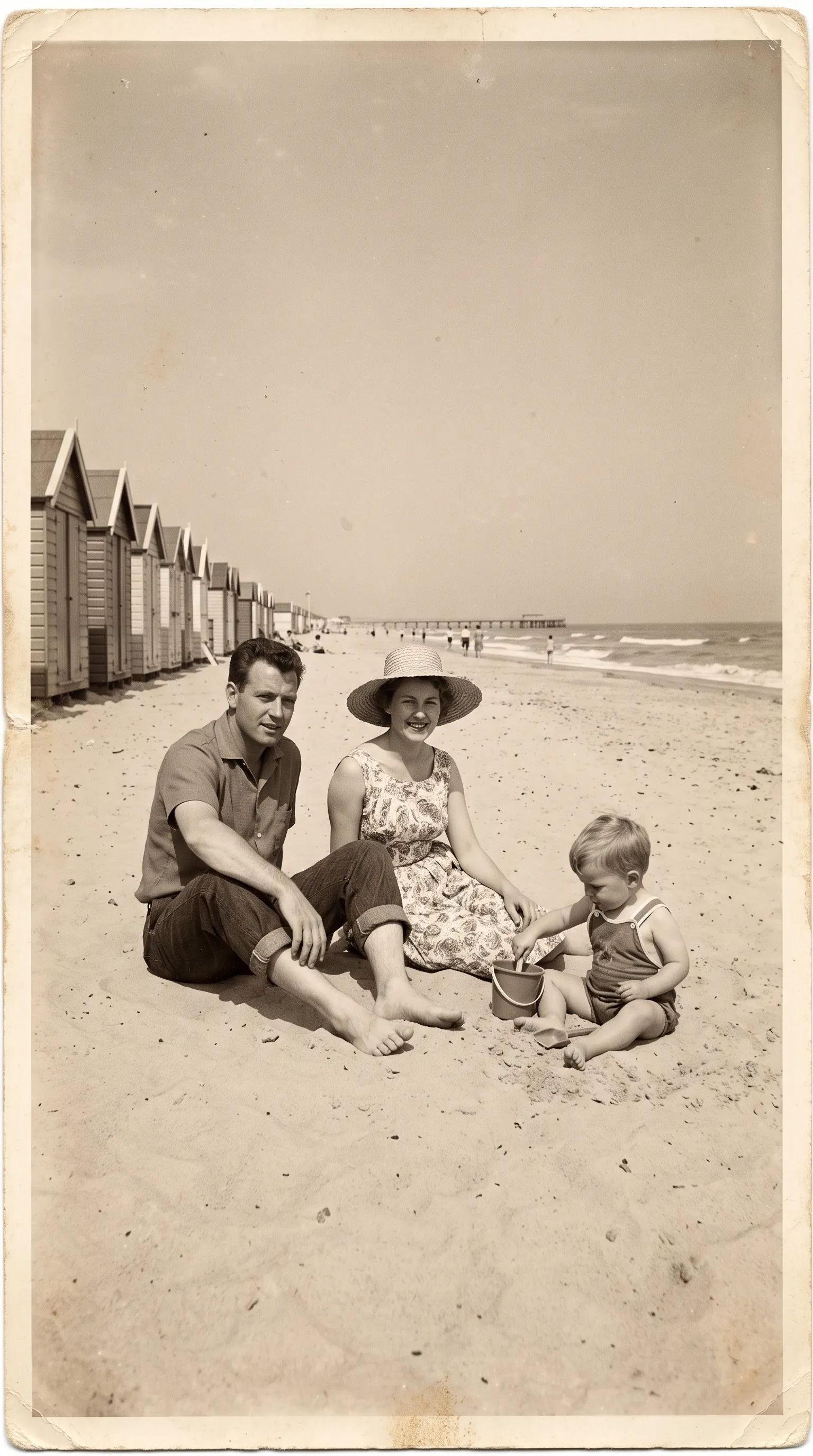
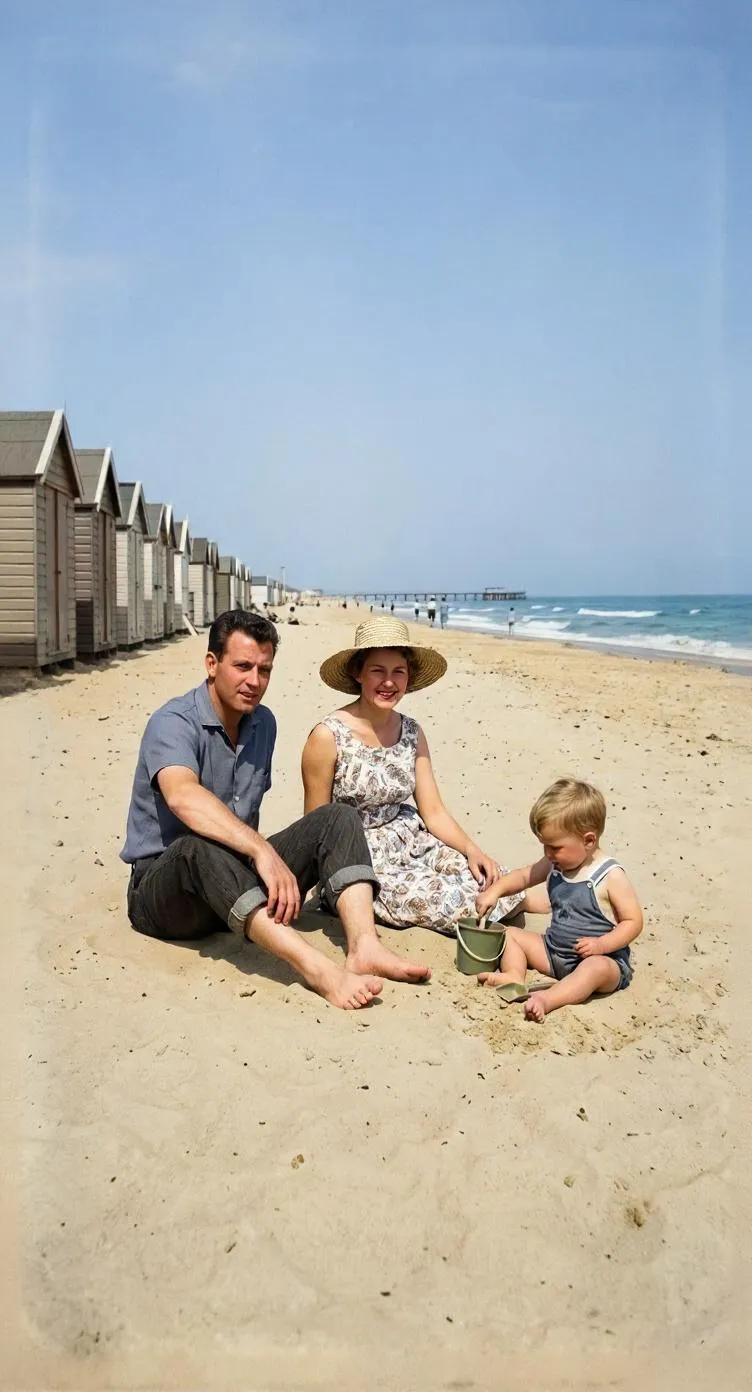
Not exactly, and it is worth knowing why. A black-and-white photo records how bright each part of the scene was, but not its color. A red dress and a green dress can look almost identical in grey. When Retrocap colorizes a photo, its AI predicts the most likely colors from what it has learned: skin tones, sky, grass, fabric, wood and stone.
For many things that prediction is very close. Skies, foliage and skin usually look right. For things that could have been any color, such as a dress, a car or a painted door, the AI makes a plausible choice that may differ from reality.
So treat a colorized photo as a realistic interpretation, not a historical record. If you know the real colors from family memories, share that context alongside the image. And keep the original black-and-white version, because it is still the most faithful record of the moment.
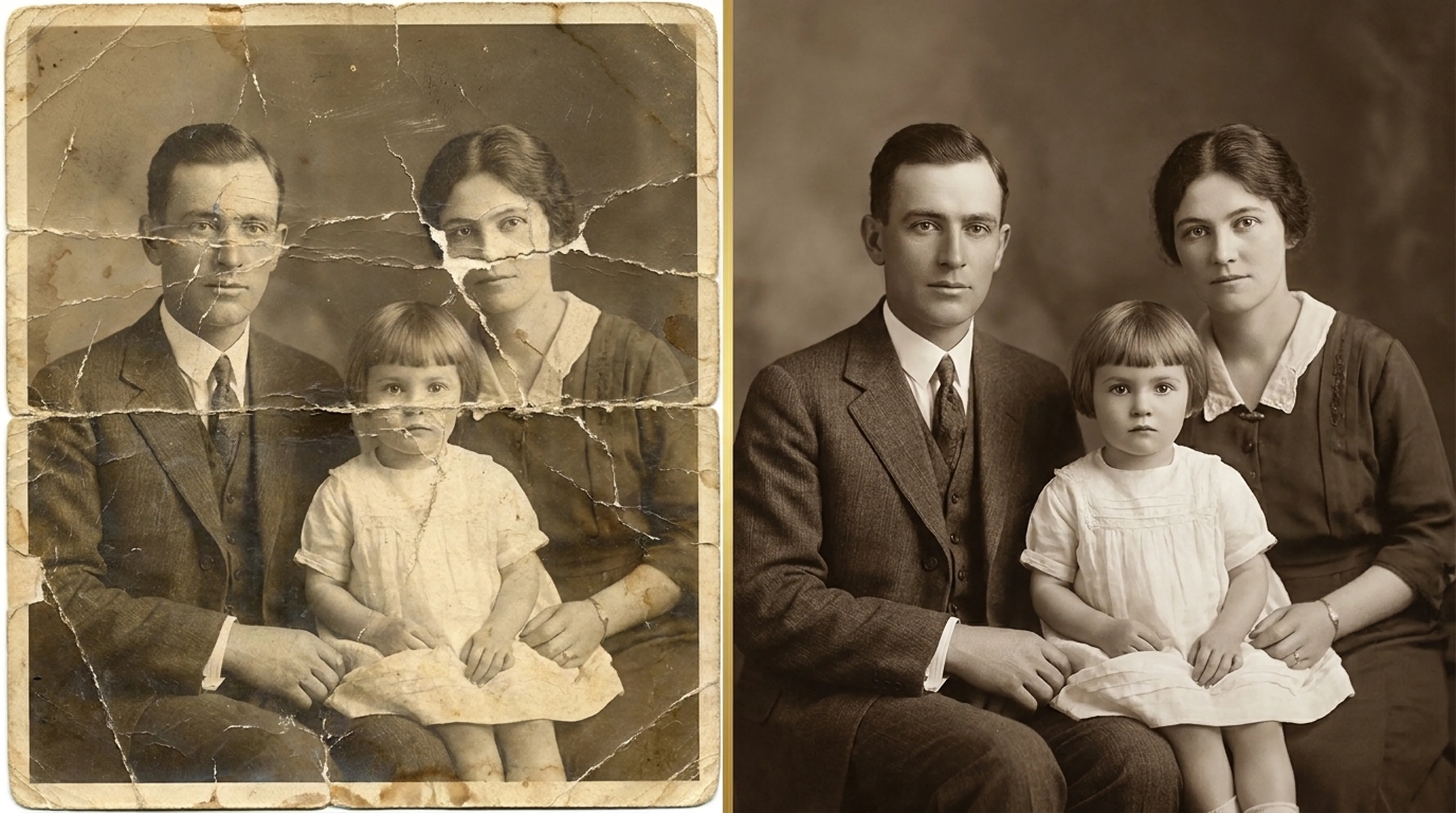
Scratches, tears and stains can confuse colorization. A crease across a face may pick up the wrong tone, and a stain can turn into a strange patch of color. For damaged prints, restore the photo first, then colorize the clean version. For heavy surface damage, use the scratch and tear removal tool before you add color.
Many old photos are not truly black and white. They have turned brown, yellow or pale with age. Retrocap colorizes these prints directly. The AI reads the light and dark areas under the tint, so there is no need to convert the photo to black and white first. Once your photo is in color, you can also bring the portrait to life.
Repair fading, scratches, tears and stains in one tap.
Sharpen blurry, low-resolution photos and upscale them.
Clean up scratches, dust, creases, tears and stains.
Turn old portraits into short videos with natural motion.
Recover detail in blurry faces, even in group photos.
Colorization
What AI colorization can and can’t know about the past, and how to choose the right style for each era.
Beginner guide
Step-by-step instructions on handling vintage prints, digitizing delicate negatives and using AI tools safely.
Common questions about how Retrocap handles this.
AI can add realistic, natural-looking color to black-and-white and sepia photos. Retrocap lets you choose a Natural, Vivid, Vintage or Cool style. Because the original colors were never recorded, the result is a realistic interpretation rather than an exact reconstruction.
You choose the overall style: Natural, Vivid, Vintage or Cool. Retrocap's AI then picks the individual colors. If a result doesn't feel right, try another style and compare.
Yes. Retrocap colorizes sepia, brown-toned and faded prints as well as black-and-white photos.
Colorization is designed to add color without redrawing the face. Facial features stay as they are in the original; skin, hair and eye tones are added on top.
Retrocap is free to download. Colorizing uses credits, which come with a weekly or yearly subscription or with one-time token packs available inside the app.
No. Colorization doesn't blur or shrink the photo. The color version keeps the detail of the original and is saved in high resolution.
Yes. Colorized photos are saved in high resolution, sharp enough for printing at common photo sizes.
Don’t let precious memories fade inside shoe boxes and dusty albums. Restore, colorize and cherish them today.