
Beginner guide
How to Restore Old Photos: A Complete Beginner’s Guide
Step-by-step instructions on handling vintage prints, digitizing delicate negatives and using AI tools safely.
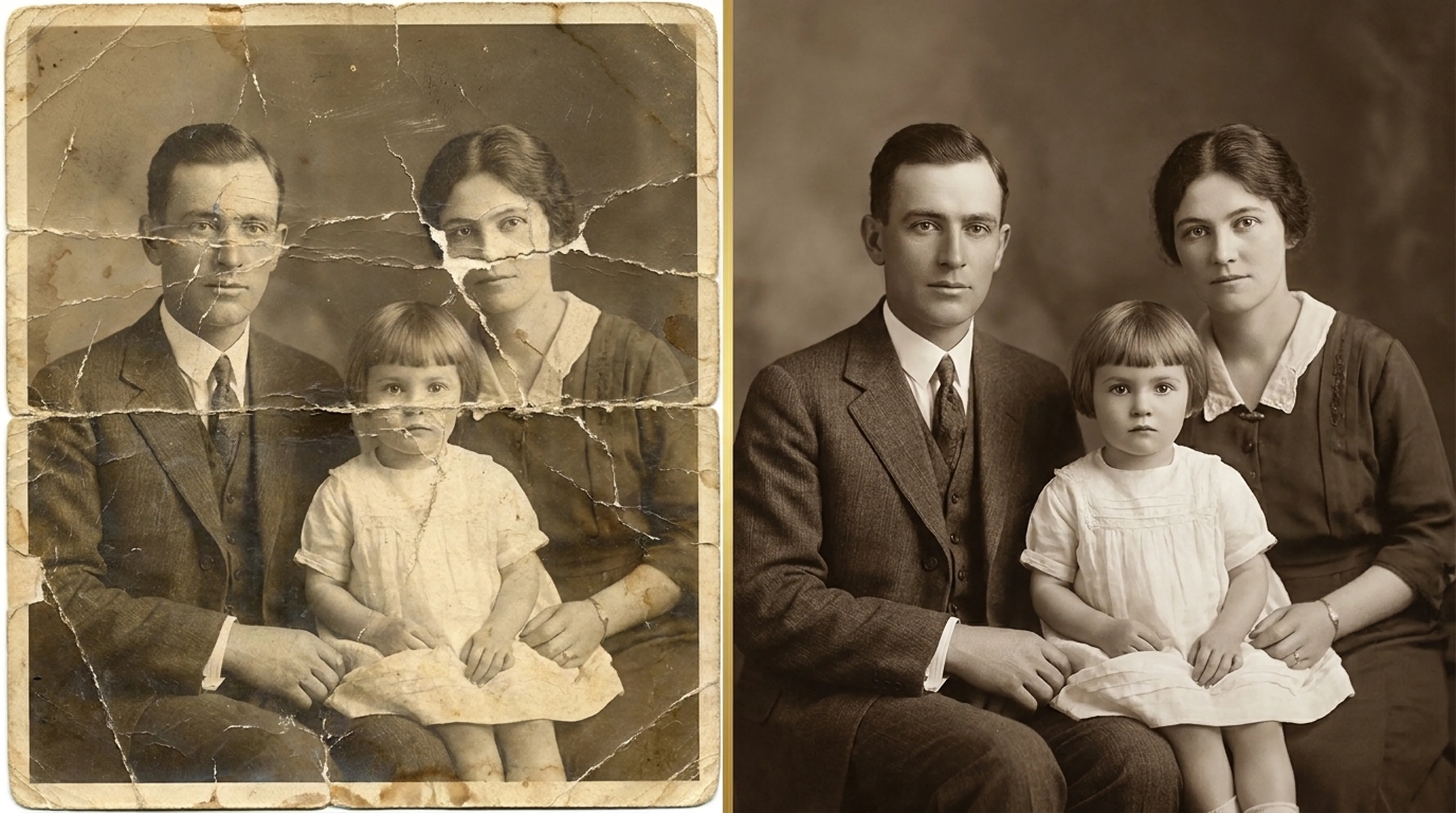
Retrocap sharpens blurry faces in old photos with AI on iPhone and Android. Choose a photo, open Restore and turn on Enhance Faces, and Retrocap recovers detail in eyes, skin and hair in seconds, working from the features that are visible in the photo. It works on single portraits and on small faces in group photos.


Free to download · iPhone & Android · Private

Pick a portrait or group photo from your library, or photograph a print with your phone's camera.
Open Restore and turn on Enhance Faces. Retrocap's AI finds every face in the photo and recovers detail in eyes, skin and hair.
Zoom in and use the slider to compare each face with the original, then save the result.
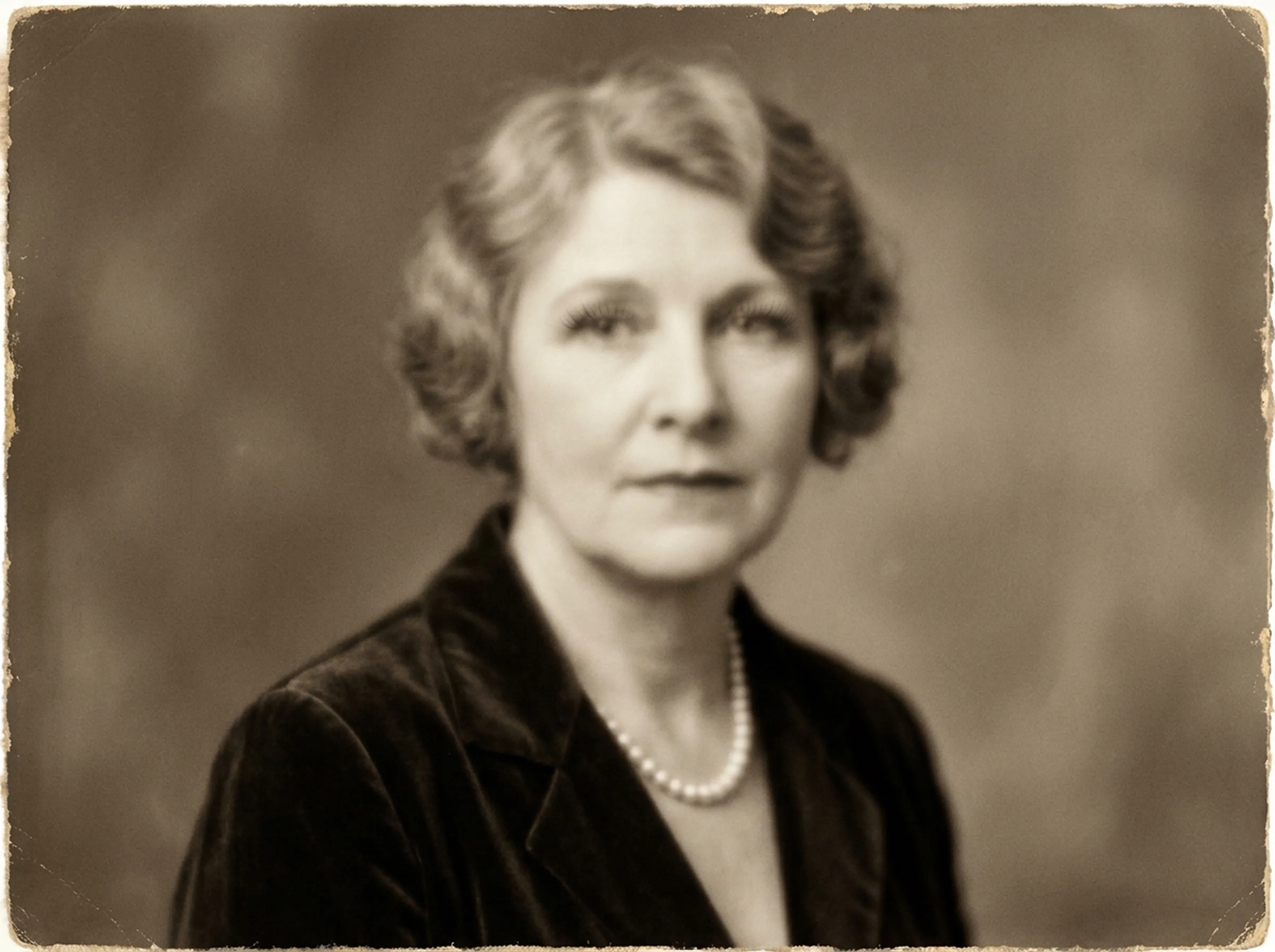
Soft, unfocused eyes become clearer, with visible irises and lashes. This is often the biggest difference in a portrait.
Blur and grain are reduced while natural skin texture is kept. Faces don't look airbrushed.
Individual strands and hairstyles become visible again, which helps date and recognize a photo.
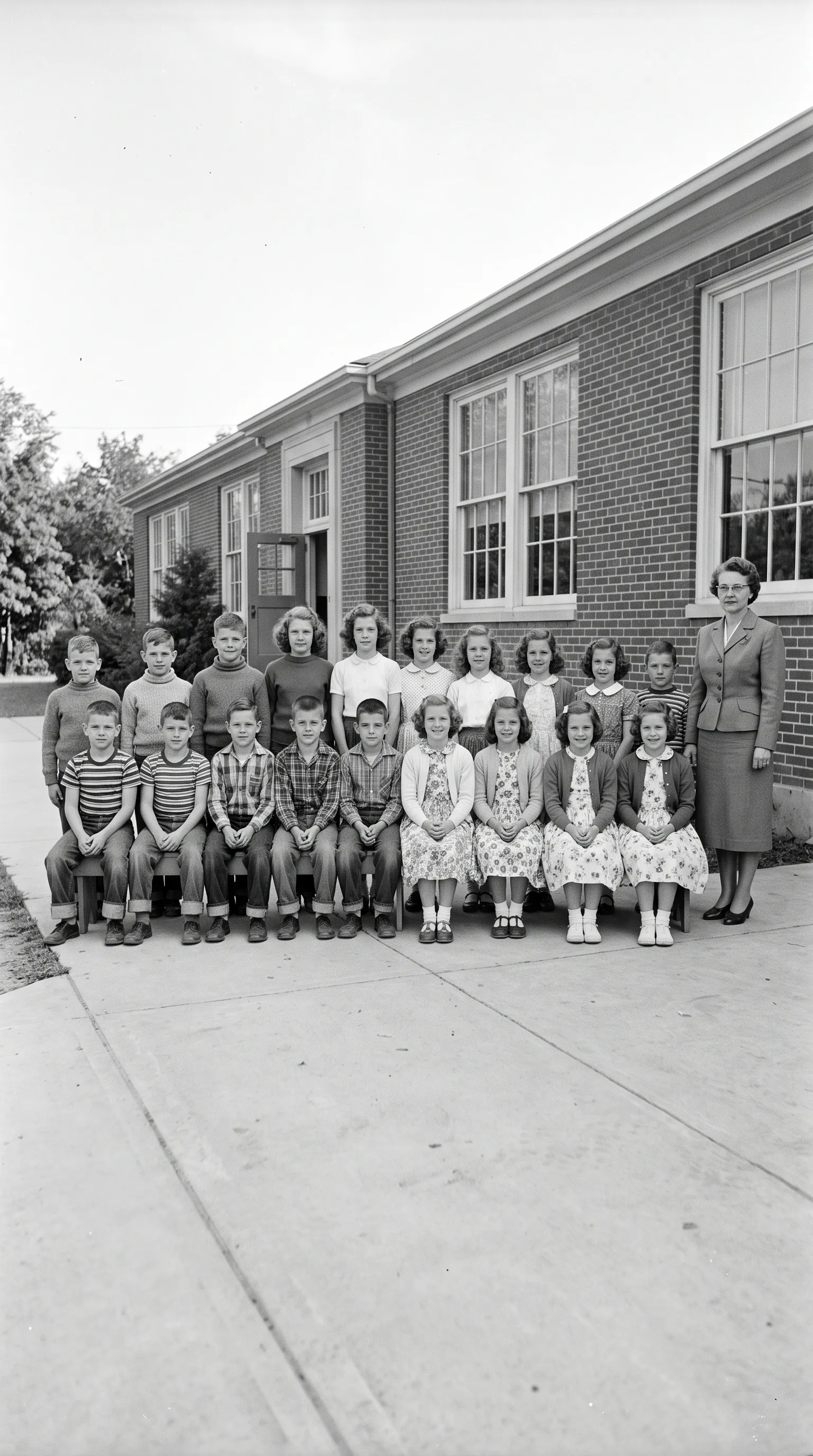
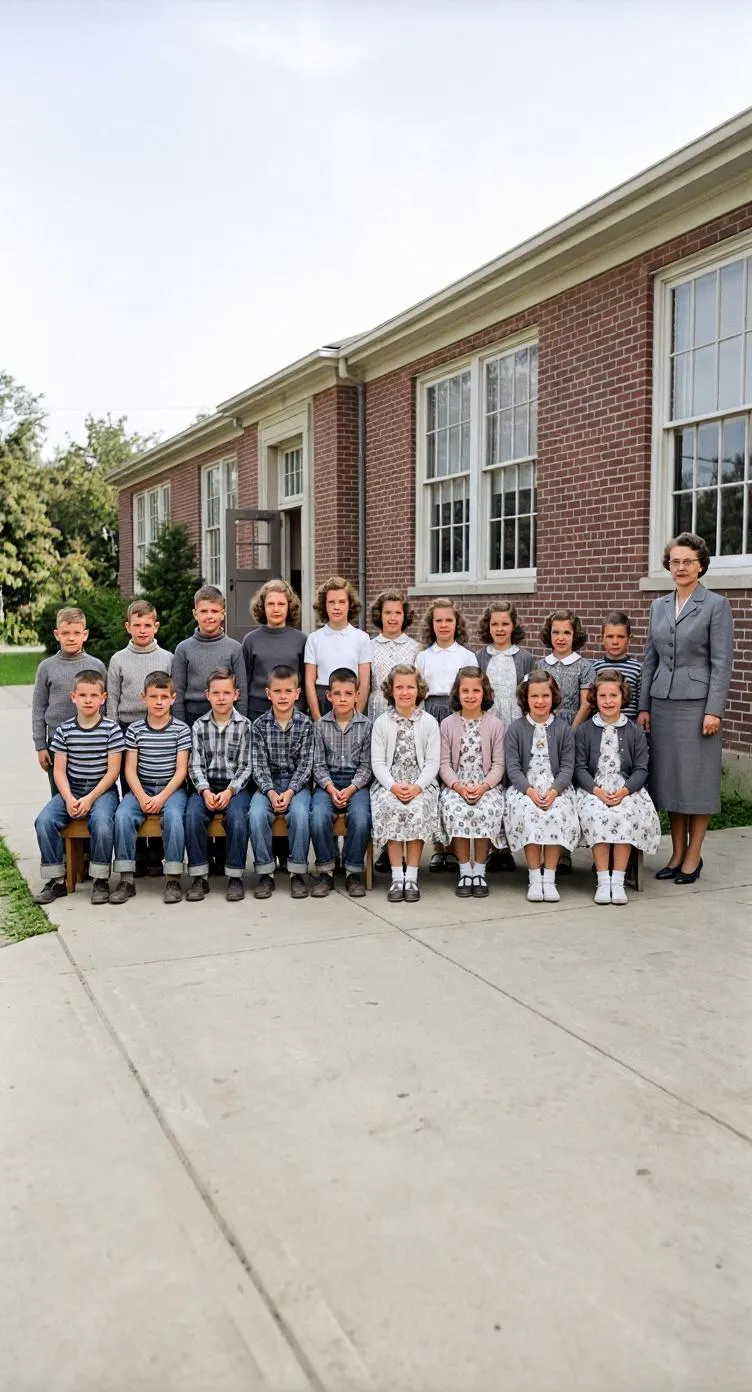
Faces at the back of a wedding or class photo are enhanced individually, not just the largest one.
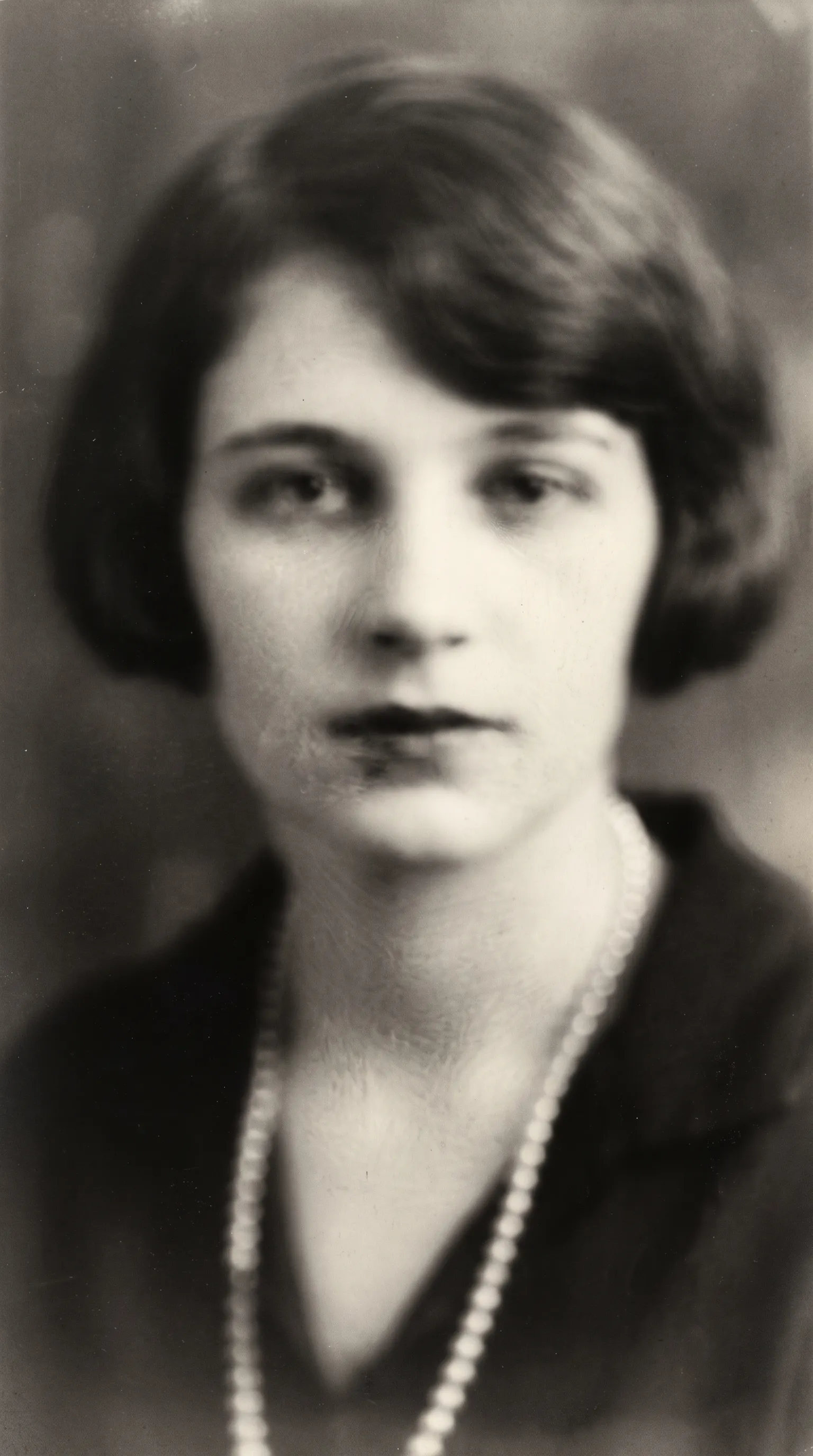

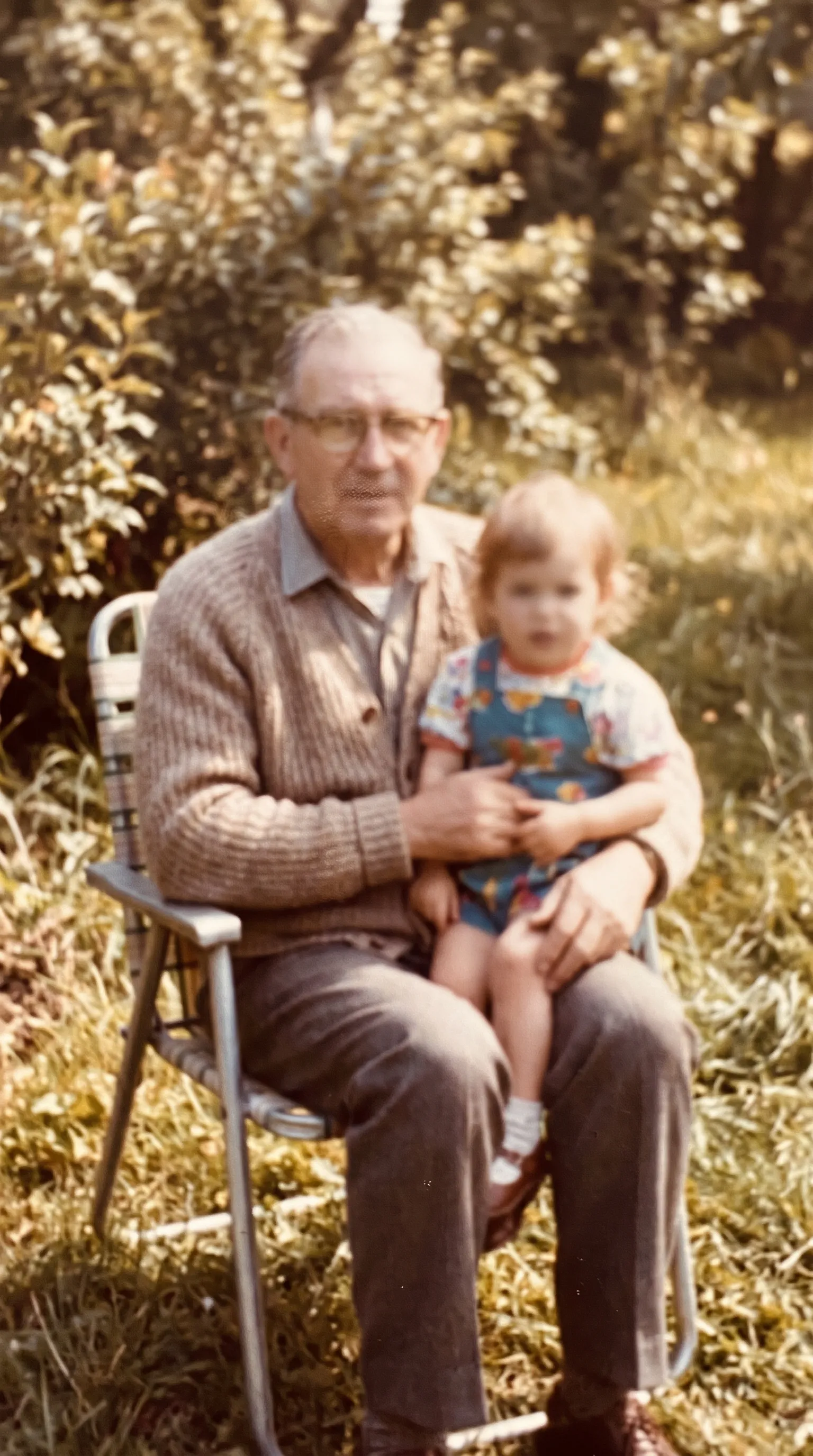
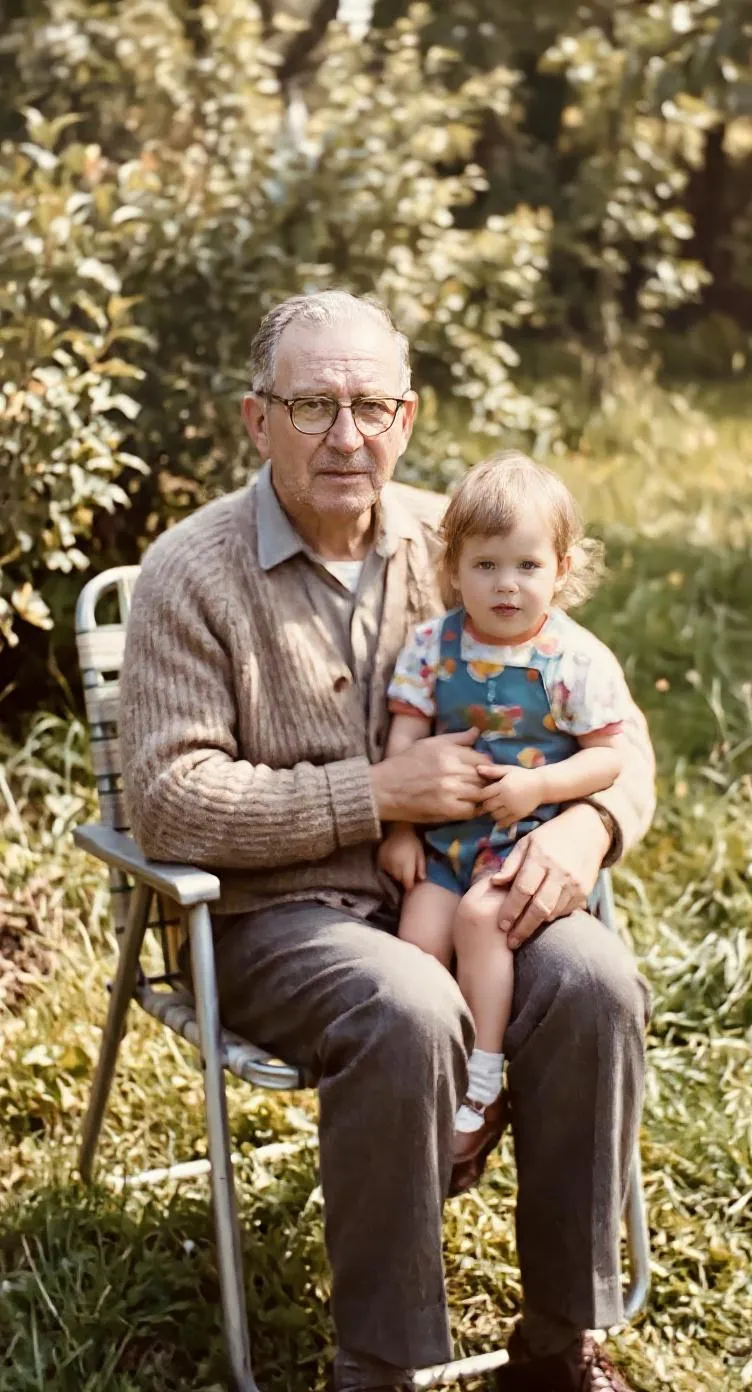
This is the most important question for any family photo, and the honest answer is: usually, but check. Retrocap’s face enhancement works from the features that are visible in the photo, such as the shape of the eyes, the line of the mouth and the hairline. When those are reasonably clear, the enhanced face looks like a sharper version of the same person.
When a face is very small or very blurry, there is less to work from. The AI then fills in more detail based on what faces generally look like, and the result can drift from the real person. That is why the slider matters: compare each face with the original, and ask someone who knew the person if you’re unsure.
Weddings, class photos and family reunions often have dozens of faces, each only a few pixels wide. Retrocap enhances every face it detects, not just the largest one. For the best result, photograph the print close up or scan it at a high resolution, so each face starts with as much detail as possible.
Enhance Faces is an option inside Restore, so you can repair damage and sharpen faces in one step: turn on Fix Scratches & Tears or Remove Stains together with Enhance Faces. If the whole photo is soft, dark or small rather than damaged, use Enhance to sharpen, fix exposure or upscale it.
Repair fading, scratches, tears and stains in one tap.
Add realistic color to black-and-white and sepia photos.
Sharpen blurry, low-resolution photos and upscale them.
Clean up scratches, dust, creases, tears and stains.
Turn old portraits into short videos with natural motion.
Beginner guide
Step-by-step instructions on handling vintage prints, digitizing delicate negatives and using AI tools safely.
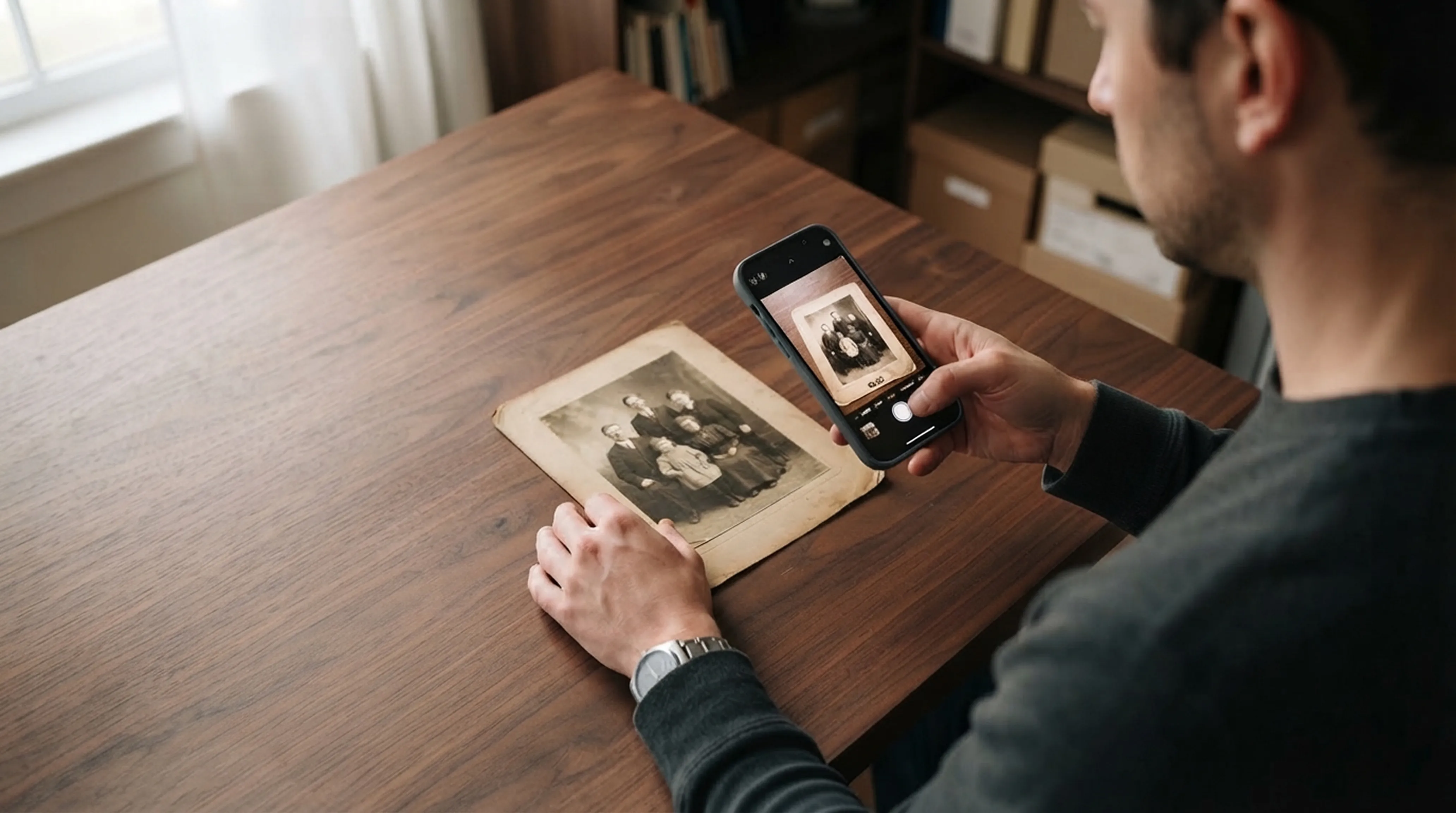
Scanning technique
Lighting tricks, angle secrets and lens cleaning practices for getting flatbed scanner quality from your smartphone.
Common questions about how Retrocap handles this.
Retrocap is designed to sharpen the features that are already in the photo, so most results look like the person. When a face is very blurry or tiny, the AI has to fill in more detail, so compare the result with the original.
Yes. Retrocap detects the faces in a photo and enhances each one, including smaller faces in the background.
It can improve them, but results are limited by how many pixels each face has. Photograph or scan the print as large as possible before enhancing.
Your photos are used only to create your results and are never sold. You can delete your photos and data from the app at any time. Our privacy policy explains this in detail.
Yes. Enhance Faces is an option in Restore, so you can turn it on together with Fix Scratches & Tears and Remove Stains and repair the photo in one step.
Yes. The enhanced photo is saved as a new copy, so your original stays unchanged in your library.
Don’t let precious memories fade inside shoe boxes and dusty albums. Restore, colorize and cherish them today.