
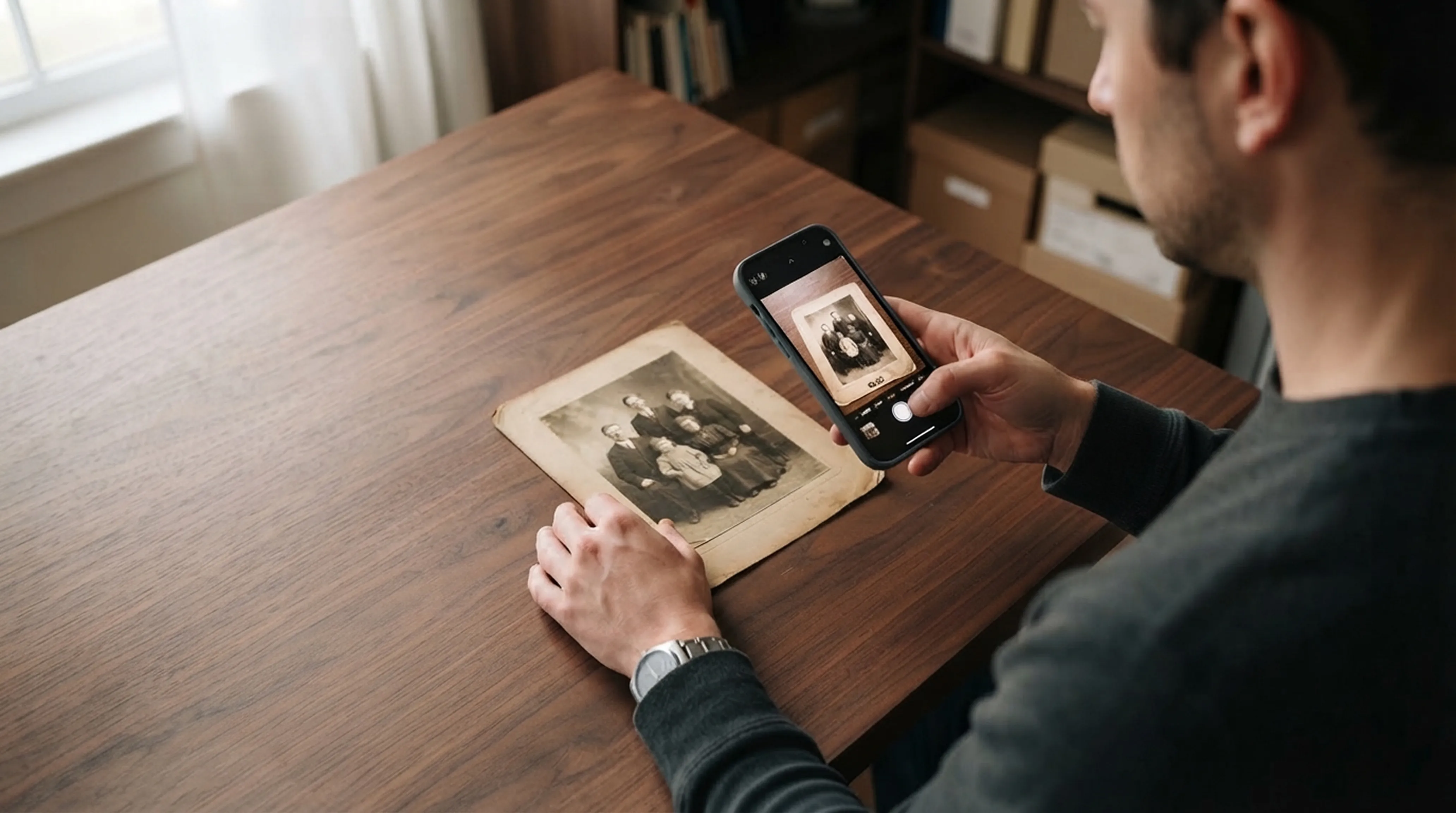
Scanning technique
How to Scan Old Photos with Your Phone Without Glare
Lighting tricks, angle secrets and lens cleaning practices for getting flatbed scanner quality from your smartphone.
Retrocap enhances blurry, dark and low-resolution photos with AI on iPhone and Android. Choose a photo, tap Enhance and pick Sharpen & Deblur, Fix Exposure, Color Correction or Upscale x2. In seconds, old pictures look clearer on screen and hold up better in print.


Free to download · iPhone & Android · Private
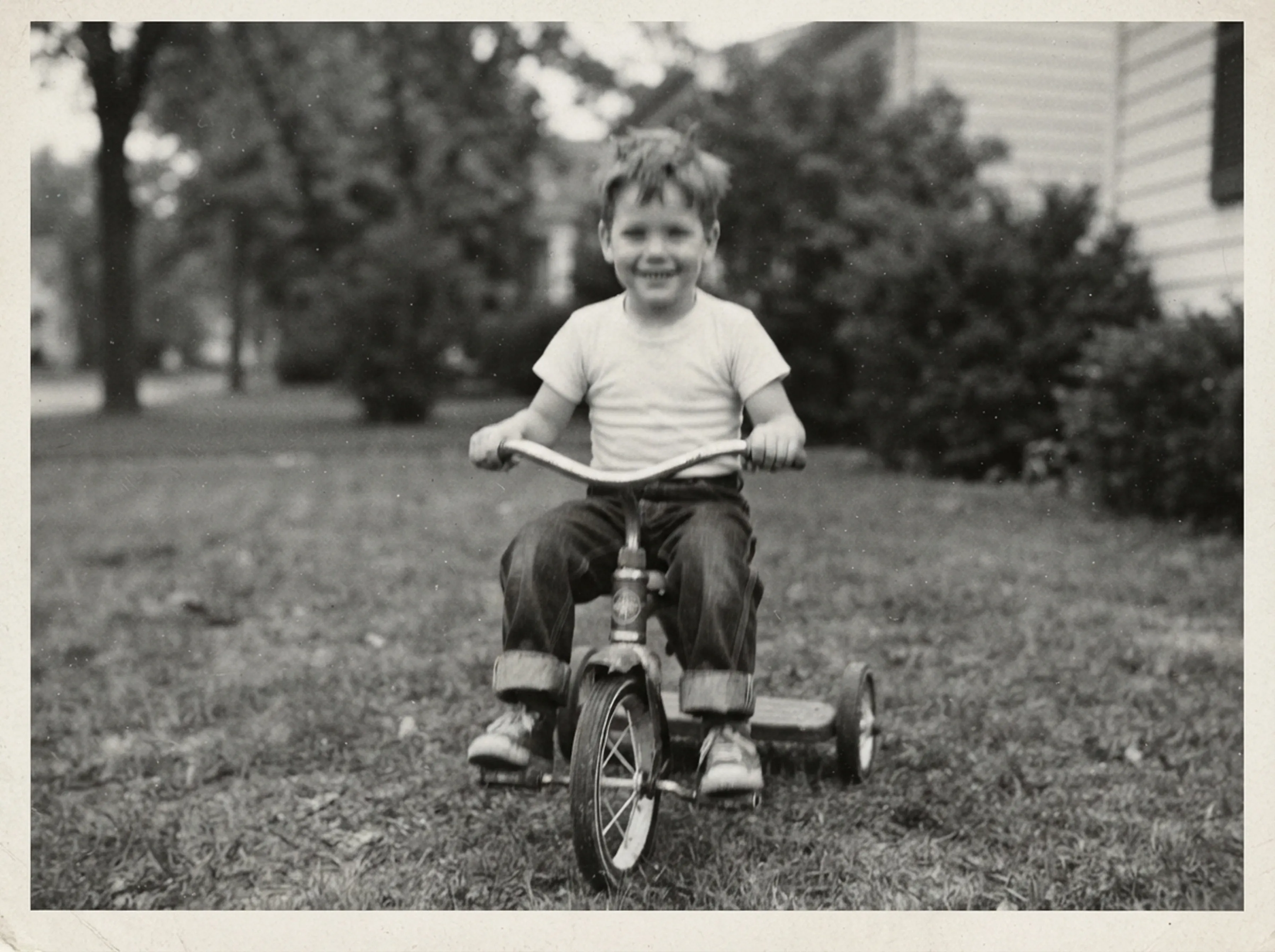
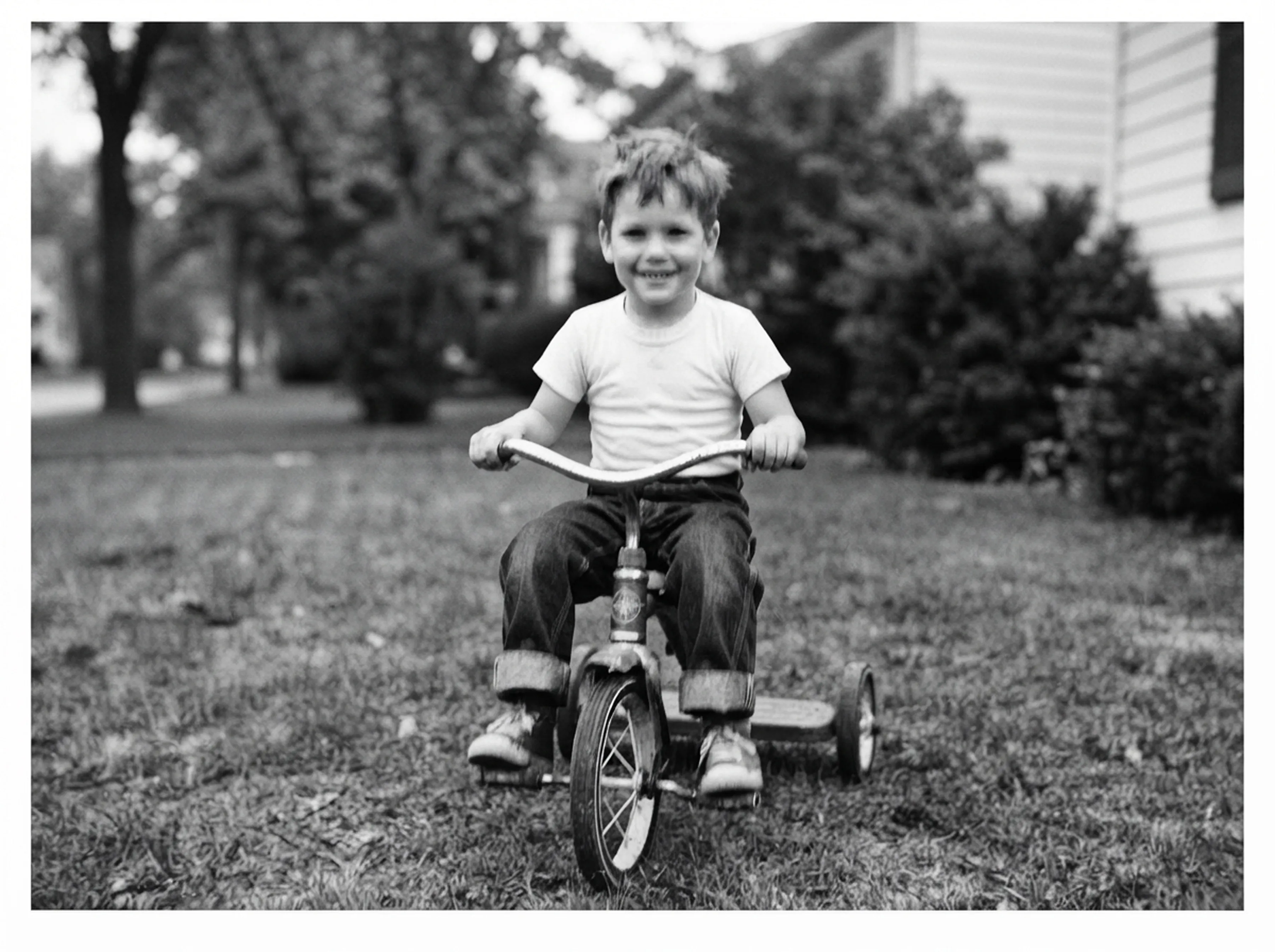
Photograph a print with your phone's camera or pick a blurry, dark or low-resolution photo from your library.
Choose Sharpen & Deblur, Fix Exposure, Color Correction or Upscale x2. Retrocap's AI applies the fix in seconds.
Drag the slider to see the difference, then save the sharper, larger version or share it.
Soft edges and slightly out-of-focus details are made crisper. Eyes, hair and text become easier to read.
Photos that are too dark or washed out are rebalanced, so faces and details come out of the shadows.
Yellowed, faded or tinted colors are corrected toward natural tones without changing the photo.
The photo is enlarged to twice its width and height, with new detail filled in for sharper prints and large screens.
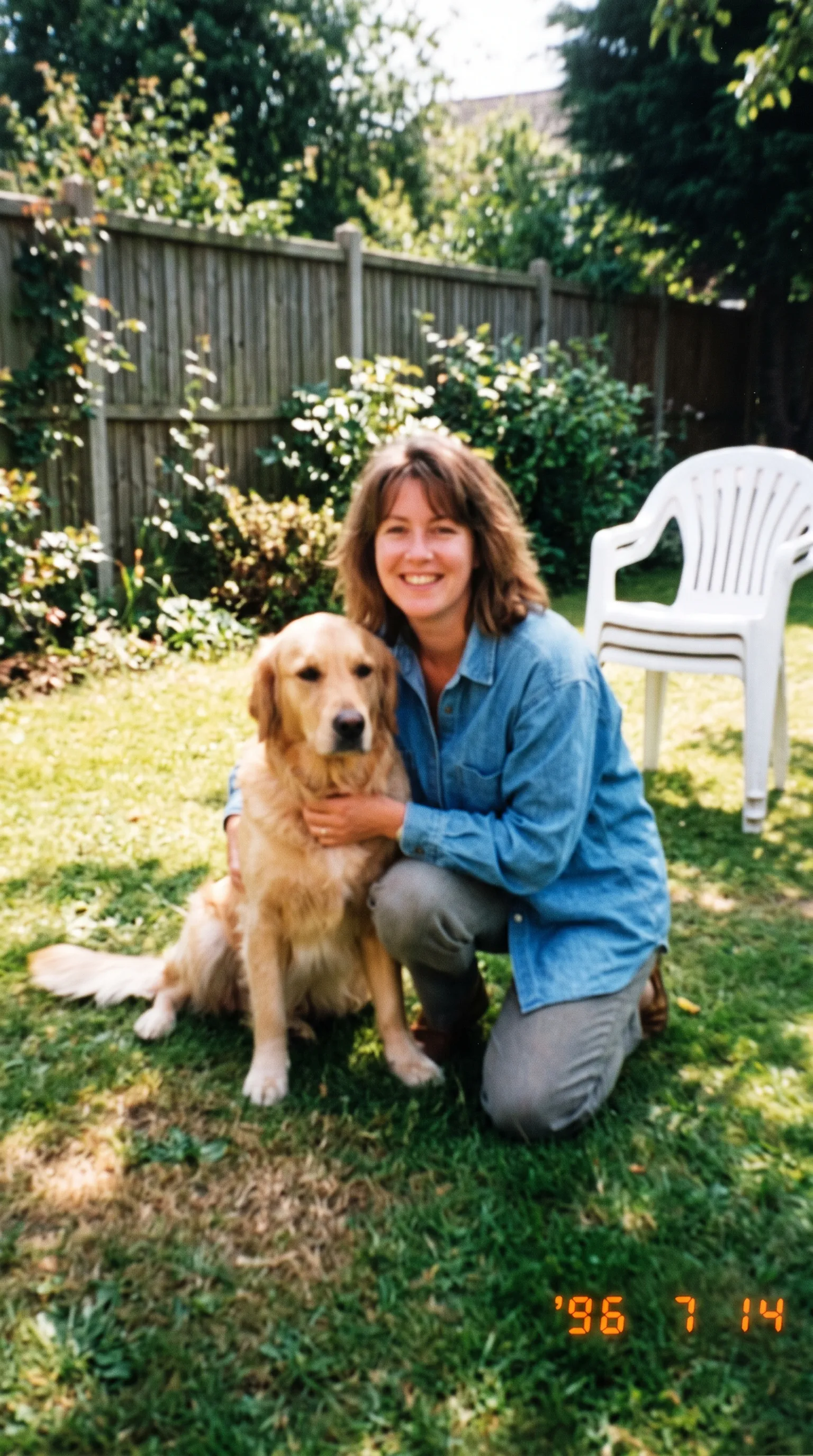
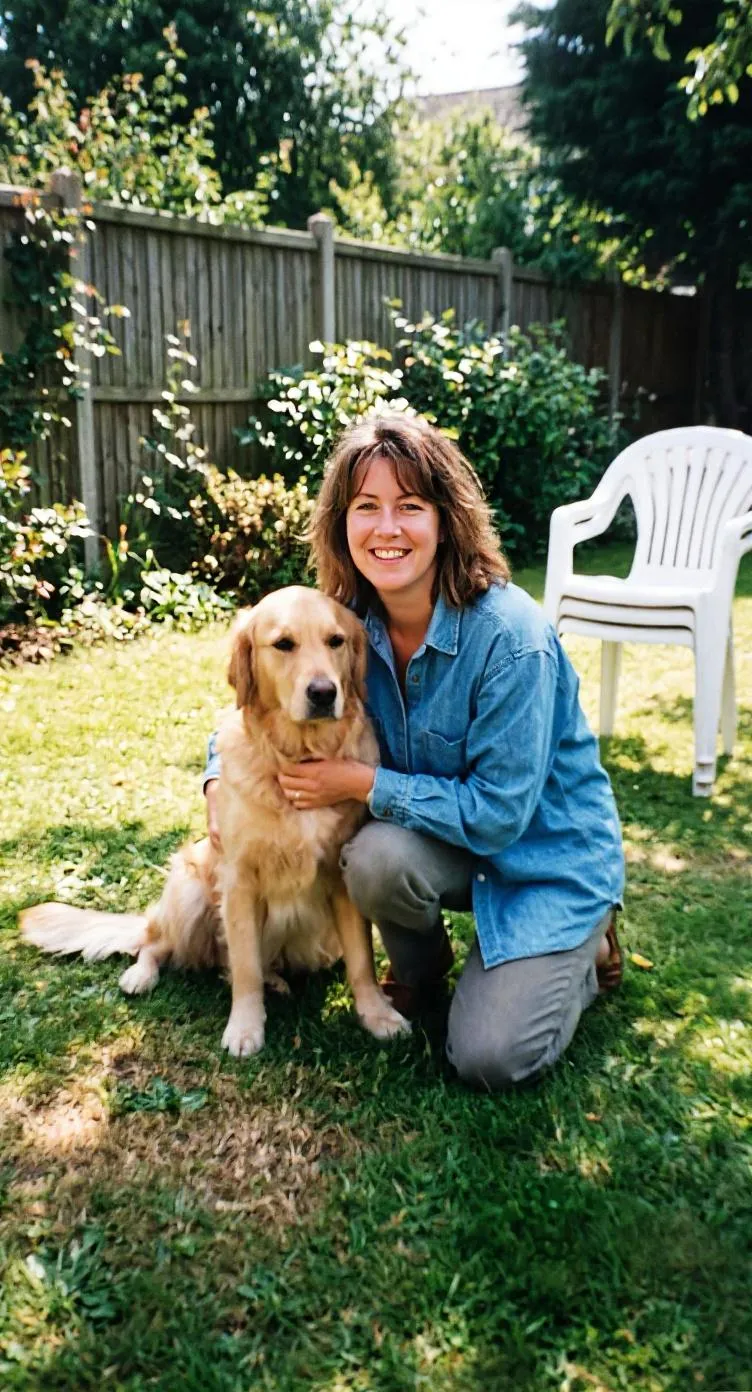
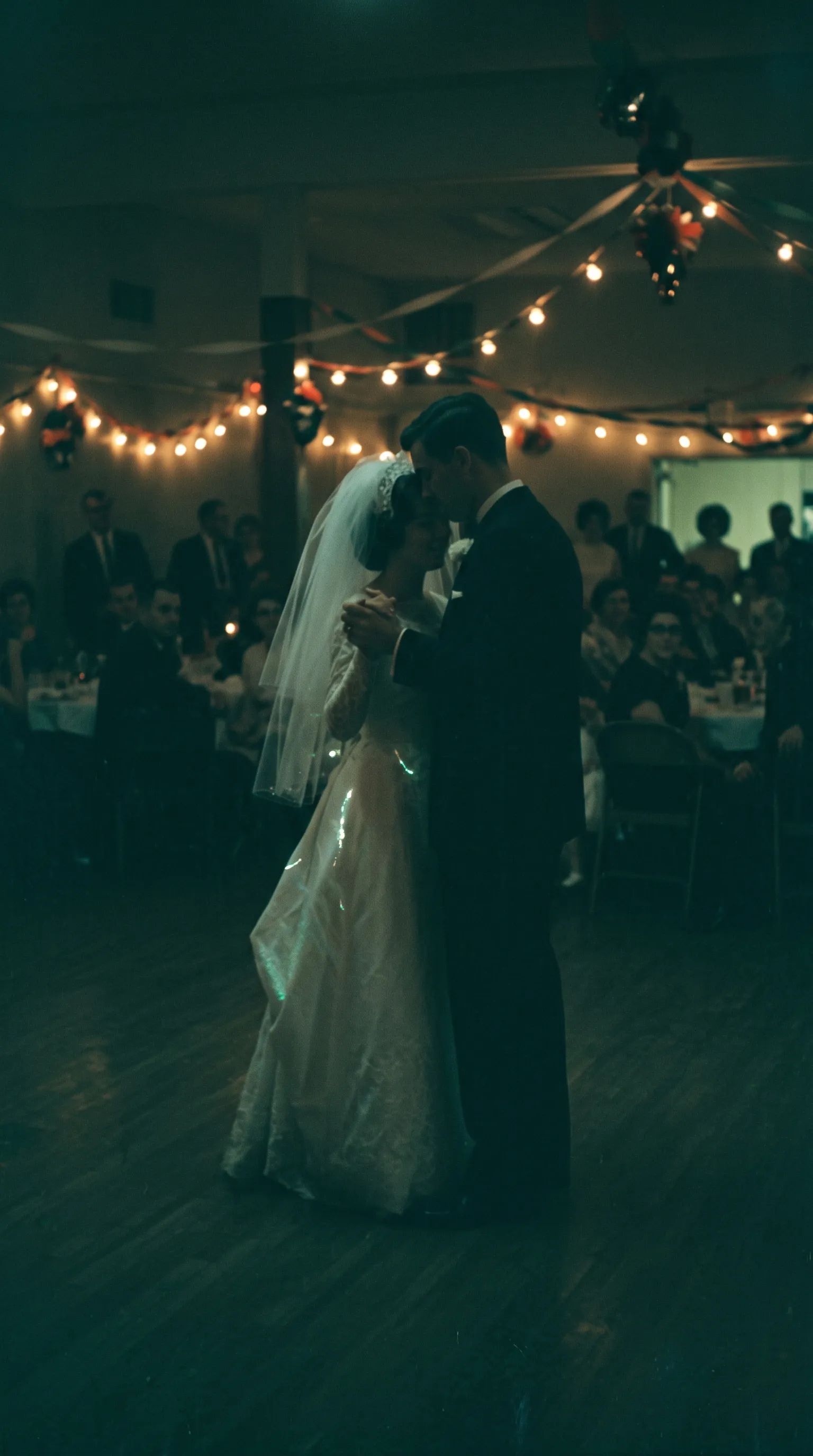
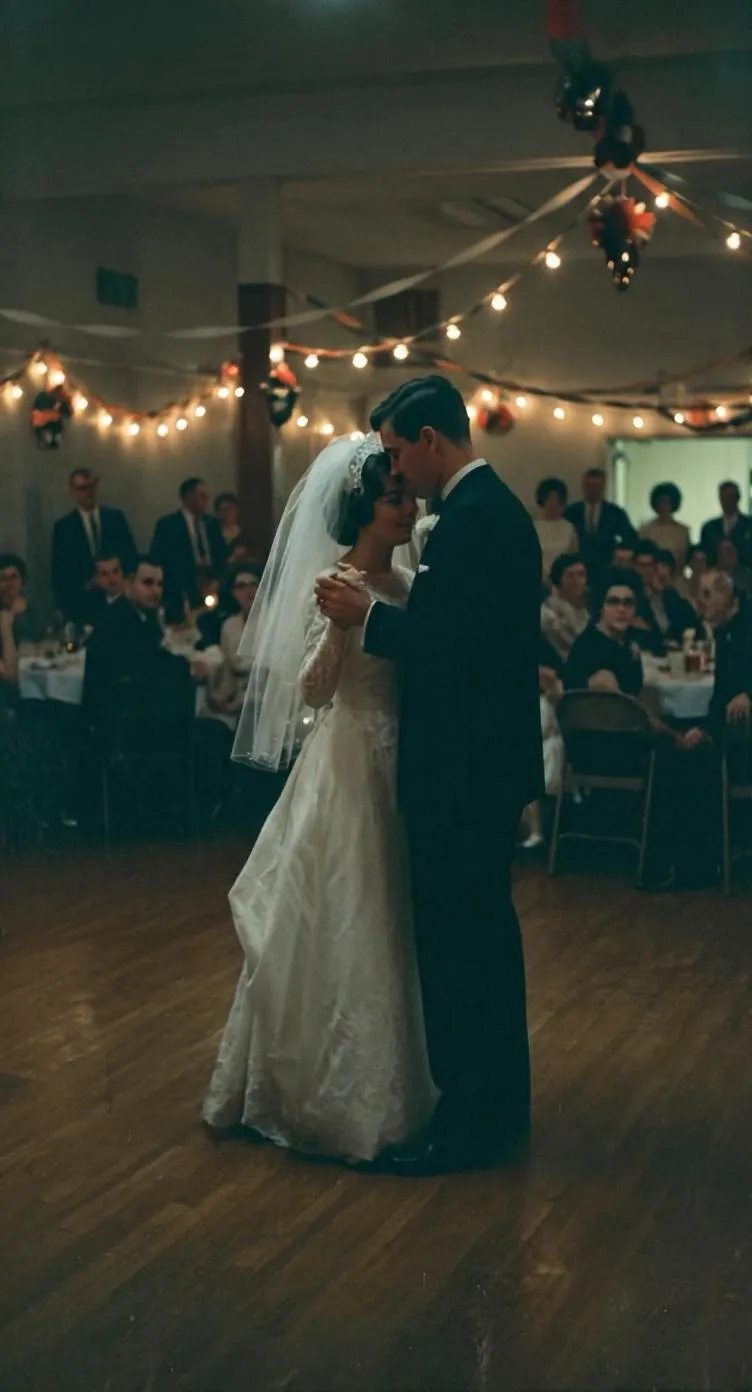
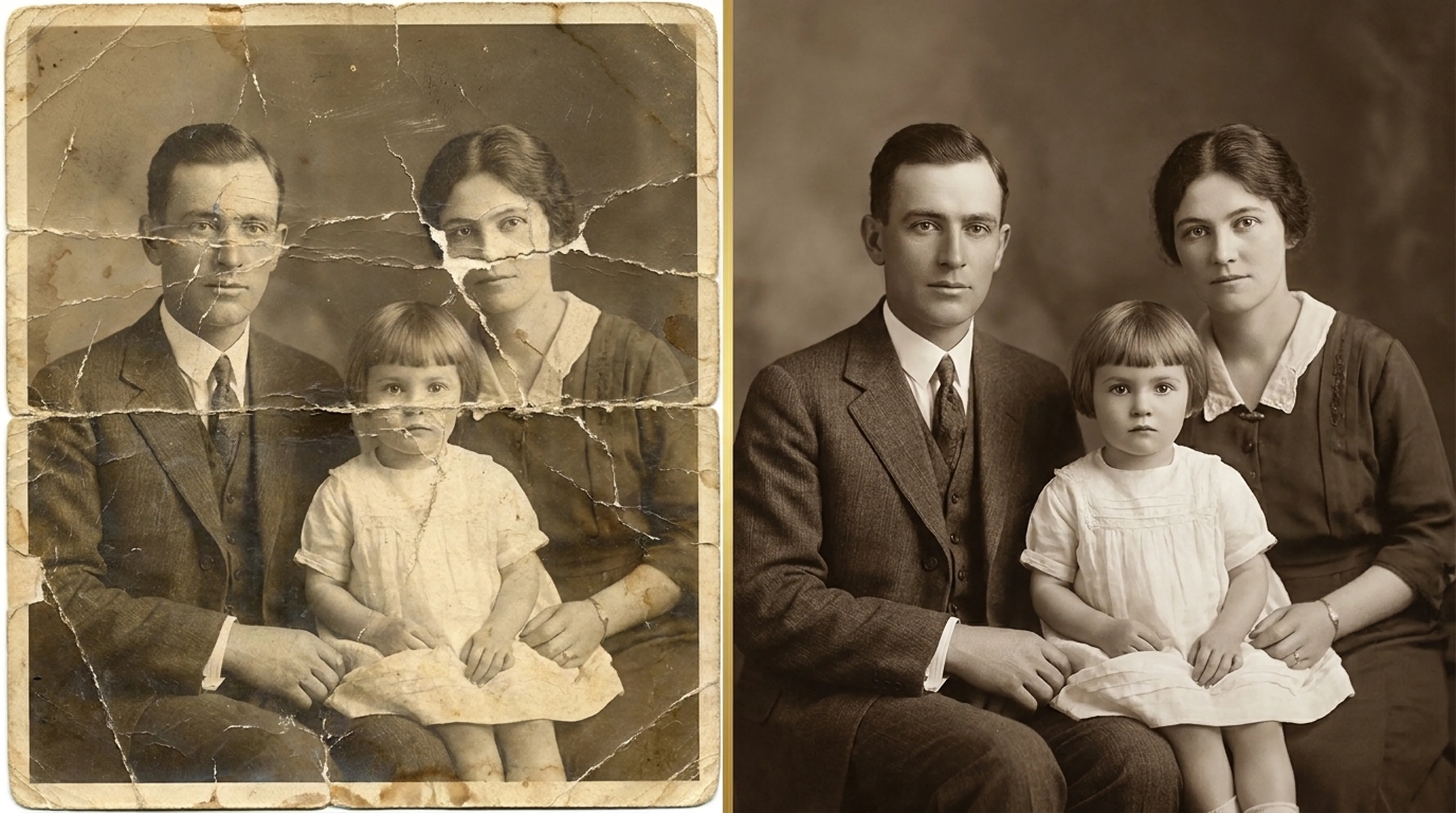
It depends on the kind of blur. Most old photos are soft rather than truly blurred: the lens was simple, the film was grainy or the print has been copied many times. Retrocap’s AI handles this well. It recognizes edges, eyes, hair and fabric and rebuilds the fine detail that has been lost.
Light motion blur and slightly missed focus can also be improved a lot. Heavy blur is different. When a face is just a smudge, the information needed to rebuild it is not in the photo. The AI can make the image cleaner and more pleasant to look at, but the details it adds are an estimate, not a recovery.
The best way to judge is to try it on your own photo and compare the result with the original using the slider. If the photo also has scratches or tears, restoring it will give a better result than enhancing alone.
Old prints are often small, and phone scans of them are smaller still once you crop. Upscaling enlarges the image and fills in new detail, so the photo looks sharper when printed for a frame, an album or a gift. For the cleanest print, enhance the largest copy you have and avoid photos that were already resized by a messaging app.
| Your photo looks… | Use |
|---|---|
| Clean, but soft or blurry | Enhance |
| Small or pixelated | Enhance |
| Scratched, torn, stained or faded | Restore |
| Mostly fine, but faces are blurry | Face enhancement |
| Black and white, and you want color | Colorize |
Repair fading, scratches, tears and stains in one tap.
Add realistic color to black-and-white and sepia photos.
Clean up scratches, dust, creases, tears and stains.
Turn old portraits into short videos with natural motion.
Recover detail in blurry faces, even in group photos.
Scanning technique
Lighting tricks, angle secrets and lens cleaning practices for getting flatbed scanner quality from your smartphone.
Beginner guide
Step-by-step instructions on handling vintage prints, digitizing delicate negatives and using AI tools safely.
Common questions about how Retrocap handles this.
Yes, in most cases. AI can sharpen soft focus, light motion blur and low resolution by rebuilding fine detail. Very heavy blur, where the subject is barely recognizable, can be improved but not fully recovered.
Upscale x2 doubles the width and height of your photo. The final size depends on the size of the original, so start with the largest copy you have.
Yes. Any photo in your library can be enhanced, including compressed images saved from messaging apps and social media.
Enhancement is designed to sharpen what is already in the photo rather than change it. When a face is extremely blurry, the AI has to fill in detail, so compare the result with the original using the slider.
Enhance improves sharpness, exposure, color and resolution. Restore repairs physical damage, with options to fix scratches and tears, remove stains and enhance faces. Use Enhance for clean but blurry or dark photos and Restore for damaged prints.
Yes. Enhanced photos are saved in high resolution, sharp enough for printing at common photo sizes.
Don’t let precious memories fade inside shoe boxes and dusty albums. Restore, colorize and cherish them today.