
Enhancement
How to Unblur a Face in an Old Photo
By the Retrocap Team · Updated
TL;DR
To unblur a face in an old photo, capture the sharpest, largest copy of the print, open it in Retrocap, choose Restore and turn on Enhance Faces. Retrocap finds every face and recovers detail in eyes, skin and hair. Always zoom in and compare with the original to make sure the person still looks like themselves.
Faces are what we look for first in an old photo, and they are often the blurriest part. Old cameras struggled with focus, prints were small and copies lost detail with every generation. AI face enhancement is designed for exactly this problem. This guide shows how to sharpen faces with Retrocap’s face enhancement and how to make sure the result is faithful.
Why faces blur in old photos
- Shallow focus: early cameras often focused on one point, leaving other faces soft.
- Movement: long exposures meant anyone who moved slightly appeared blurred.
- Small faces: in group, wedding and class photos, each face may be only a few millimeters wide on the print.
- Copies and scans: each reproduction loses a little detail.
Face enhancement helps with all of these, but the amount of detail that remains in the photo sets the limit.
Step 1: Capture as much detail as possible
The single most effective thing you can do is give the AI more pixels per face.
- Photograph the print up close, so the faces are as large as possible in the frame. For group photos, it can help to photograph sections of the print separately.
- Use soft, even light and avoid glare.
- Keep the phone steady and parallel to the print.
- Avoid digital zoom; move the phone closer instead.
Step 2: Turn on Enhance Faces in Retrocap
- Open Retrocap and choose the photo.
- Open Restore.
- Turn on Enhance Faces.
- If the photo also has scratches, stains or fading, turn on Fix Scratches & Tears or Remove Stains, and choose Deep for heavy damage.
Retrocap detects every face in the photo and recovers detail in eyes, eyelashes, skin texture and hair.
Step 3: Check that it still looks like them
This is the most important step for family photos.
- Zoom in on each face and drag the before-and-after slider.
- Look at the eyes, mouth and hairline. These define how we recognize someone.
- Ask someone who knew the person, if you can, especially for heavily blurred faces.
If a face looks unlike the person, try a sharper copy of the photo, or use the result for small screens only and keep the original as the reference.
Group photos and small faces
Weddings, school photos and family reunions are where face enhancement makes the biggest difference. A few tips:
- Retrocap enhances every face it detects, not only the largest one.
- Faces at the back of a group start with fewer pixels, so results there are less detailed.
- If the whole photo is also small, use Enhance with Upscale x2 as well.
When the whole photo is blurry
Face enhancement focuses on faces. If the background and clothing are also soft, see our guide to fixing blurry photos. For prints with physical damage, restore the photo with all relevant options turned on.
An honest note about AI and faces
When a face is very blurry, AI has to fill in detail based on what faces generally look like. The result can be convincing and still not match the real person. That is why comparing with the original matters, and why it is worth keeping both versions in family archives: the original as the record, the enhanced copy for sharing.
Summary
To unblur a face in an old photo, capture the print as large and sharp as possible, open it in Retrocap’s Restore tool and turn on Enhance Faces. Check every face carefully against the original. Slightly soft faces become clear and natural; extremely blurry or tiny faces improve, but should be compared before you share them.
Frequently asked questions
Can AI unblur a face accurately?
When the face is slightly soft or low resolution, AI recovers detail that looks like the real person. When a face is extremely blurry or tiny, the AI has to fill in more detail, and the result can drift from the person's real features.
Does face enhancement work on group photos?
Yes. Retrocap detects the faces in a photo and enhances each one, including smaller faces in the background.
Why does the enhanced face look slightly different?
When there is very little detail, AI uses what faces generally look like to fill the gaps. Try a sharper or larger copy of the photo, and compare the result with the original.
Is it better to enhance faces or the whole photo?
If only faces are blurry, use Restore with Enhance Faces. If the whole photo is soft, use Enhance with Sharpen & Deblur or Upscale x2 first.
Related guides
 Before
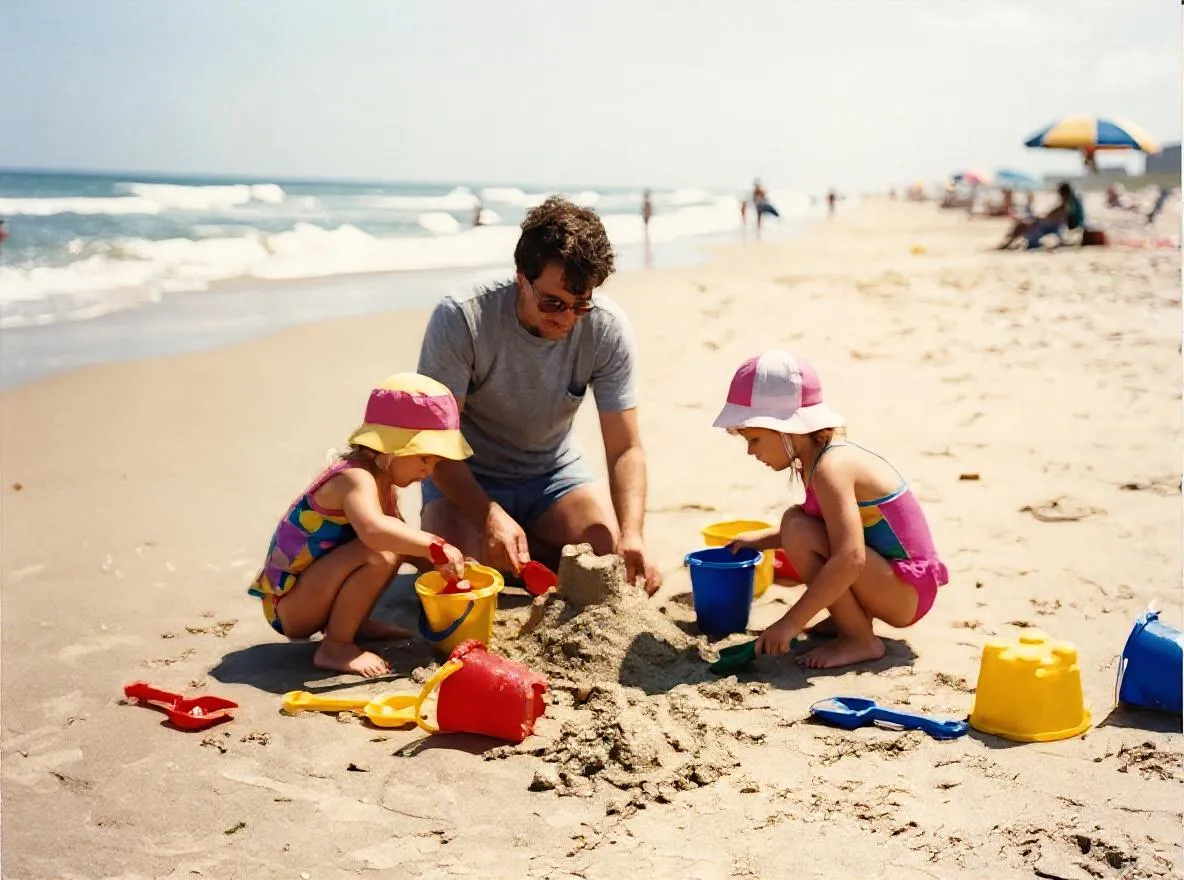 After
AfterEnhancement
How to Fix Blurry Photos with AI
Why old photos look blurry and how AI sharpening and upscaling fix them. Get the sharpest result from Retrocap's Enhance tool on iPhone or Android.
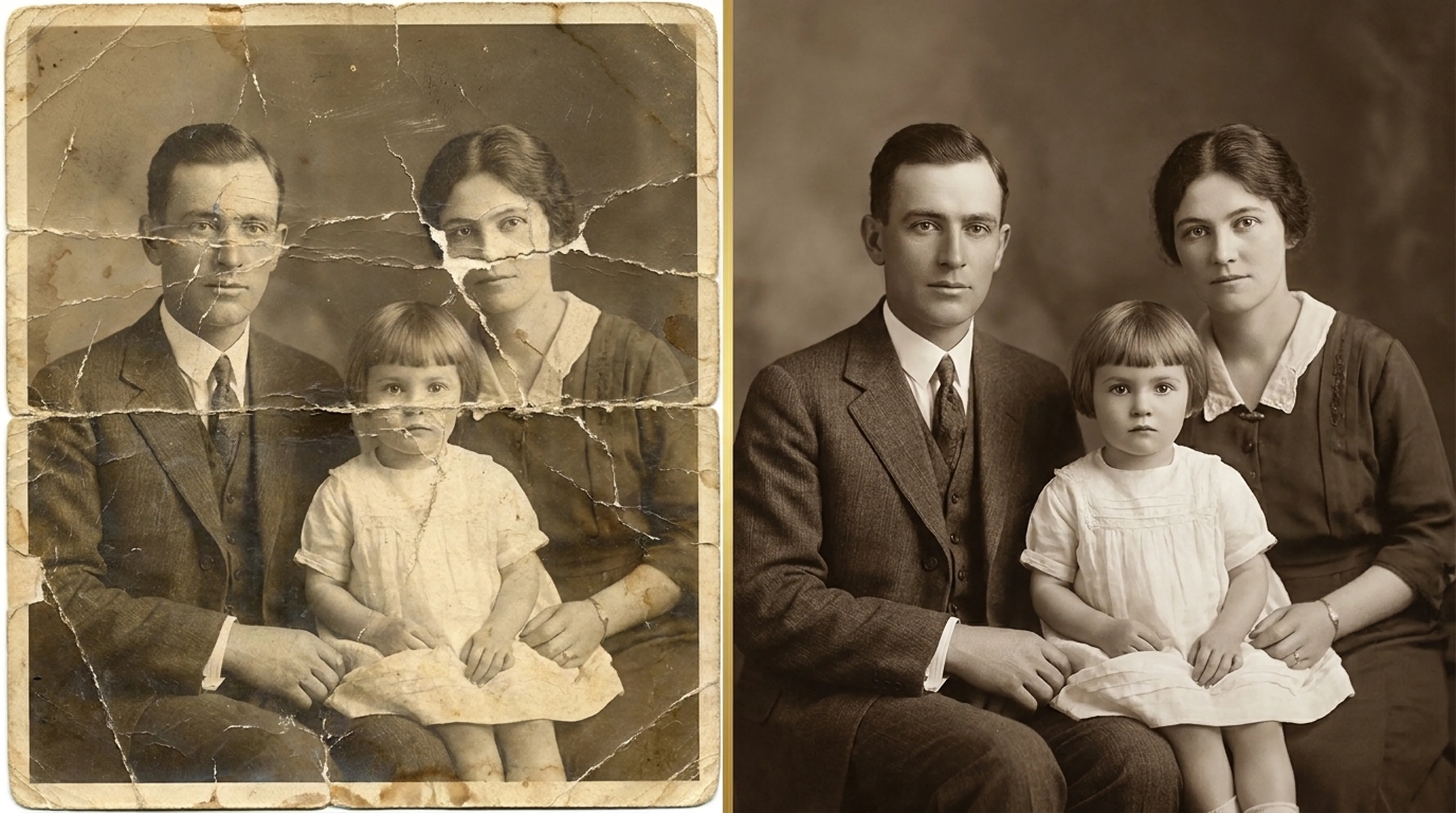
Beginner guide
How to Restore Old Photos: A Complete Beginner’s Guide
Step-by-step instructions on handling vintage prints, digitizing delicate negatives and using AI tools safely.
 Before
 After
AfterBasics
What Is AI Photo Restoration? How It Works
How AI repairs scratches, tears, fading and blur in old photos, what it can and can't fix, and how it compares to manual retouching in Photoshop.