
Beginner guide
How to Restore Old Photos: A Complete Beginner’s Guide
Step-by-step instructions on handling vintage prints, digitizing delicate negatives and using AI tools safely.
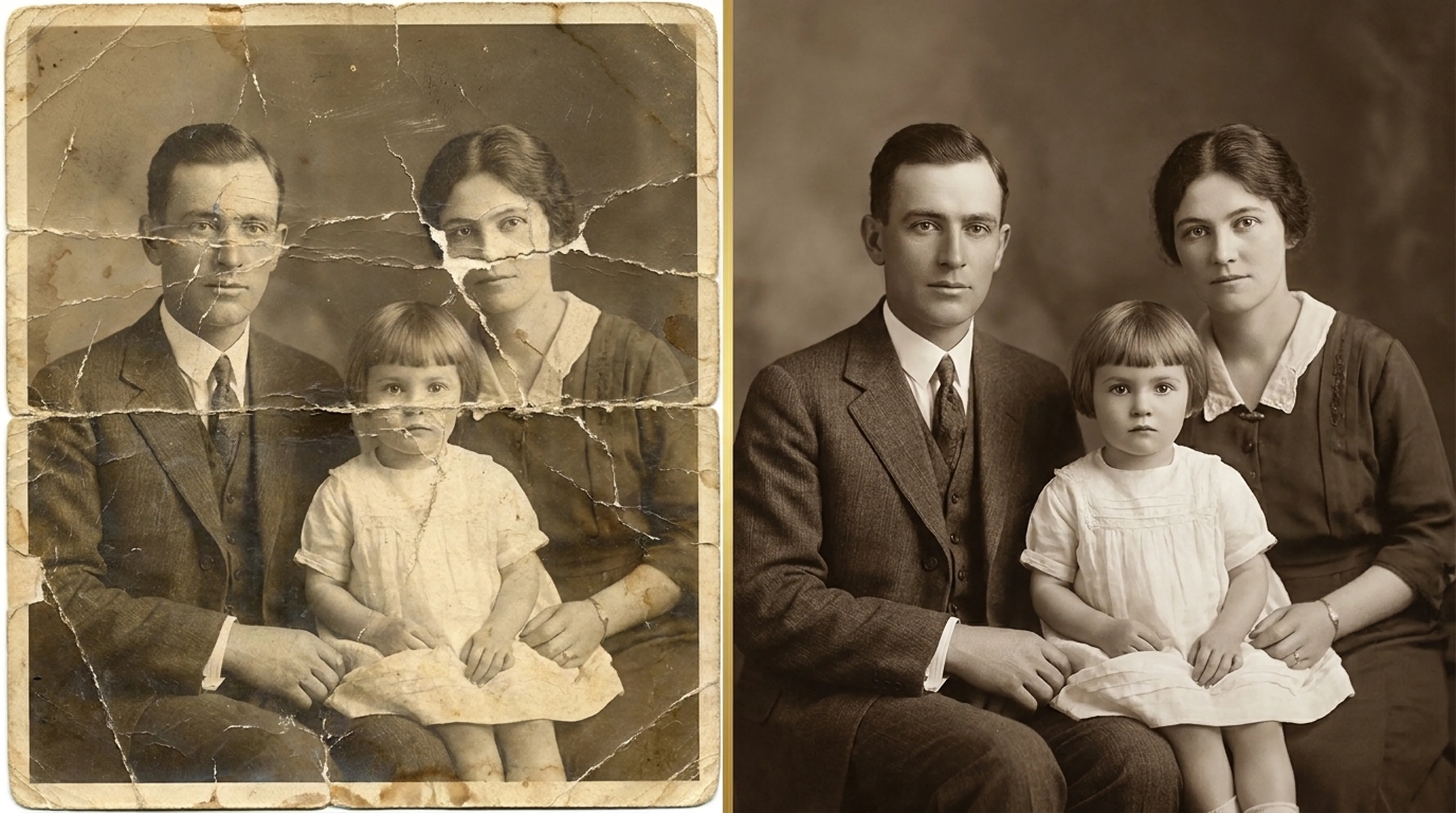
Retrocap restores old photos with AI on iPhone and Android. Photograph a print or import a scan, tap Restore, and Retrocap repairs fading, scratches, tears and stains, sharpens faces and saves a high-resolution copy in seconds. Compare the result with the original using the before-and-after slider.


Free to download · iPhone & Android · Private
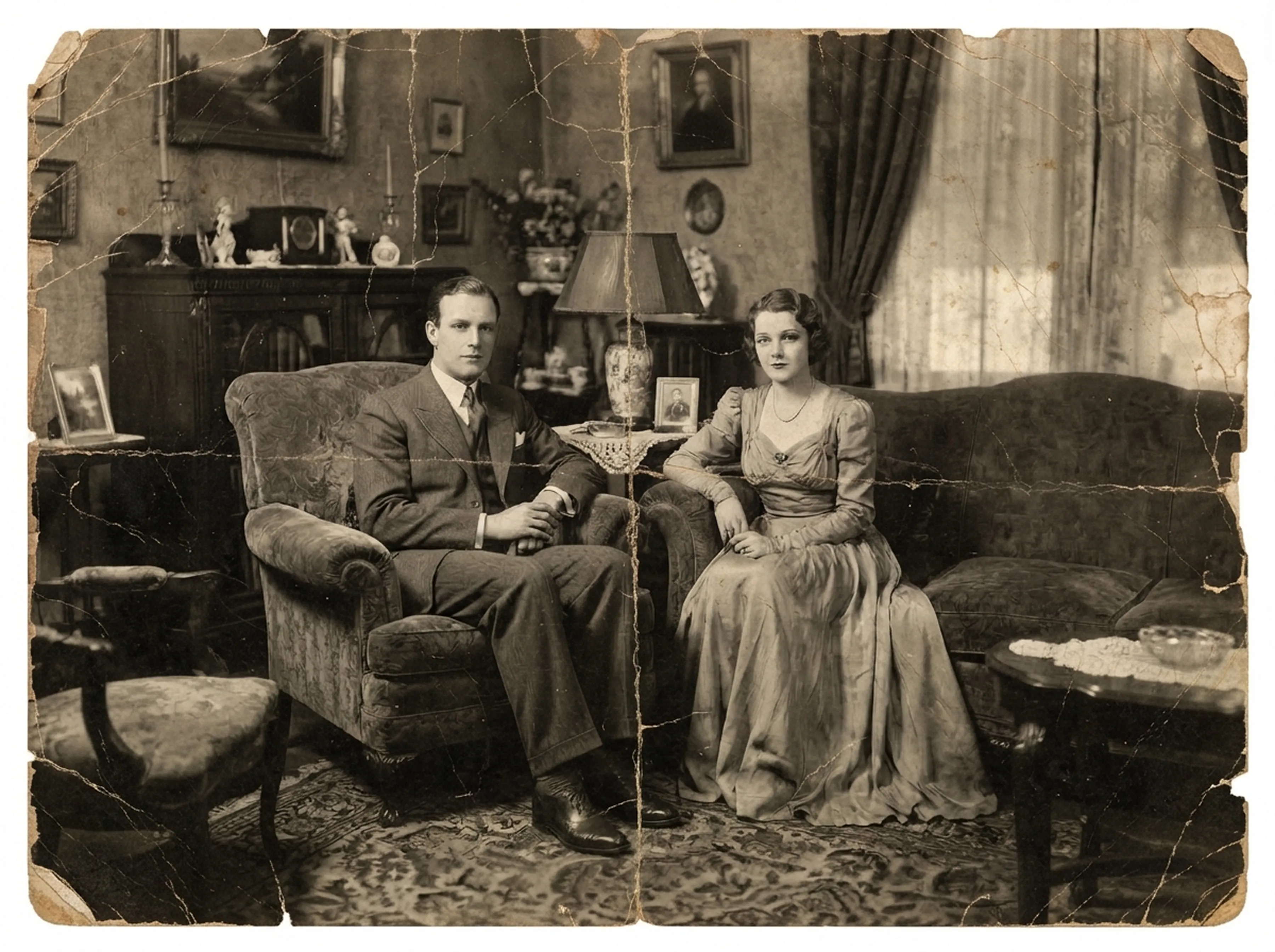
Take a picture of the print with your phone's camera in soft, even light, or pick an existing scan from your photo library.
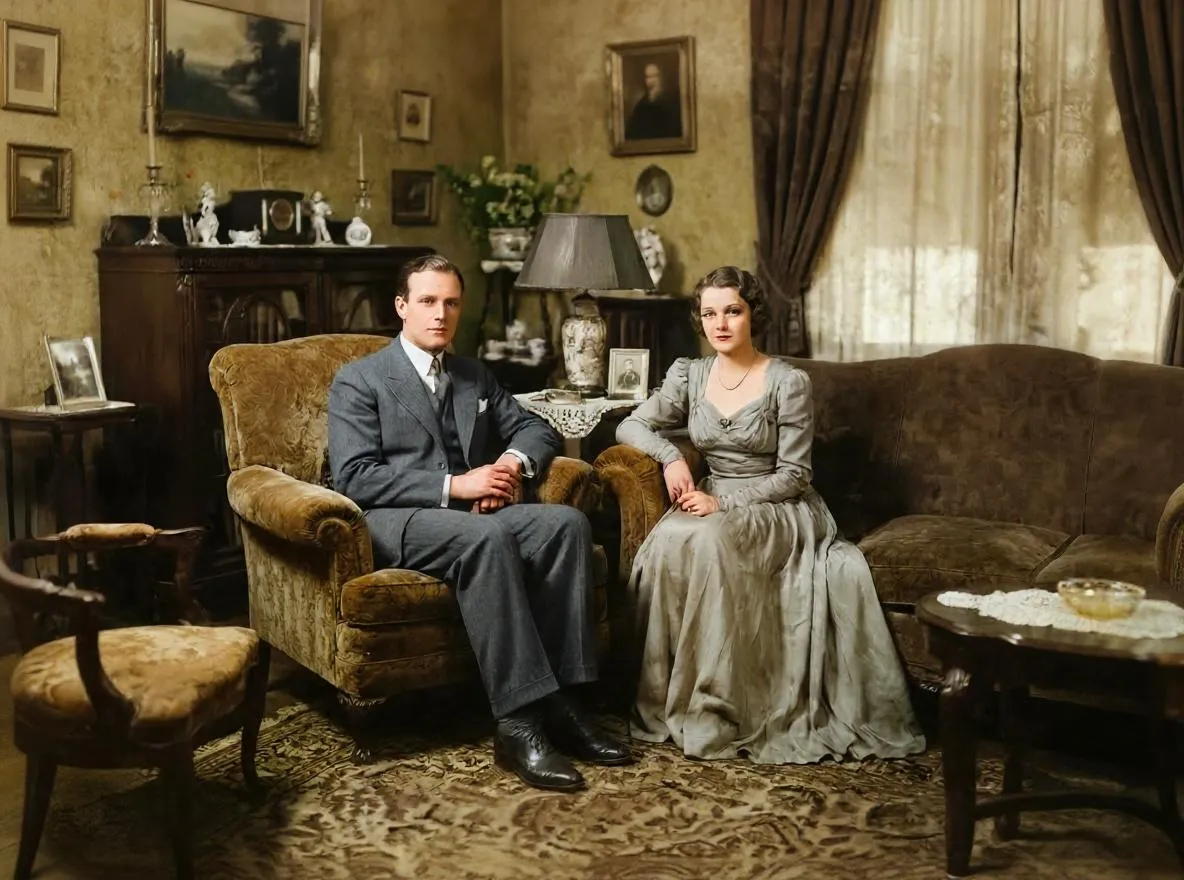
Choose Standard or Deep restoration and turn on Fix Scratches & Tears, Enhance Faces or Remove Stains as needed. Retrocap's AI repairs the photo in seconds.
Drag the slider to compare the result with the original, then save the high-resolution copy to your phone or share it with family.
Sunlight and age wash out contrast and tint prints yellow or red. Retrocap rebalances tones so faces and backgrounds look natural again.
Fine scratches, dust spots and specks from old scans are detected and removed. Surrounding detail is kept intact.
Folds, cracks and torn edges are filled in using the image around them. Small missing pieces are rebuilt to match the photo.
Water marks, tape residue and stains are cleaned up. The result depends on how much of the original image is still visible.
Turn on Enhance Faces to bring back clearer eyes, hair and skin texture. For overall sharpness and upscaling, use Enhance.
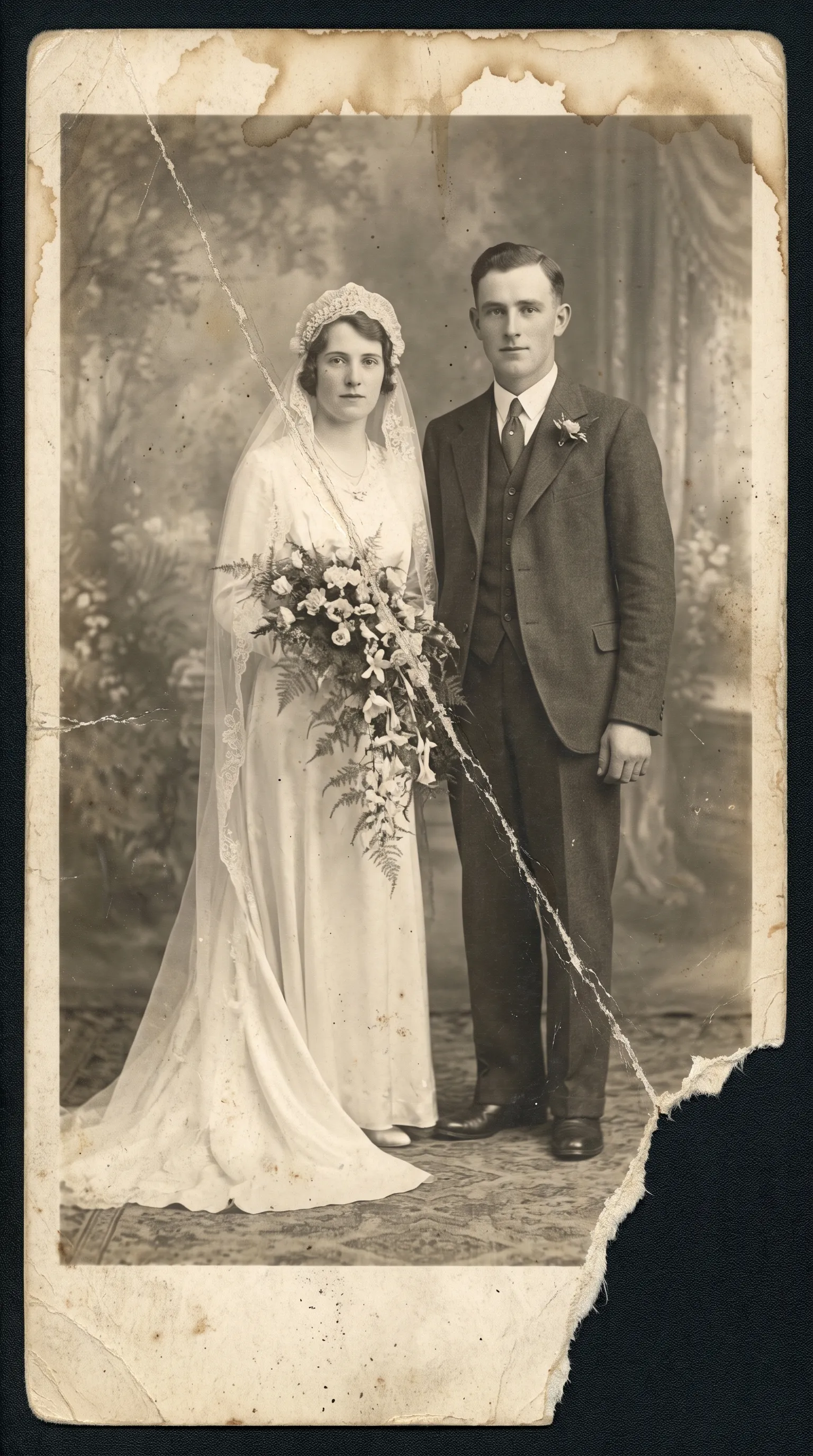
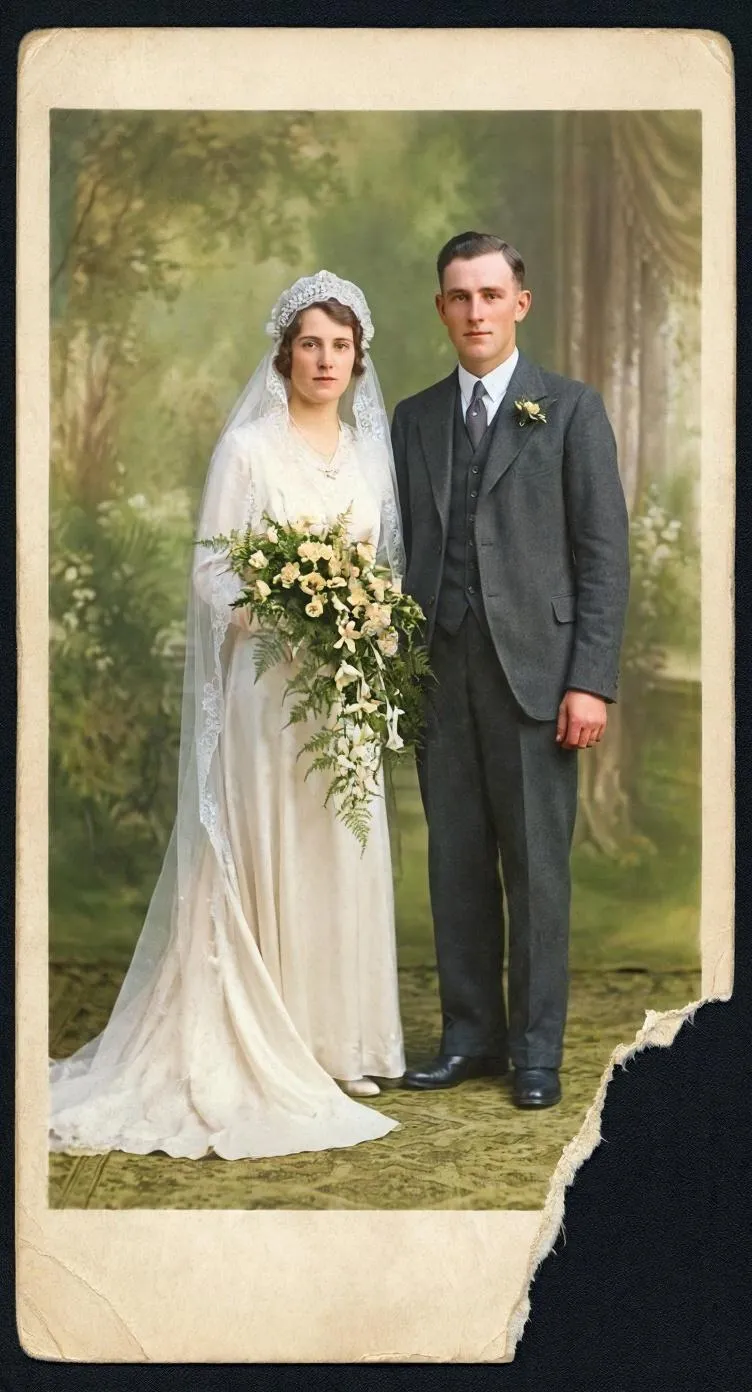
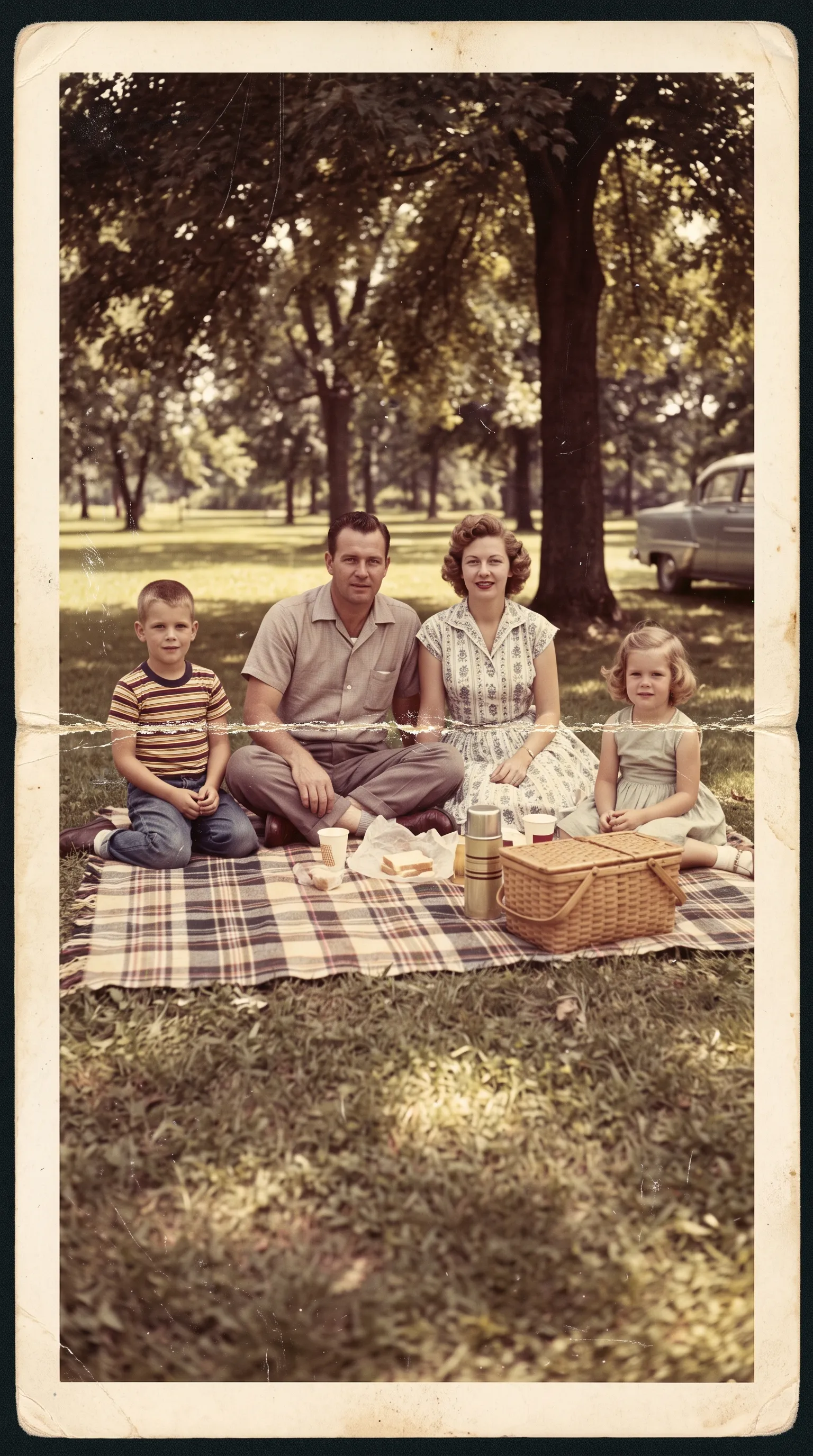
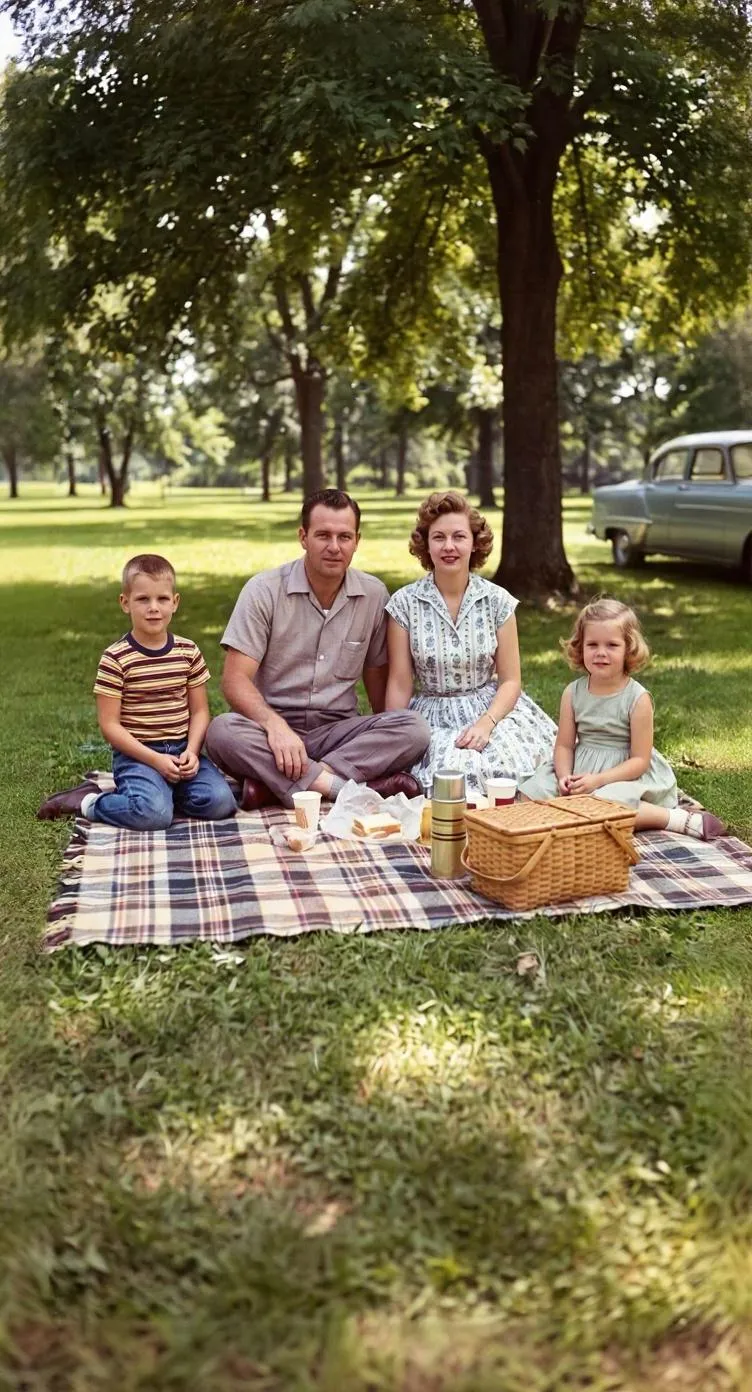
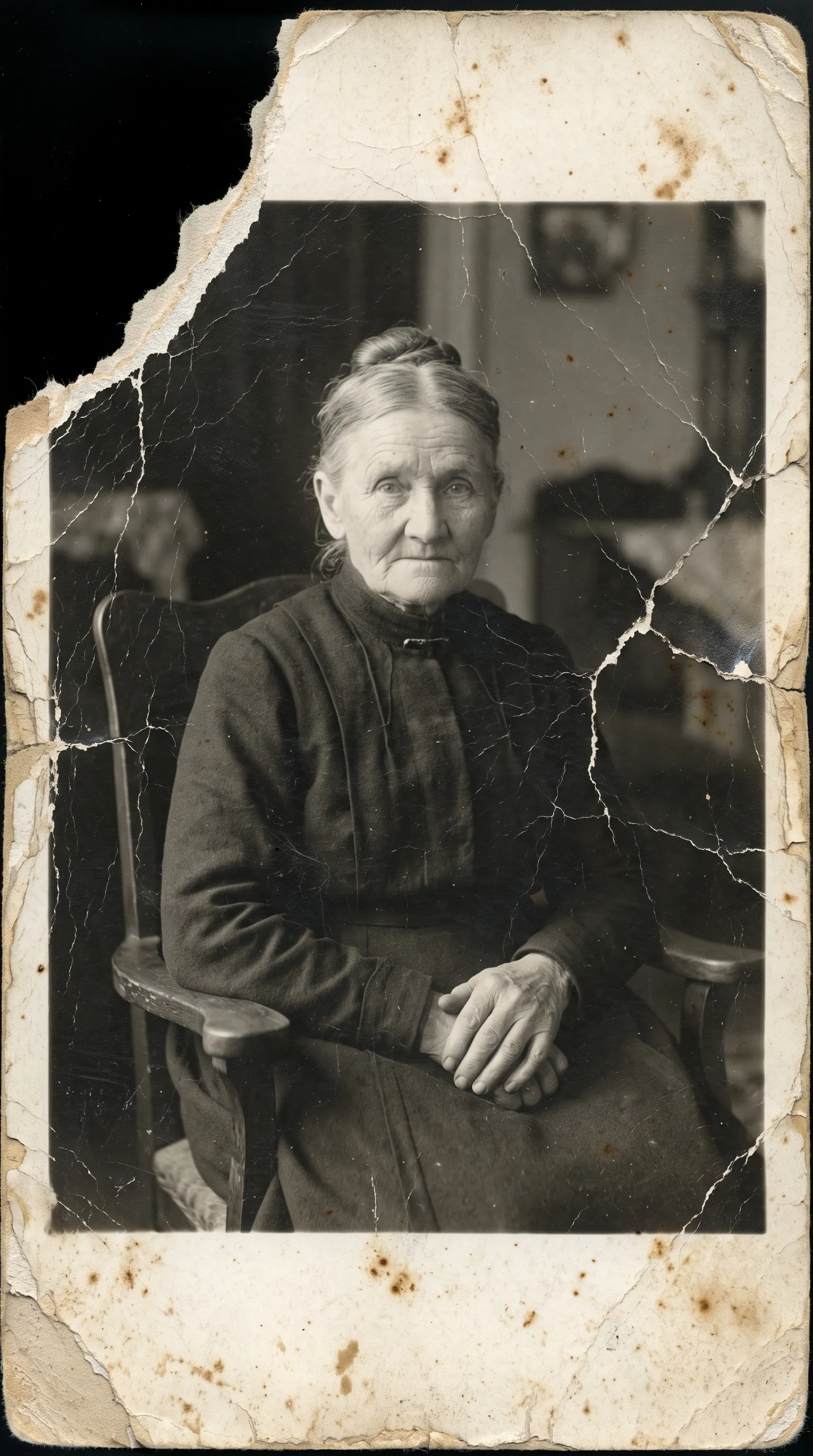
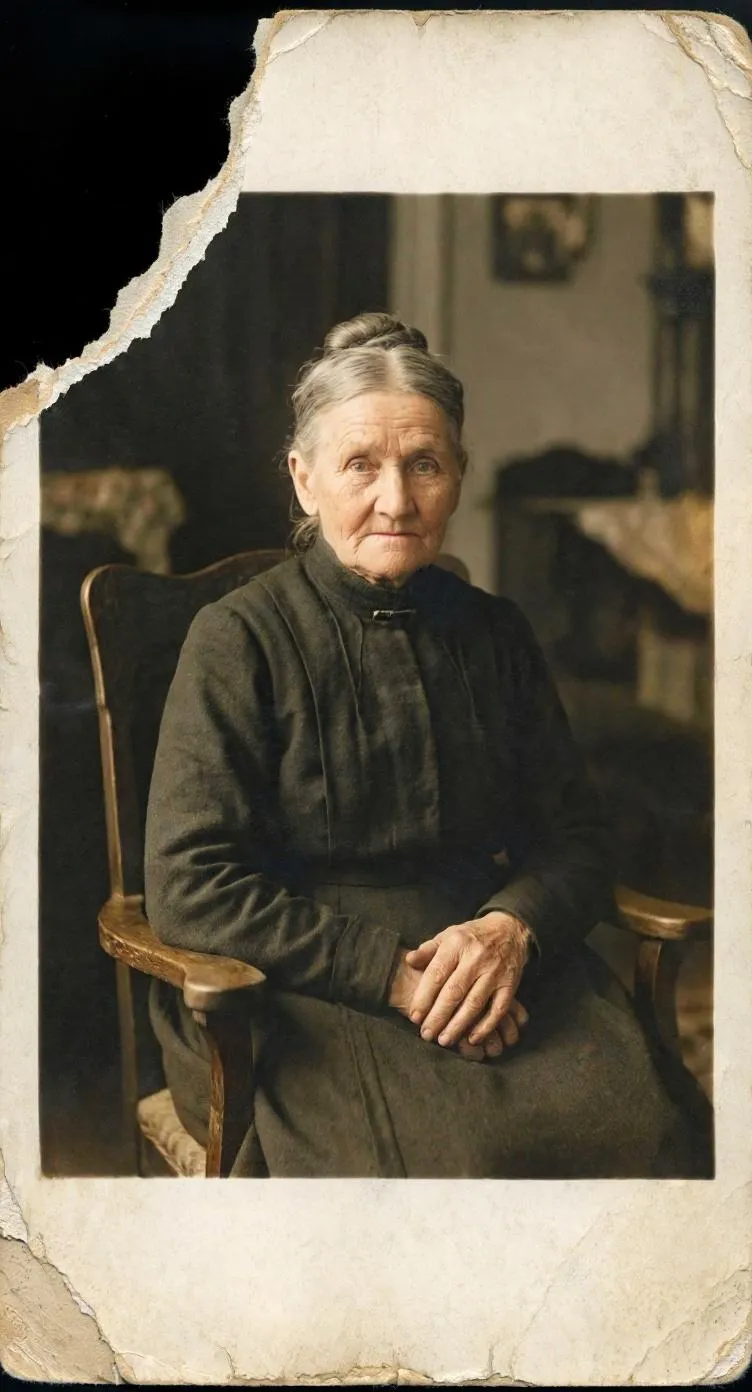
Often, yes, but with limits. Retrocap’s AI rebuilds damaged areas by reading the image around them: the pattern of a jacket, the shape of a face, the texture of a wall. That works well for scratches, creases, small tears, stains and heavy fading, even when they cover a large part of the photo.
It works less well when the information is completely gone. If a face has been torn away or a stain has erased most of a person, the AI can only make an educated guess, and that guess may not look like the real person. In those cases you get a cleaner, more complete image, but not a recovered memory.
Two things improve the result. First, photograph or scan the print as sharply as you can, because the AI cannot restore detail the camera never captured. Second, compare the result with the original using the slider and keep your original file.
Restoration works best as the first step. Once the scratches and tears are gone, you can colorize a black-and-white photo or bring a portrait to life with the restored image as a clean starting point. For prints with heavy surface damage, the scratch and tear removal tool goes into more detail.
| Retrocap | Manual Photoshop | Professional service | |
|---|---|---|---|
| Turnaround time | Usually under a minute | Under an hour to several hours | Days to weeks |
| Skill needed | None | Advanced retouching | None, you send the print |
| Colorization | Included | Manual brush painting | Often charged as an extra |
See the full comparison: AI vs Photoshop vs a professional.
A professional restorer is still the right choice for museum-grade work or a photo that will be printed very large. For everyday family photos, AI restoration is faster, simpler and lets you try again as many times as you like.
Add realistic color to black-and-white and sepia photos.
Sharpen blurry, low-resolution photos and upscale them.
Clean up scratches, dust, creases, tears and stains.
Turn old portraits into short videos with natural motion.
Recover detail in blurry faces, even in group photos.
Beginner guide
Step-by-step instructions on handling vintage prints, digitizing delicate negatives and using AI tools safely.
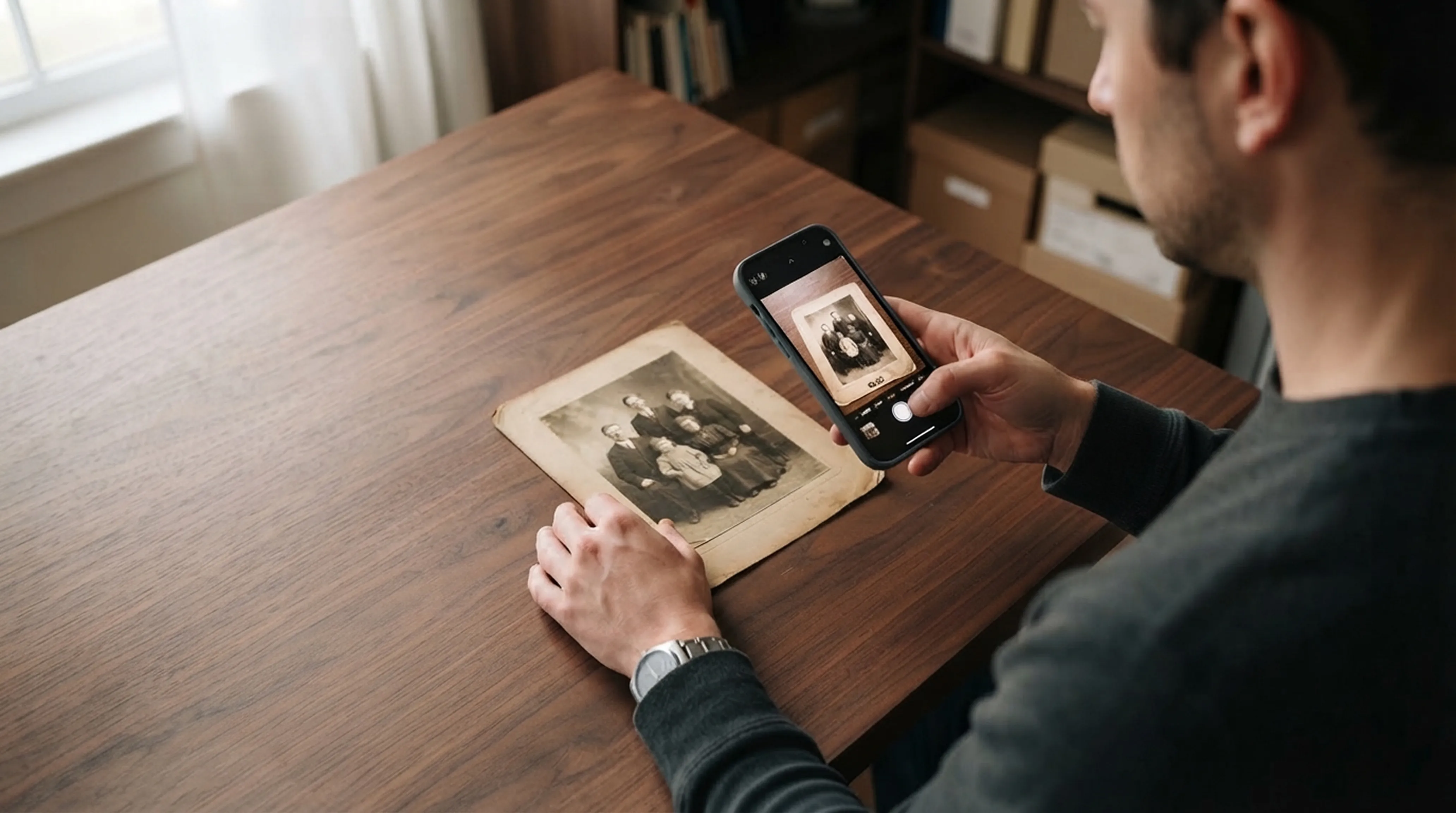
Scanning technique
Lighting tricks, angle secrets and lens cleaning practices for getting flatbed scanner quality from your smartphone.
Common questions about how Retrocap handles this.
Install Retrocap from the App Store, take a photo of your print with the iPhone camera or pick a scan from your photo library, then tap Restore. Retrocap's AI removes scratches, tears, blur and fading in seconds, and you can save the restored photo straight to your Photos library.
Yes. Retrocap is available on Google Play. The steps are the same as on iPhone: photograph or import the photo, tap Restore and save the result.
Retrocap is free to download. Restoring, colorizing and animating photos uses credits, which come with a weekly or yearly subscription or with one-time token packs available inside the app.
Most restorations finish in seconds. Processing time depends on the size of the photo and your internet connection, because Retrocap's AI runs in the cloud.
Retrocap is designed to repair damage while keeping the person's features. When a face is heavily damaged, the AI has to rebuild missing detail, so always compare the result with the original using the slider.
Retrocap saves restored photos in high resolution, sharp enough for sharing on screen and for printing at common photo sizes.
Your photos are used only to create your results. To process them, Retrocap sends them securely to its AI processing partner. Your photos are never sold, and you can delete them and your data from the app at any time.
Yes. Most people restore photos by photographing the print with their phone. For the best result, use even light, avoid glare and keep the phone parallel to the print.
Don’t let precious memories fade inside shoe boxes and dusty albums. Restore, colorize and cherish them today.