
Beginner guide
How to Restore Old Photos: A Complete Beginner’s Guide
Step-by-step instructions on handling vintage prints, digitizing delicate negatives and using AI tools safely.
Retrocap animates old photos with AI on iPhone and Android. Choose a portrait, tap Animate, and Retrocap turns it into a short video with subtle, natural movement of the face and head. Save the video to your phone or share it with family, so a familiar photo can feel a little more alive.


Free to download · iPhone & Android · Private
Pick a photo where the face is clearly visible, or photograph a print with your phone's camera.
Retrocap's AI adds subtle, natural movement to the face and head and creates a short video.
Watch the result, then save it to your phone or share it with family as a video.
Faces looking toward the camera give the AI the most to work with. Profiles and turned heads animate less naturally.
Head-and-shoulders portraits work better than wide shots where faces are small.
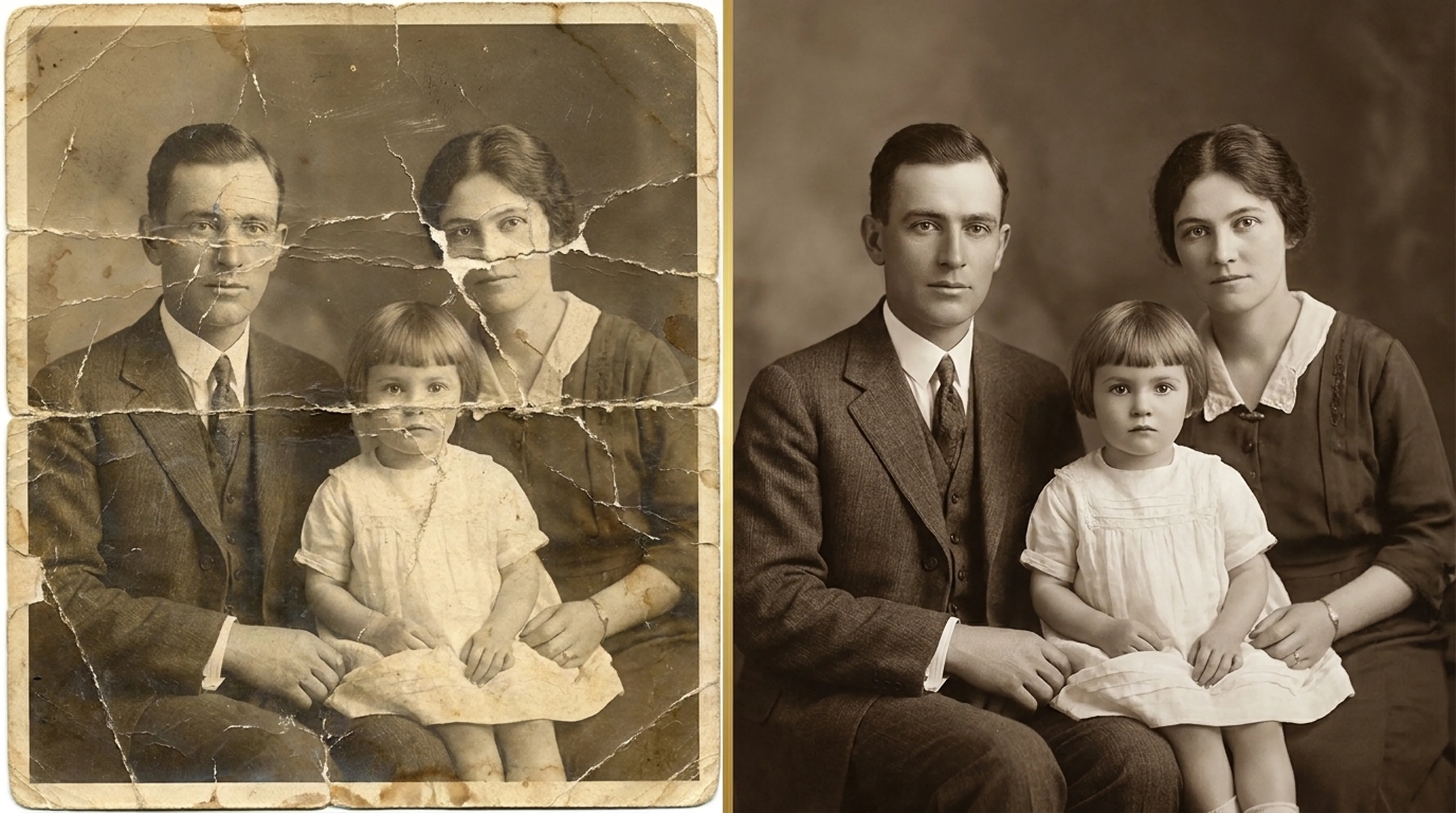
Scratches and tears can move with the face and look odd. Repair the photo first for a cleaner animation.
Both work. Many people colorize a portrait first, then animate the color version.
There is no single answer. For many people, seeing a grandparent smile or turn their head is a moving way to remember them, and animated portraits are often shared at anniversaries, reunions and memorials. For others, especially soon after a loss, it can feel unsettling.
A few simple practices help. Ask close family members before sharing an animation of someone they loved. Share it privately first rather than posting it publicly. Make it clear that the movement was created by AI and is not a real recording. And keep the original photo alongside the video, because the photo is the true record.
An animated portrait is an artistic interpretation. The AI creates plausible movement, but it does not know how the person really moved or smiled. Present it that way, especially in family history projects, so future generations can tell the original photo from the animation.
Damage moves with the face. A scratch across a cheek or a crease through an eye will stretch and shift in the video. For the cleanest result, restore the photo or remove scratches and tears first. You can also colorize a black-and-white portrait before animating it.
Repair fading, scratches, tears and stains in one tap.
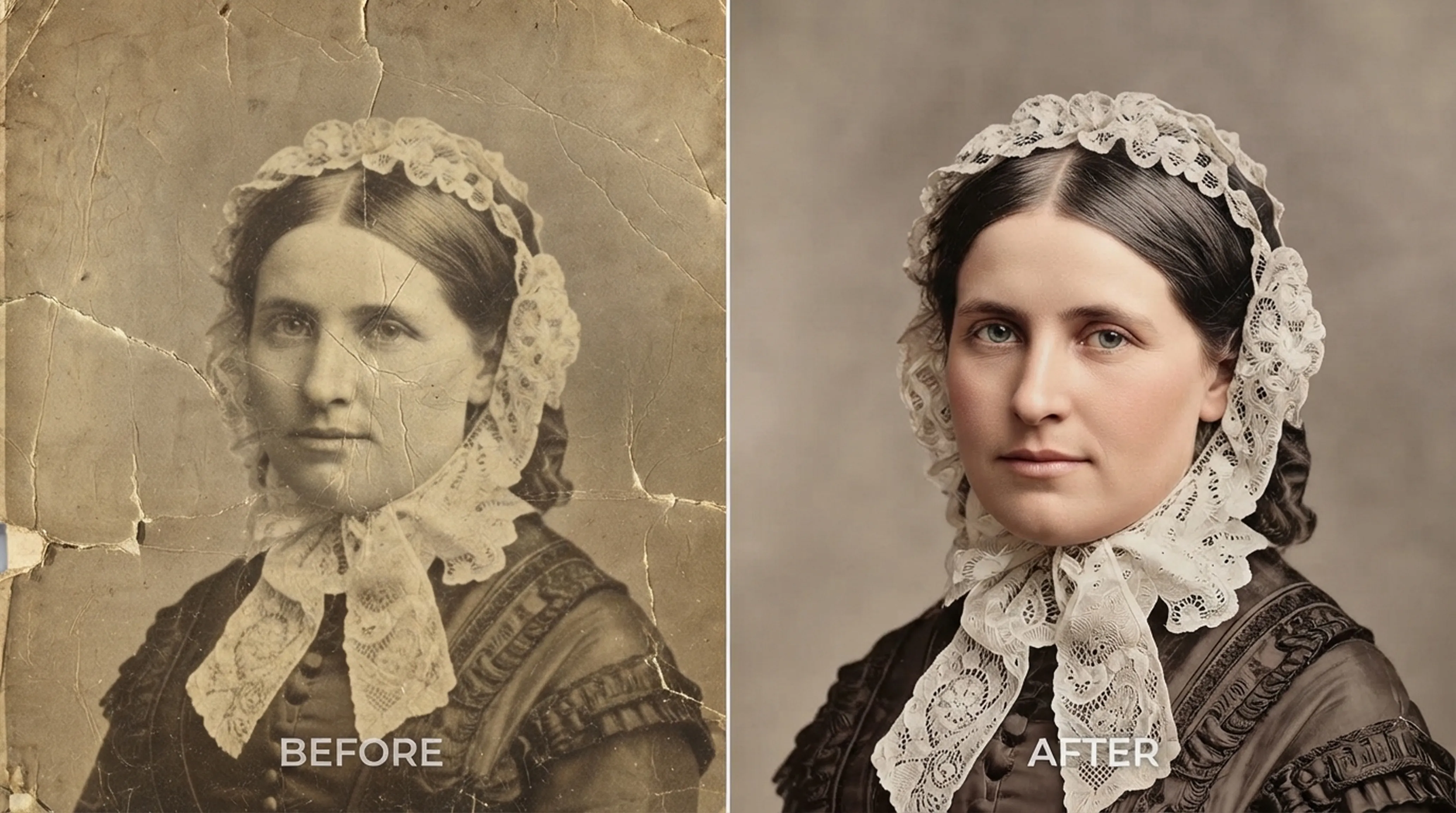
Add realistic color to black-and-white and sepia photos.
Sharpen blurry, low-resolution photos and upscale them.
Clean up scratches, dust, creases, tears and stains.
Recover detail in blurry faces, even in group photos.
Beginner guide
Step-by-step instructions on handling vintage prints, digitizing delicate negatives and using AI tools safely.
Colorization
What AI colorization can and can’t know about the past, and how to choose the right style for each era.
Common questions about how Retrocap handles this.
Open the Animate tool and choose a portrait. Retrocap turns it into a short video with subtle, natural movement, and you can add optional voice narration before saving or sharing it.
A clear, front-facing portrait where the face fills much of the frame. Restore damaged photos first, so scratches and tears don't move with the face.
Animations are short clips of a few seconds, designed to be easy to watch and share.
Yes. The animation is saved as a video that you can keep on your phone or share through messaging apps and social media.
Animating a photo uses credits from your subscription or token packs. The number of credits needed is shown in the app before you start.
Many families find it a moving way to remember someone, but feelings differ. Consider who will see it, ask close relatives if you're unsure, and share it privately first.
Don’t let precious memories fade inside shoe boxes and dusty albums. Restore, colorize and cherish them today.