
Enhancement
How to Fix Blurry Photos with AI
By the Retrocap Team · Updated
TL;DR
To fix a blurry photo, start from the largest, sharpest copy you have, open it in Retrocap, tap Enhance and choose Sharpen & Deblur. Use Upscale x2 if the photo is small. AI fixes soft focus, light motion blur and low resolution well, but cannot fully recover a subject that is only a smudge.
Blurry photos are frustrating because the moment is there, just out of reach. Old prints were often taken with simple cameras, copied several times or scanned at low resolution. Modern AI can recover a lot of that lost sharpness. This guide explains what kinds of blur can be fixed and how to do it with Retrocap’s Enhance tool.
Why old photos look blurry
Not all blur is the same, and the cause affects how well it can be fixed.
| Cause | What it looks like | How well AI fixes it |
|---|---|---|
| Soft lens or slightly missed focus | Everything looks a little soft | Very well |
| Low resolution or small scan | Pixelated or fuzzy when enlarged | Very well, especially with upscaling |
| Compression (messaging apps, old websites) | Blocky patches, smeared detail | Well |
| Light camera shake | Edges slightly doubled or smeared | Moderately well |
| Heavy motion blur | Subject is a streak or smudge | Poorly; can be improved, not recovered |
The most common problem with old family photos is the first two: soft focus and low resolution. Both respond very well to AI.
Step 1: Start from the best copy
AI rebuilds detail from what is in the photo. The more it has, the better the result.
- Use the original print if you have it, rather than a copy of a copy.
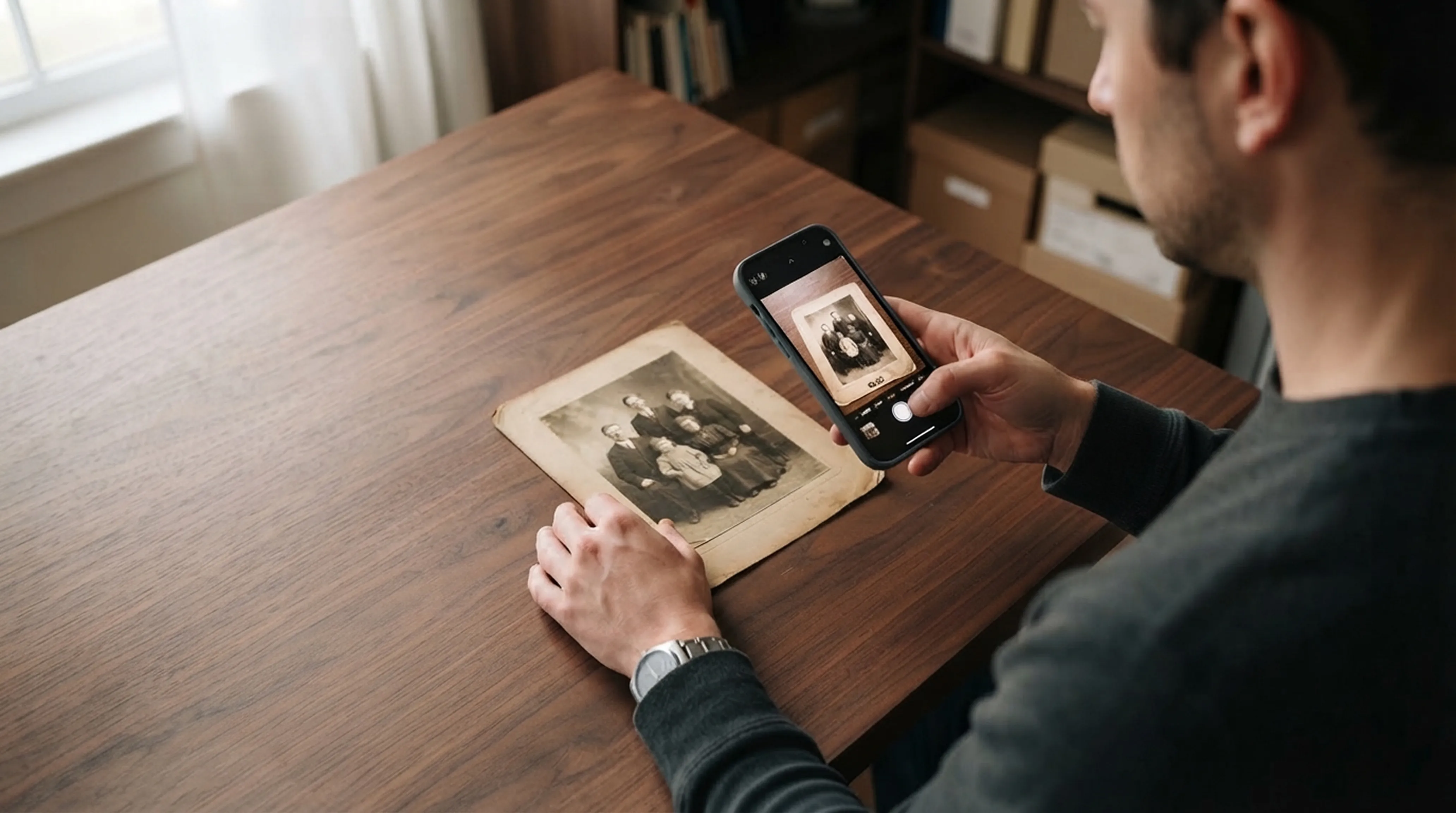
- Photograph it close up, filling the frame, instead of zooming in later.
- Use good light and a steady hand. Rest your elbows on the table or use a timer to avoid adding new blur.
- Ask for original files when relatives share photos through messaging apps.
See our guide to scanning old photos with your phone for more.
Step 2: Sharpen with Enhance
- Open Retrocap and choose the photo.
- Tap Enhance.
- Choose Sharpen & Deblur.
- Compare the result with the original using the slider.
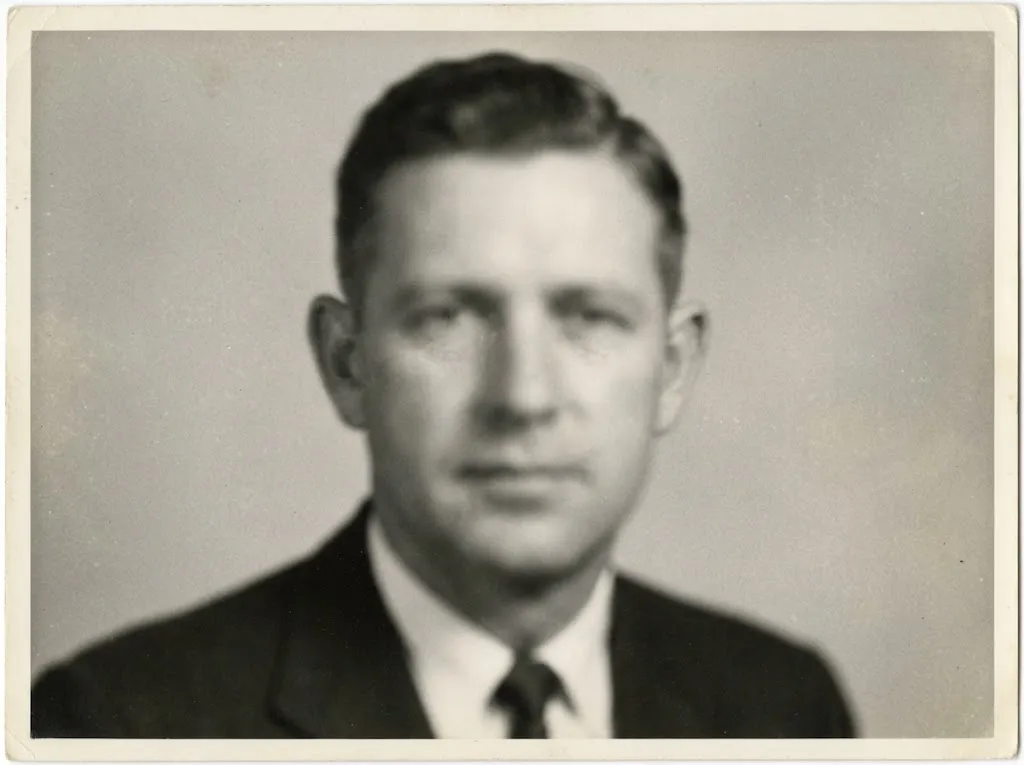
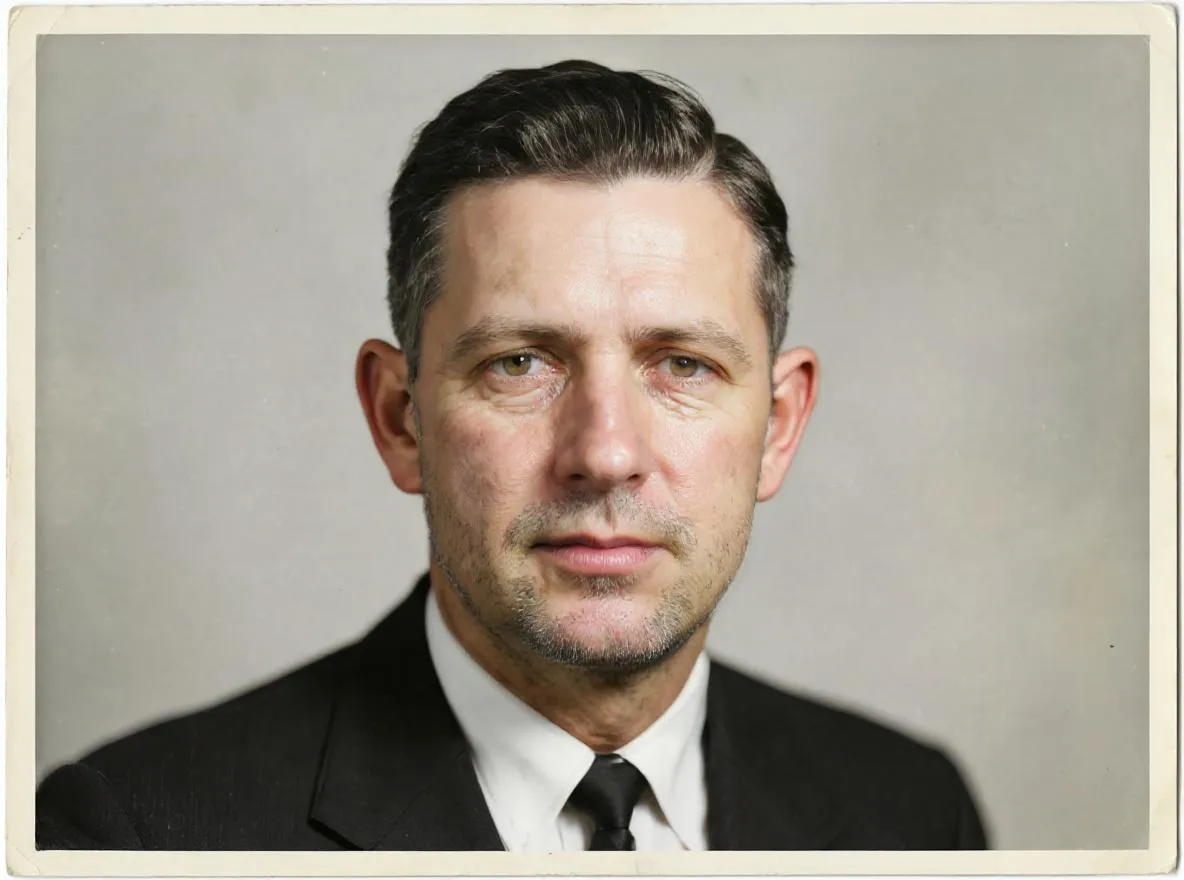
Sharpen & Deblur makes soft edges crisper and brings back detail in eyes, hair, text and fabric.
Step 3: Upscale small photos
If the photo is small, for example a cropped scan or a thumbnail-sized print, use Upscale x2. It doubles the width and height of the photo and fills in new detail, so it looks better on large screens and holds up in print.
A good order is: sharpen first, then upscale, and compare after each step.
Step 4: Fix exposure and color if needed
Blur often comes with other problems. In the same Enhance tool:
- Fix Exposure brightens dark photos and adds depth to washed-out ones.
- Color Correction removes yellow or red tints.
When to use Restore instead
If the photo is also scratched, torn, stained or faded, use Restore instead of Enhance. Restoration repairs physical damage and sharpens at the same time. For photos where only the faces are blurry, see our guide to unblurring a face in a photo.
What AI can’t do
AI sharpening is not magic. When a subject is just a smudge, the information needed to rebuild it isn’t in the photo. The AI will still produce a cleaner image, but details such as facial features may be invented rather than recovered. Always compare the enhanced photo with the original, especially for faces.
Summary
To fix a blurry photo, begin with the largest, sharpest copy you can find, then use Retrocap’s Enhance tool: Sharpen & Deblur for soft photos, Upscale x2 for small ones, and Fix Exposure or Color Correction if needed. Soft focus, low resolution and compression respond very well; heavy motion blur can only be improved.
Frequently asked questions
Can AI really unblur a photo?
AI can sharpen soft focus, light camera shake and low resolution by rebuilding fine detail such as edges, eyes and hair. Very heavy blur, where the subject is barely recognizable, can be improved but not fully recovered.
What is the difference between sharpening and upscaling?
Sharpening makes existing detail crisper at the same size. Upscaling enlarges the photo and fills in new detail. Retrocap's Upscale x2 doubles the width and height.
Why do photos from WhatsApp look blurry?
Messaging apps compress photos to save data, which removes fine detail and adds blocky artifacts. Ask for the original file if you can, or use Enhance to sharpen the compressed copy.
Should I use Enhance or Restore for a blurry photo?
Use Enhance for photos that are clean but blurry. Use Restore if the photo also has scratches, tears, stains or fading; restoration includes sharpening as part of the repair.
Related guides
 Before
 After
AfterEnhancement
How to Unblur a Face in an Old Photo
Sharpen blurry faces in old portraits and group photos with AI. How face enhancement works, how to get the best result and how to check it's still them.
Scanning technique
How to Scan Old Photos with Your Phone Without Glare
Lighting tricks, angle secrets and lens cleaning practices for getting flatbed scanner quality from your smartphone.
 Before
 After
AfterRestoration
How to Restore Faded Photos and Fix Color Casts
Why old photos fade and turn red, yellow or pale, and how to bring back contrast and natural color with AI restoration and color correction.