
Animation
How to Animate Old Photos
By the Retrocap Team · Updated
TL;DR
To animate an old photo, choose a clear, front-facing portrait, restore any scratches or tears first, then open Retrocap's Animate tool. Retrocap turns the portrait into a short video with subtle, natural movement, and you can add optional voice narration. Save the video and share it thoughtfully with family.
Animated photos turn a still portrait into a short video: a gentle turn of the head, a blink, a hint of a smile. For many families, seeing a grandparent or great-grandparent “move” for the first time is a powerful experience. This guide explains how to create one with Retrocap’s Animate tool, which photos work best and how to share the result with care.
Which photos animate best
AI animation works by detecting a face and generating natural movement around it. The clearer the face, the more natural the result.
| Works well | Works less well |
|---|---|
| Front-facing portraits | Side profiles and turned heads |
| Head-and-shoulders framing | Wide shots where faces are small |
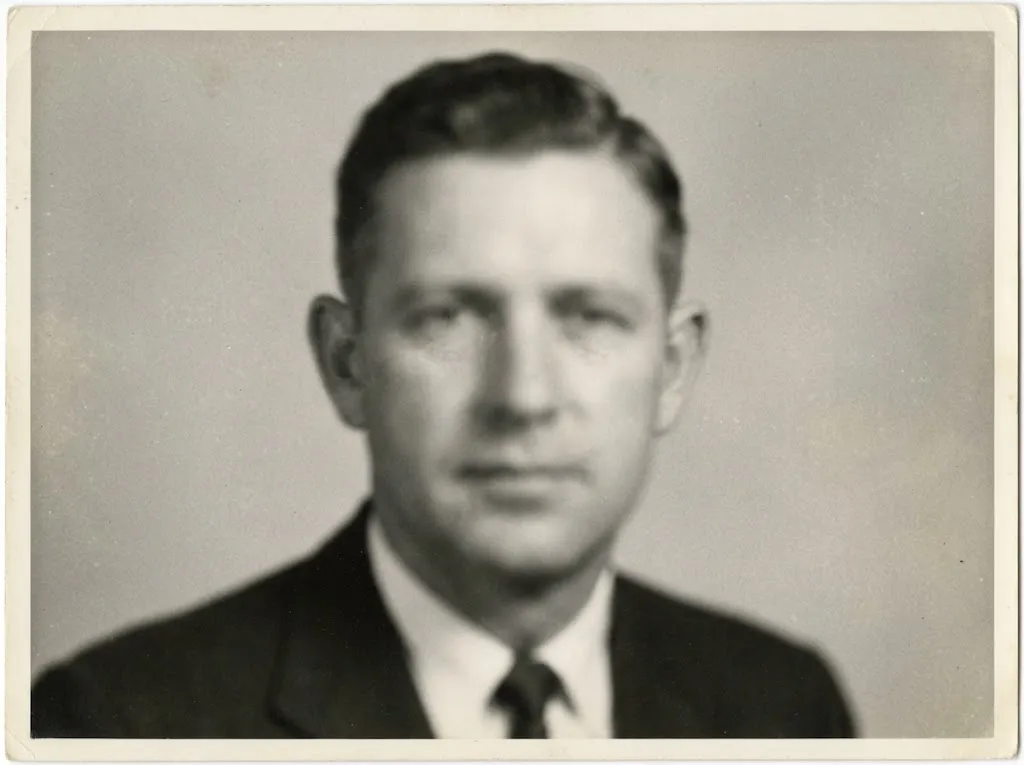
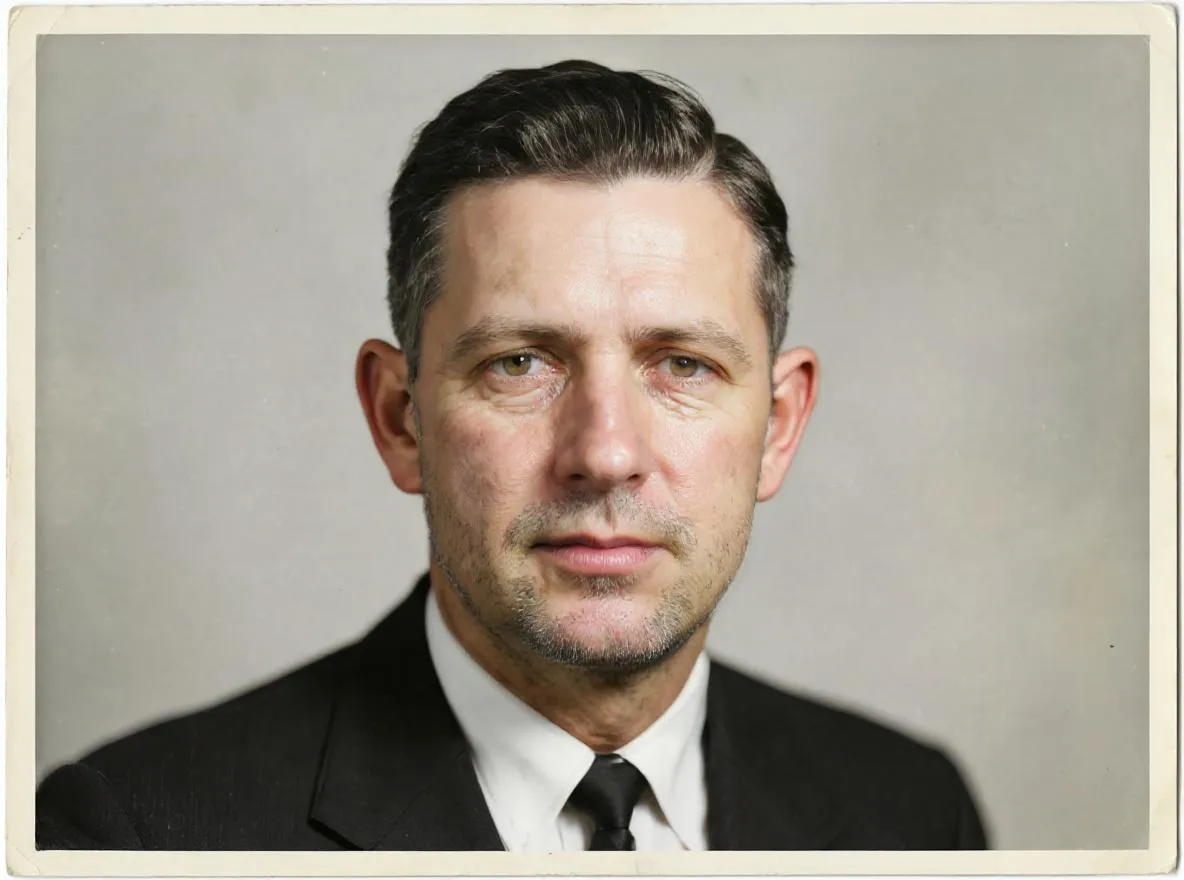
| Clear, sharp faces | Very blurry faces |
| Restored, clean photos | Photos with scratches or tears across the face |
| Neutral or relaxed expressions | Faces partly hidden by hands, hats or shadows |
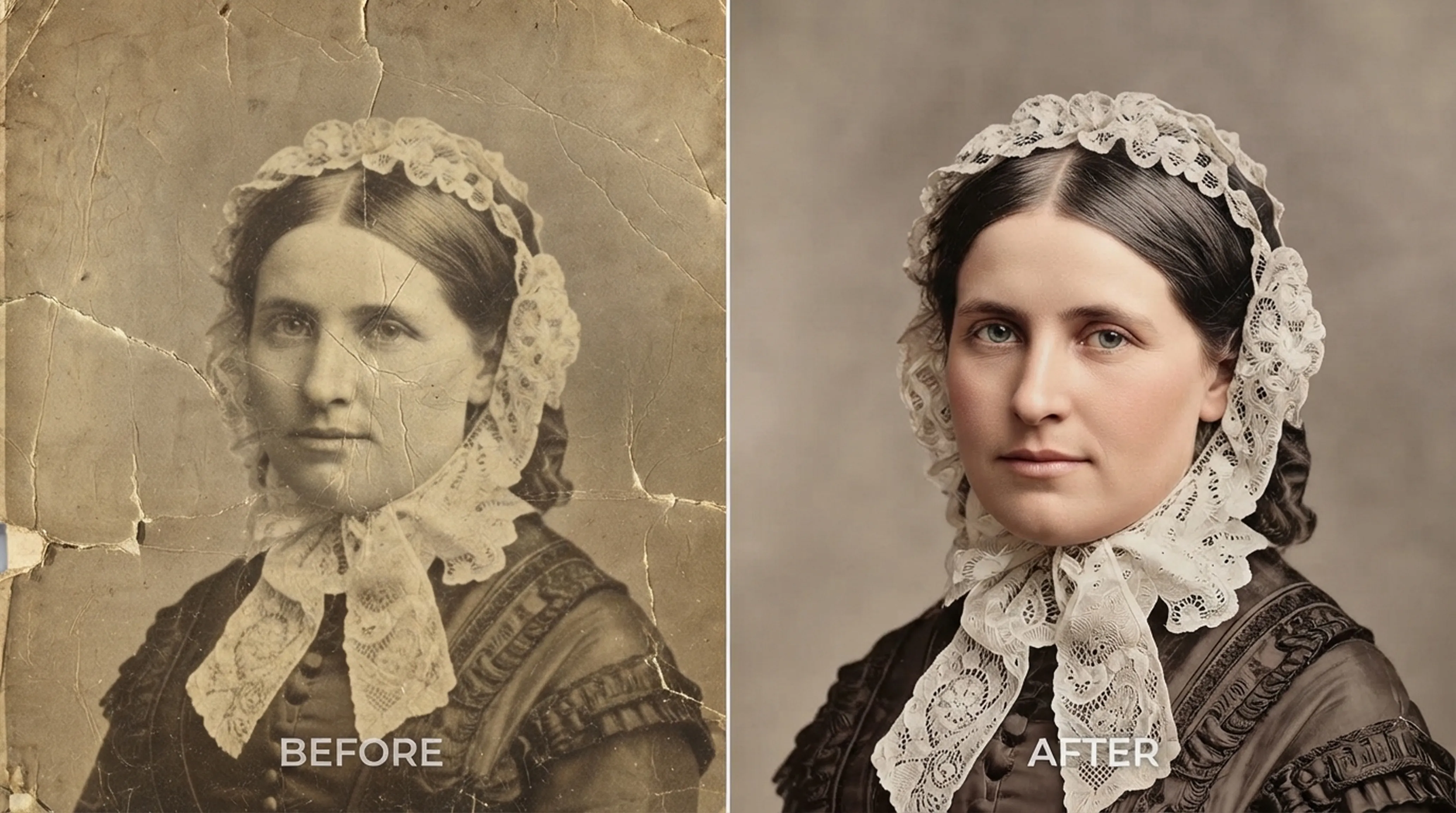
Black-and-white, sepia and color portraits all work. Many people colorize a portrait first and then animate the color version.
Step 1: Restore the photo first
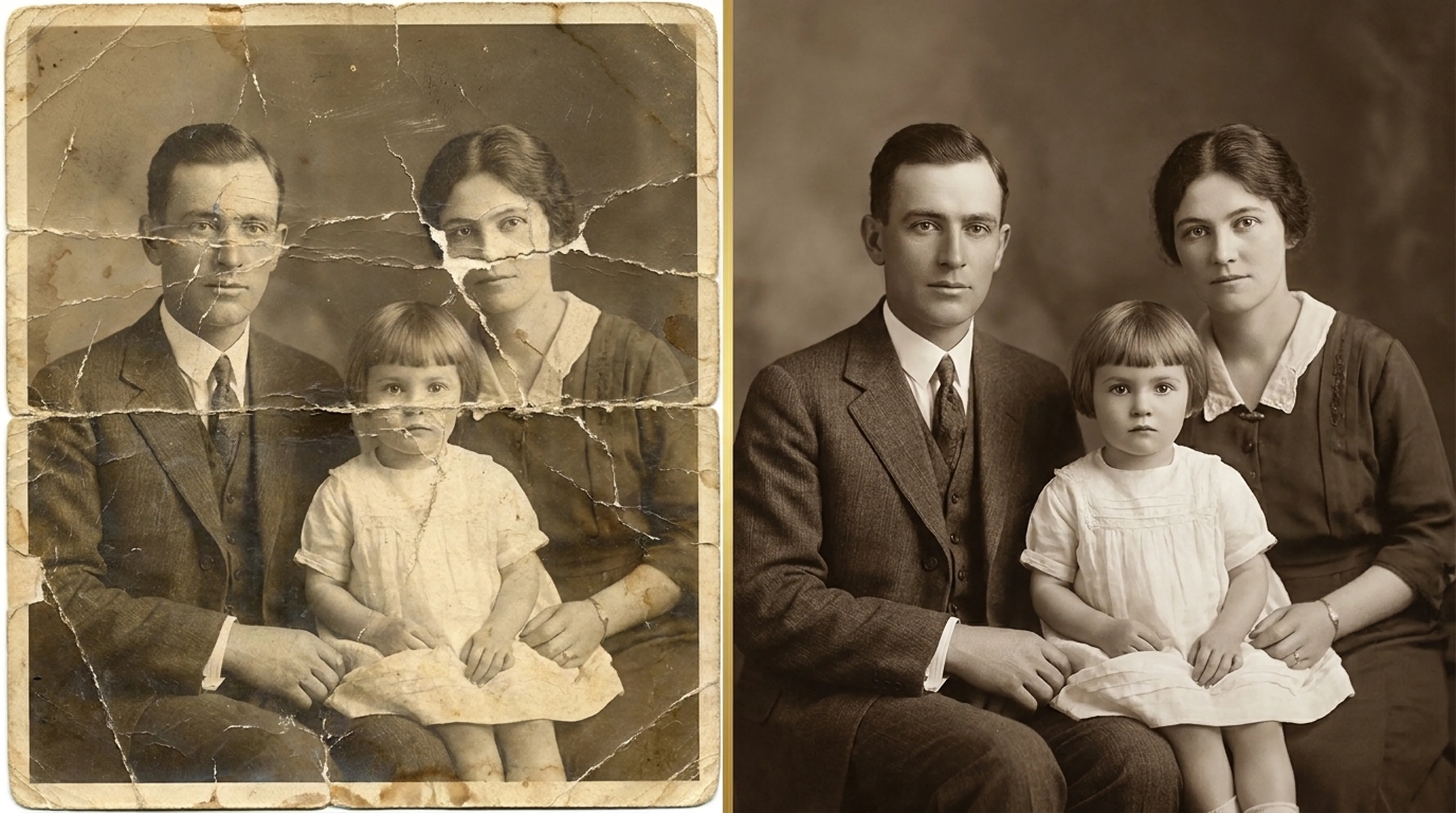
Damage moves with the face. A scratch across a cheek or a crease through an eye will stretch and shift in the video and look strange. Before animating:
- Open the photo in Retrocap and use Restore with Fix Scratches & Tears and Enhance Faces turned on.
- Optionally, colorize a black-and-white photo.
Step 2: Crop to the face
Crop the photo so the face fills a large part of the frame. For group photos, you may get better results by cropping to one person at a time.
Step 3: Animate the portrait
- Open the Animate tool in Retrocap.
- Choose your restored portrait.
- Retrocap creates a short video with subtle, natural movement of the face and head.
Step 4: Add voice narration (optional)
Retrocap lets you add optional voice narration before saving. Families use it to add a short message, a name and date, or a memory about the person. Keep it simple and personal.
Step 5: Save and share
Save the animation to your phone as a video. You can share it in messaging apps, add it to a family album or include it in a slideshow for an anniversary or reunion.
Using animated photos respectfully
Animated portraits are powerful, and that is exactly why they deserve some care.
- Ask close family first, especially when the person has passed away recently. For some people it is comforting; for others it is unsettling.
- Share privately before publicly. Send it to the people closest to the person first.
- Be clear that it is AI. The movement is created by AI. It does not show how the person really moved or smiled. Saying so keeps family history honest.
- Keep the original photo with the animation. The still photo remains the true record.
Ideas for animated family photos
- A grandparent’s wedding portrait for an anniversary
- Great-grandparents for a family reunion slideshow
- A parent’s childhood photo as a birthday surprise
- Ancestors in a family history project, clearly labelled as animations
Summary
To animate an old photo, choose a clear, front-facing portrait, restore any damage, crop to the face and use Retrocap’s Animate tool. Add optional voice narration, save the video and share it thoughtfully. Treat the result as a loving interpretation, and keep the original photo as the record of the moment.
Frequently asked questions
What kind of photo animates best?
A clear, front-facing portrait where the face fills much of the frame. Profiles, very small faces and heavily damaged photos animate less naturally.
Can I add a voice to an animated photo?
Yes. Retrocap lets you add optional voice narration to an animation before you save or share it.
Is the movement in an animated photo real?
No. The movement is created by AI and is an artistic interpretation. It does not show how the person actually moved, so it is best to make that clear when you share it.
Is it appropriate to animate a photo of someone who has passed away?
Many families find it a moving way to remember someone, but feelings differ. Ask close relatives if you're unsure and share the animation privately first.
Related guides
Beginner guide
How to Restore Old Photos: A Complete Beginner’s Guide
Step-by-step instructions on handling vintage prints, digitizing delicate negatives and using AI tools safely.
Colorization
How to Colorize Black and White Photos Realistically
What AI colorization can and can’t know about the past, and how to choose the right style for each era.
 Before
 After
AfterEnhancement
How to Unblur a Face in an Old Photo
Sharpen blurry faces in old portraits and group photos with AI. How face enhancement works, how to get the best result and how to check it's still them.