
Basics
How to Restore Old Photos Without Photoshop
By the Retrocap Team · Updated
TL;DR
You can restore old photos without Photoshop by using an AI restoration app on your phone. Photograph the print, open it in an app such as Retrocap and run Restore with the options that match the damage. AI apps take seconds and need no skills; Photoshop and professional restorers remain better for complex, high-value work.
For years, restoring an old photo meant learning Photoshop or paying a professional. Today, AI apps can repair scratches, creases, stains and fading in seconds, with no editing skills. This guide compares the three main options and shows the simplest no-Photoshop workflow using Retrocap.
Your three options
| AI restoration app | Photoshop (do it yourself) | Professional restorer | |
|---|---|---|---|
| Time per photo | Usually under a minute | 2 to 6 hours for a damaged photo | Days to weeks |
| Skill needed | None | Advanced retouching skills | None, you send the print |
| Equipment | A phone | Computer, software subscription, ideally a scanner | Postage or a visit |
| Control | Presets and options | Full, pixel by pixel | Full, through the restorer |
| Colorization | Included in many apps | Manual painting | Often an extra fee |
| Best for | Family albums, everyday photos | Complex projects, if you have the skills | Irreplaceable photos, large prints, archives |
For most people with a box or album of family photos, an AI app is the practical choice: fast, inexpensive and good enough for sharing, framing and printing at common sizes.
What Photoshop restoration involves
To understand what AI is replacing, it helps to know what manual restoration looks like. A retoucher typically:
- Scans the photo at high resolution.
- Removes dust and scratches with healing and clone tools, area by area.
- Rebuilds torn or missing parts by copying texture from elsewhere in the photo.
- Corrects fading and color casts with curves and color adjustments.
- Sharpens and, if needed, paints color layer by layer.
Each step is skilled work, and a badly damaged photo can take an afternoon. AI restoration performs a similar sequence automatically, in seconds.
The no-Photoshop workflow
Step 1: Photograph the print
Use your phone in soft daylight, without flash, holding it parallel to the print and filling the frame. Our guide to scanning old photos with your phone explains how.
Step 2: Restore
Open the photo in Retrocap and choose Restore:
- Standard for light damage, Deep for heavy damage
- Fix Scratches & Tears for lines, creases and tears
- Remove Stains for water marks and spots
- Enhance Faces for soft faces
Step 3: Enhance, colorize or animate (optional)
- Enhance with Sharpen & Deblur, Fix Exposure, Color Correction or Upscale x2
- Colorize black-and-white or sepia photos in four styles
- Animate portraits into short videos
Step 4: Compare and save
Use the before-and-after slider, zoom in on faces and save the result. Keep the original copy too.
When Photoshop or a professional is still the better choice
AI isn’t the answer to every photo. Consider manual work when:
- Large parts of the image are missing, especially faces, and you need a careful, researched reconstruction.
- The photo will be printed very large, such as for a wall or an exhibition.
- You need precise control, for example to keep certain marks for historical reasons.
- It is a single, irreplaceable photo and you want a specialist to handle the physical print as well.
A practical approach for big projects: restore the whole album with AI, then send the one or two most important photos to a professional.
Summary
You can restore old photos without Photoshop by photographing them with your phone and using an AI restoration app such as Retrocap. It takes seconds instead of hours and needs no editing skills. For most family photos, that is all you need; for complex, high-value work, a skilled retoucher or professional restorer still has the edge.
Frequently asked questions
Is there a free alternative to Photoshop for restoring photos?
Several apps can restore photos without Photoshop. Retrocap is free to download, and restoring photos uses credits from a weekly or yearly subscription or one-time token packs.
Is AI restoration as good as Photoshop?
For typical family photos with scratches, creases, stains and fading, AI restoration gives results that are good enough for sharing and printing at common sizes, in a fraction of the time. A skilled retoucher still has more control over complex or very large images.
When should I use a professional restorer?
For a single irreplaceable photo that will be printed very large, exhibited or archived, or when large parts of the image are missing and need careful manual reconstruction.
Related guides
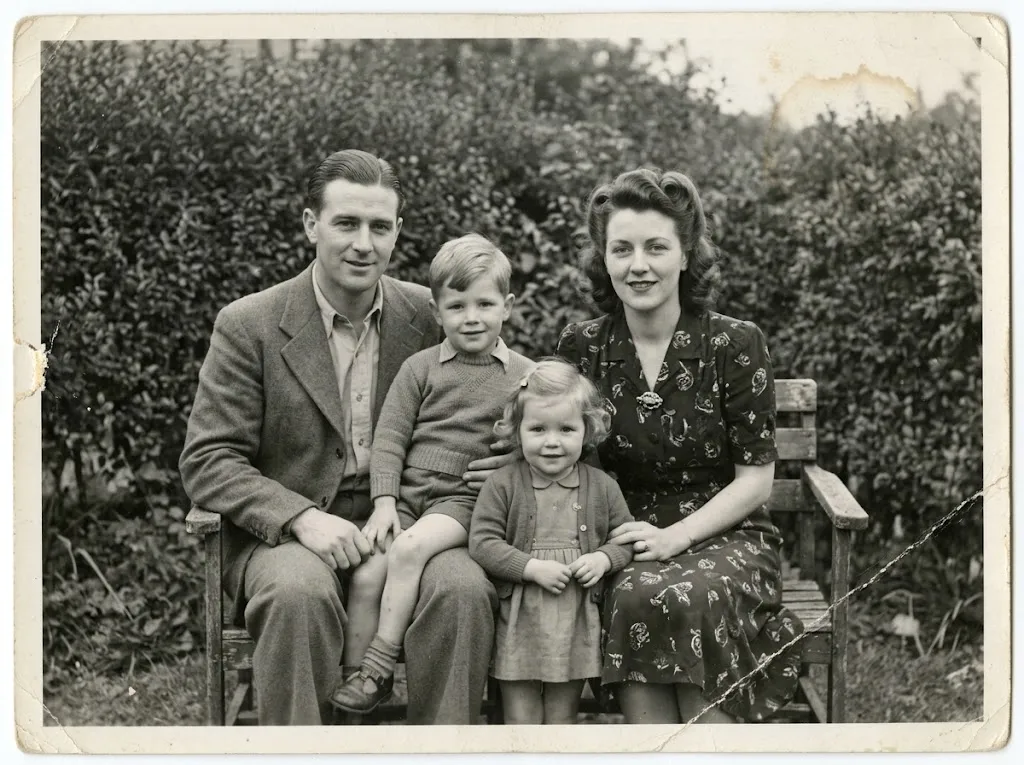 Before
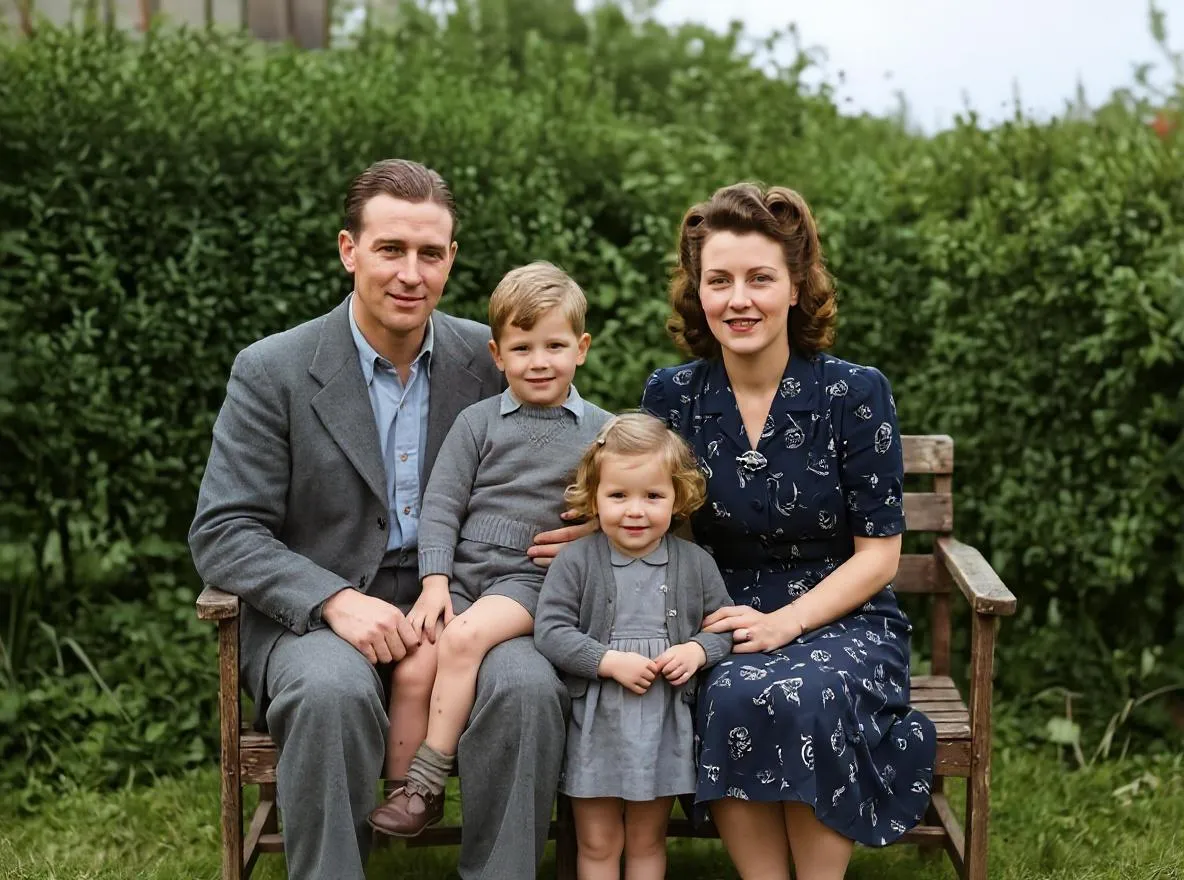 After
AfterBasics
What Is AI Photo Restoration? How It Works
How AI repairs scratches, tears, fading and blur in old photos, what it can and can't fix, and how it compares to manual retouching in Photoshop.
Beginner guide
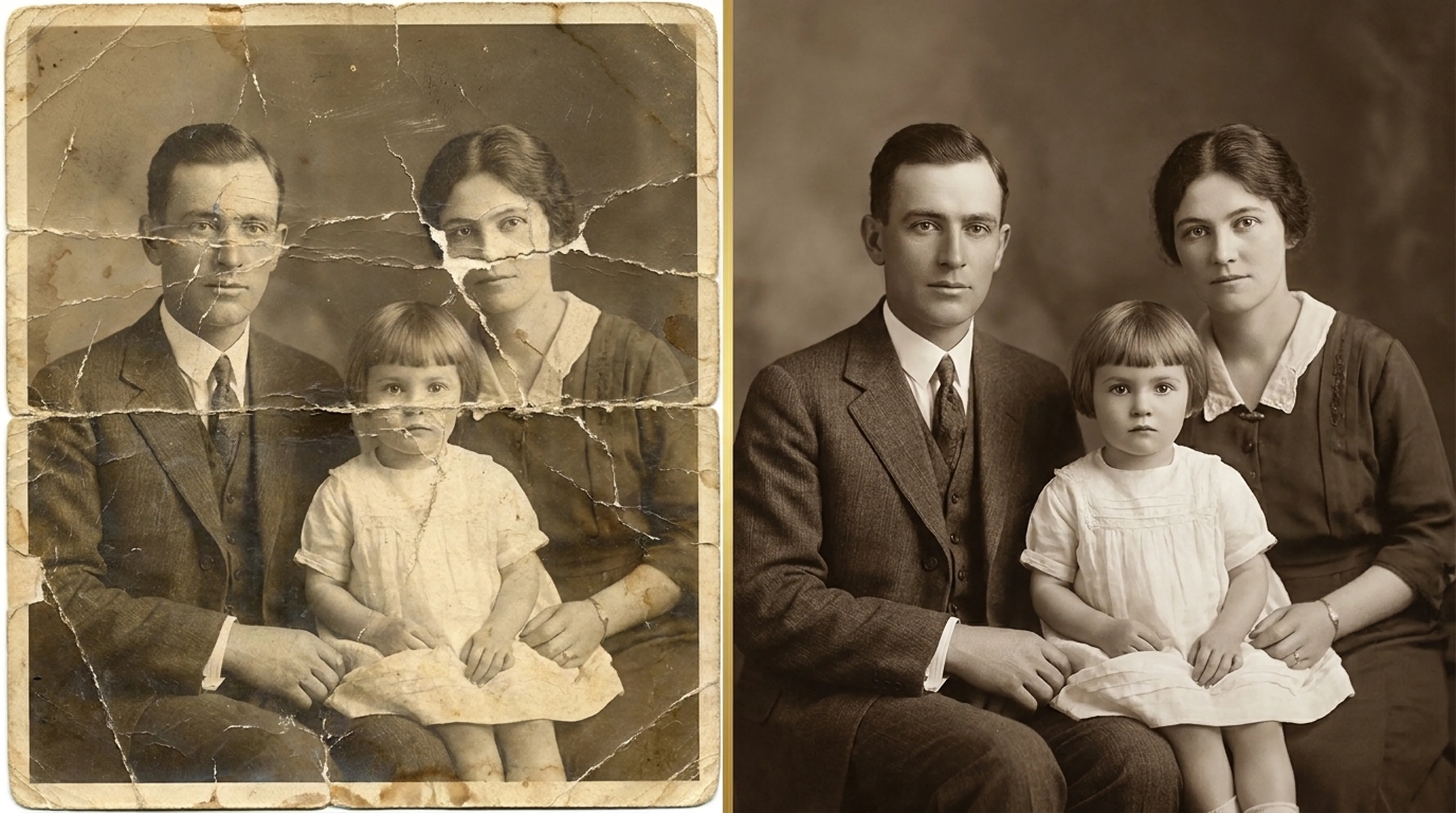
How to Restore Old Photos: A Complete Beginner’s Guide
Step-by-step instructions on handling vintage prints, digitizing delicate negatives and using AI tools safely.
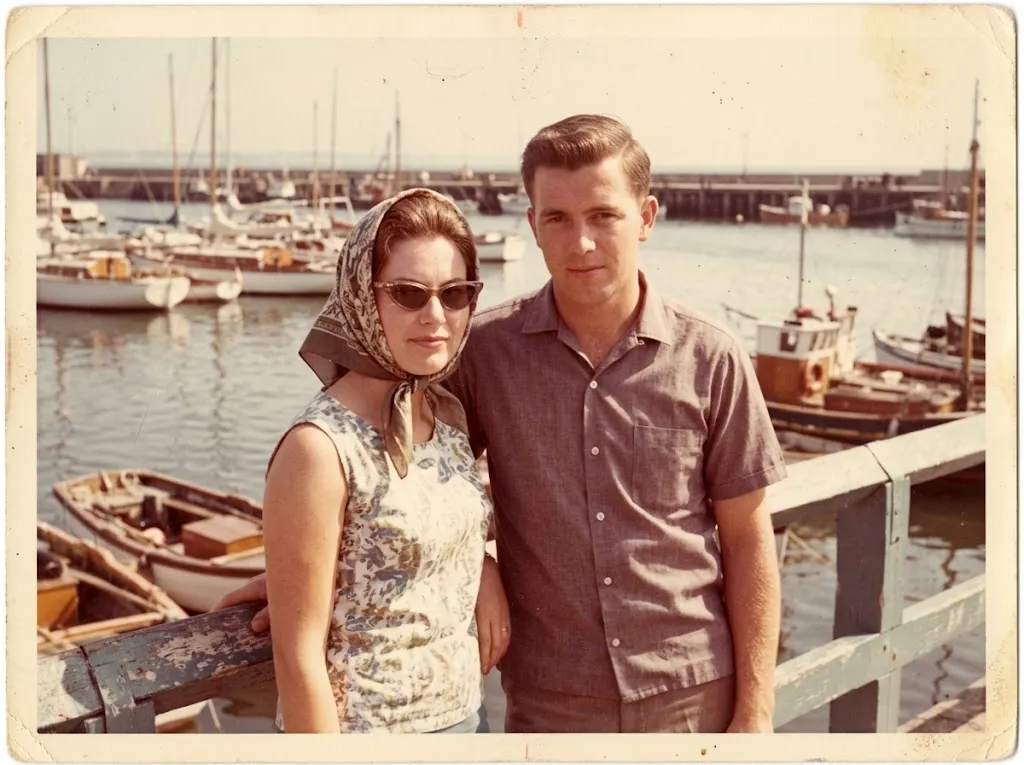 Before
 After
AfterRestoration
How to Restore Old Photos on iPhone
Restore old, scratched and faded photos on iPhone with AI. Capture a good copy of the print, repair it in Retrocap and save it to your Photos library.